
How to change your password through the G2G Account System
Who can change their password?
All registered users can change their password.
Where do I change my password?
You can change your G2G account password on the “Settings” page, which you can access from the navigation bar.
The navigation bar with a user’s avatar and username outlined in purple is shown above.
Look for your avatar and username in the top-right of the page. Click to open the user menu.
Select “Settings” from the menu that drops down. This will take you to the “Settings” page.
Note: This article only applies to accounts made through G2G’s Account System. If your G2G community uses a single-sign on (SSO) system, password changes will be handled through that system.
The user menu is shown above. The “Settings” button is highlighted in purple.
How do I update my password?
On the “Settings” page, you will see a section titled “Your Information.” If you don’t see this section, look for the menu on the left. Click “My information” to open up the “Your Information” section.
Note: In rare instances, the option for a user to update their password will be deactivated. This is only done upon client request.
Find your password in the “Your Information” section, then click the “Update” button to the right.
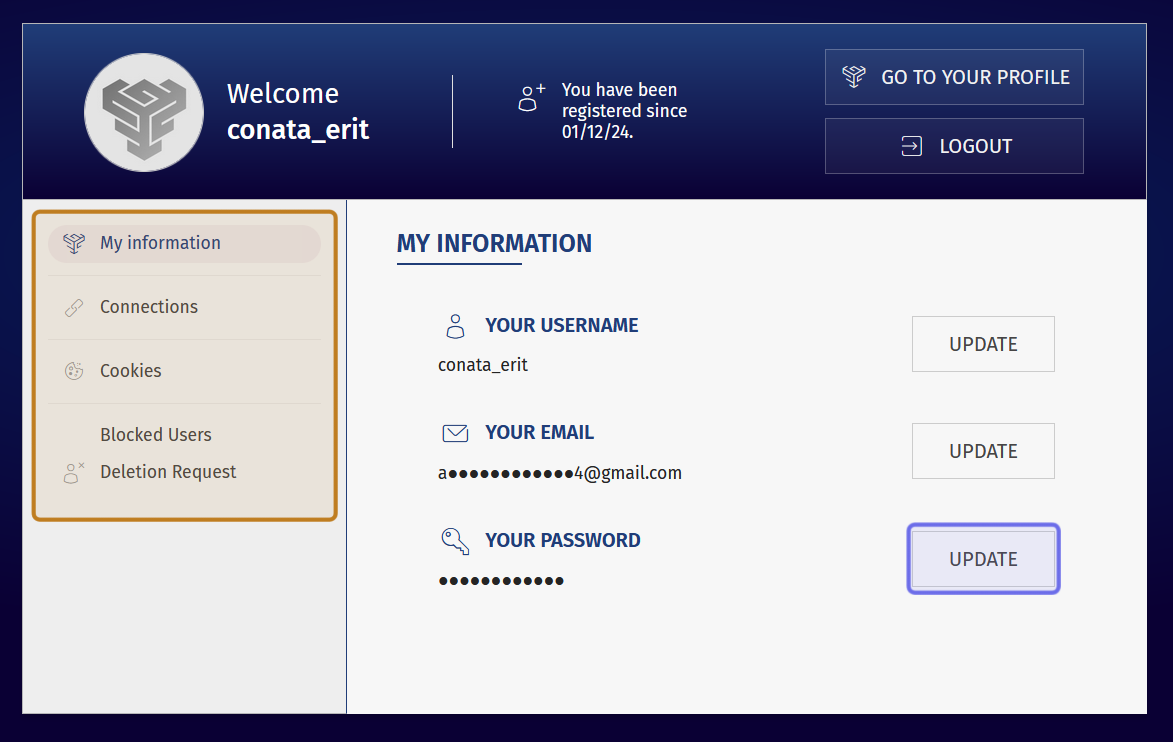
An account’s “Settings” page is shown above. The menu is highlighted in yellow. The “Update” button to change the account’s password is highlighted in purple.
A new page will open prompting you to enter a new password. Type a new password in the “New password” field.
Confirm the password by typing it again in the field labeled “Confirm password."
Then, click the “Confirm” button found beneath the two text fields.
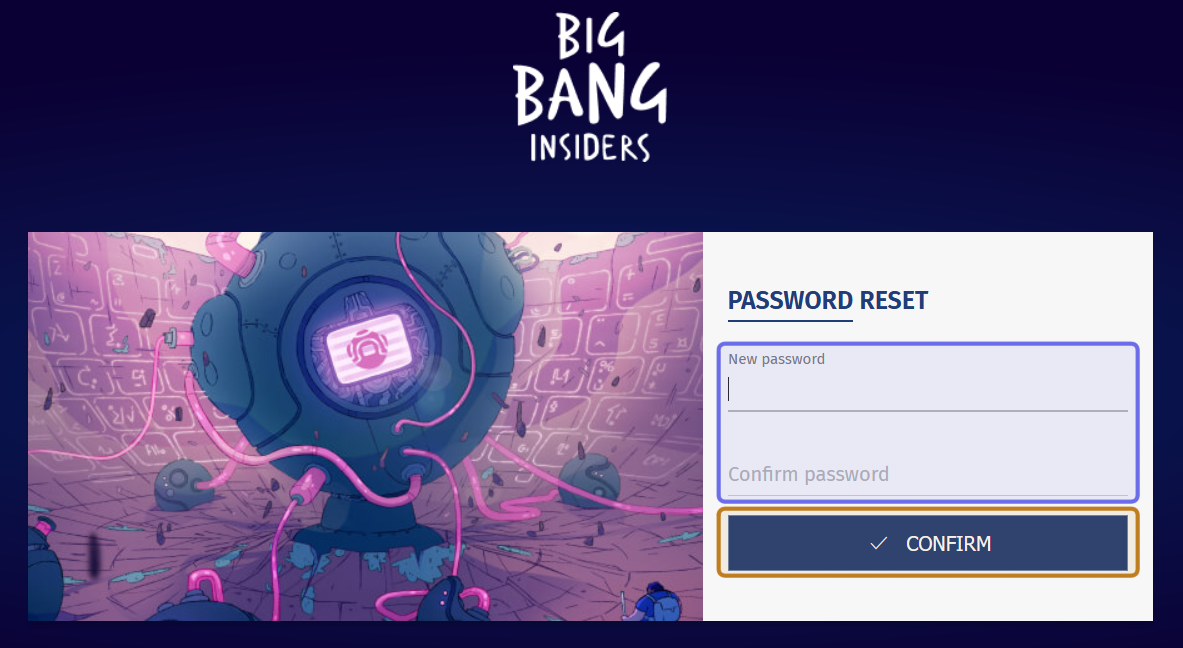
The “Update” button links to the page shown above. The fields where a user enters their new password are highlighted in purple. The “Confirm” button is highlighted in yellow.
An email will be sent to your registered email address to confirm that the change has been made.
How do I recover my password?
You can also change your password if you’ve forgotten it by clicking “Have you lost your password?” on the log-in page. “Have you lost your password?” is found beneath the “Confirm” button that you click to log-in.
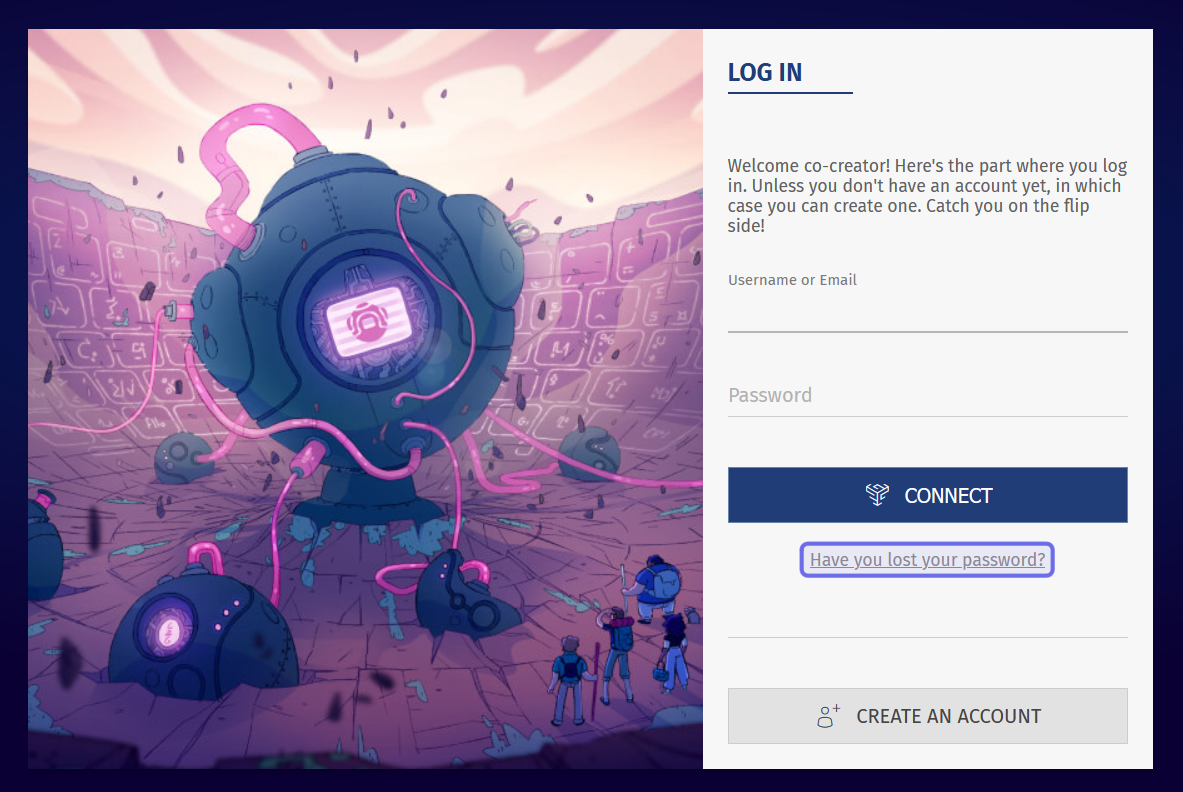
An example of a games2gether log-in page is shown above. The “Have you lost your password?” button is highlighted in purple.
This will take you to the “Password Recovery” page. Enter your registered email into the field labeled “Email.” Then, click “Send.”
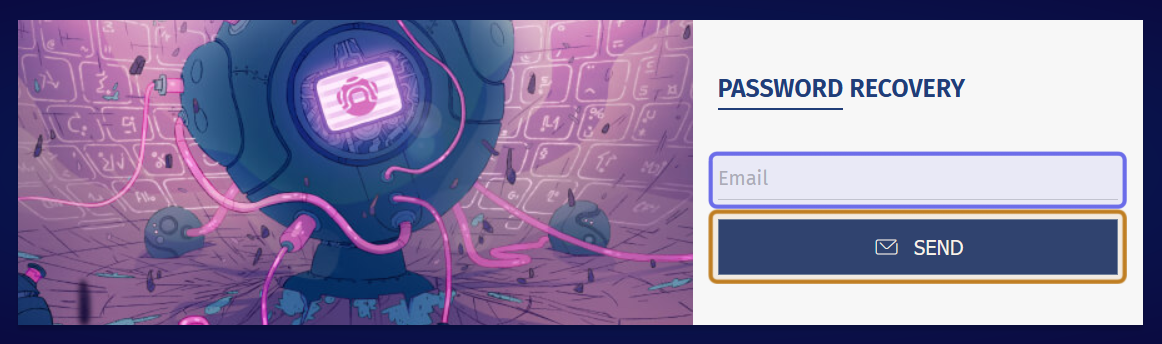
An example of a “Password Recovery” page is shown above. The field to enter the registered email is highlighted in purple. The “Send” button is highlighted in yellow.
An email will be sent to you with a link to reset your password. Click on the link shared in the email.
Note: Always be cautious with email links! We will only send you an email to change your password if you have requested it using the process described in this section.
The link opens the “Password Reset” page.
Type a new password in the “New password” field.
Confirm the password by typing it again in the field labeled “Confirm password."
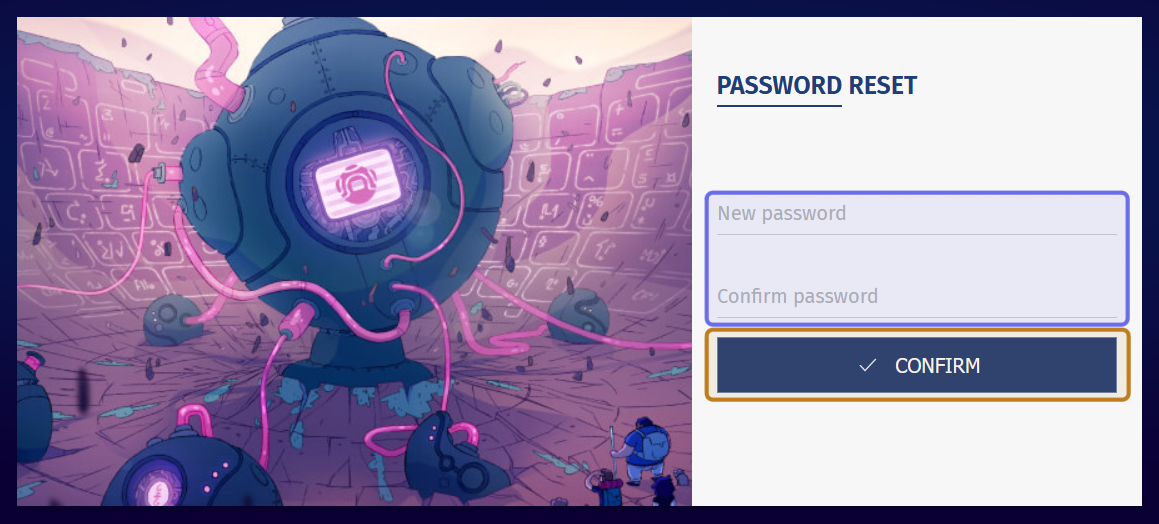
The email sent from the “Password Recovery” page will link to a page similar to the one above. The fields to enter and confirm a new password are highlighted in purple. The “Confirm” button is highlighted in yellow.
Click the “Confirm” button beneath the two text fields. Your password will be updated and you should now be able to log-in to your account.