
How to search for a contest in the back office ?
Who can search for a contest in the back office?
Admins and Devs can search for contests in the back office.
Where do I search for contests in the back office?
Select a Universe with the “Contest” feature enabled from the back office “Manage” menu.
Click “Contests” in the Universe menu.
The page header has two tabs. Click the “All Contests” tab.

The “Contests” page header is shown above. The “All Contests” tab is highlighted in purple.
You can search for a contest by scrolling through the list of contests at the bottom of the page. Narrow down the list of contests using the options in the “Filters” box.
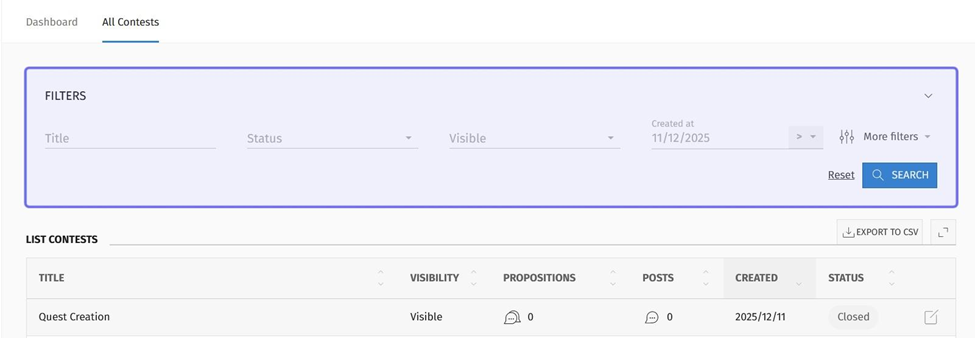
The “Filters” box under the “All Contests” tab is highlighted in purple.
How do I search for contests by keyword in the back office?
The leftmost field in the “Filters” box is the “Title” field. Use this field to search for contests by keyword.
Type a keyword into the “Title” field. This filter is not case sensitive, but the spelling must match. If you are searching for a phrase, the order and spelling of words must match.
Click “Search.”
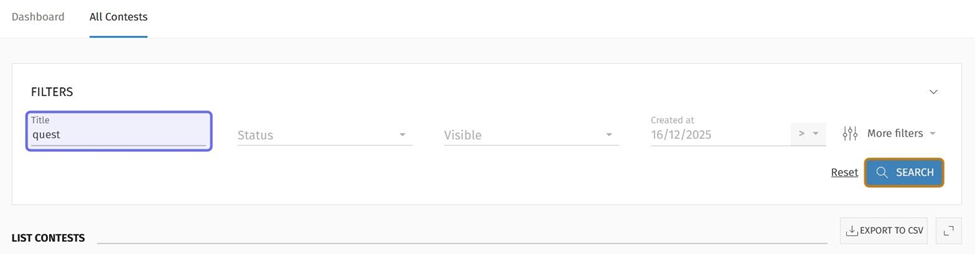
The “Title” field is highlighted here in purple. The “Search” button at the bottom right of the “Filters” box is highlighted in yellow.
The list of contents beneath the “Filters” box will be updated to only include contests with a title that matches the keyword or phrase.
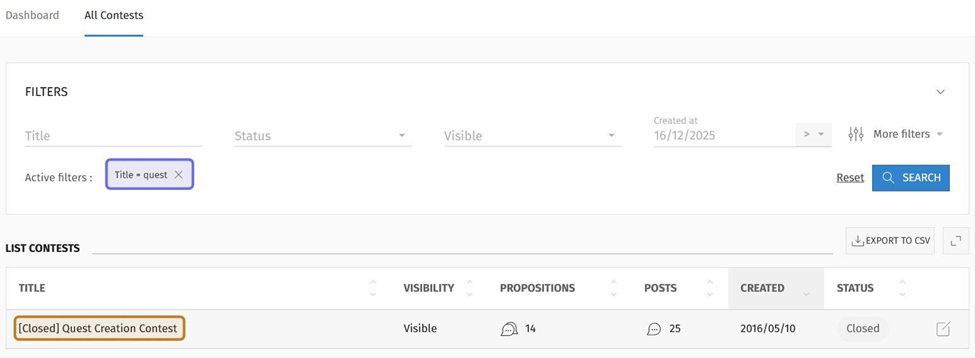
The “All Contests” tab is pictured above. The active filter, for the keyword “quest,” is highlighted in purple. A matching result is highlighted in yellow.
Note: Click on a contest title in the list of contests to view that contest’s dashboard.
How do I filter the list of contests in the back office?
The “Filters” box also allows you to narrow down the list of contests by various pieces of information, such as a contest’s status and the number of propositions that users have submitted to a contest.
Status
The “Status” dropdown is to the right of the “Title” search field. Click the “Status” dropdown to filter the list of contests by whether the contest is open or closed.
Select “Is Open” from the dropdown to show only open contests.
Select “Is not Open” from the dropdown to show only closed contests.
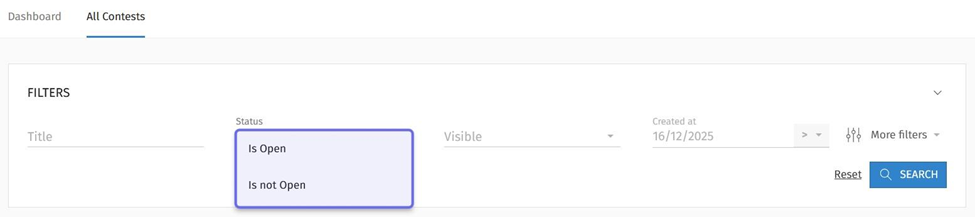
The expanded “Status” dropdown is pictured above. It is highlighted here in purple.
Visibility
The “Visible” dropdown is to the right of the “Status” dropdown. Click the “Visible” dropdown to filter the list of contests by whether or not the contest is visible to users on the front end.
Select “Is Visible” to show only contests that users can view on the front end.
Select “Is not Visible” to show only contests that users are unable to view.
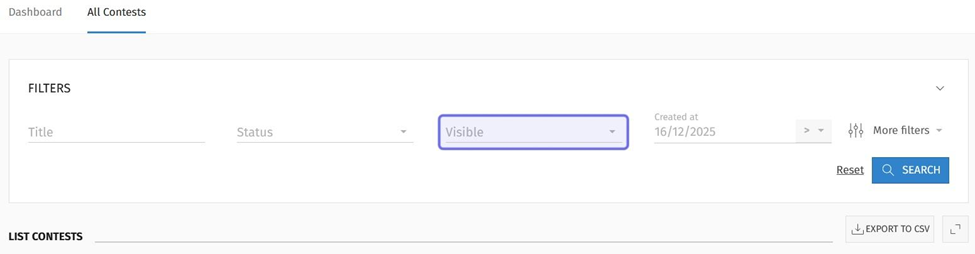
The “Visible” dropdown is highlighted above in purple.
Once you make your selection, the filter will be added. You can view active filters at the bottom left of the “Filters” box.
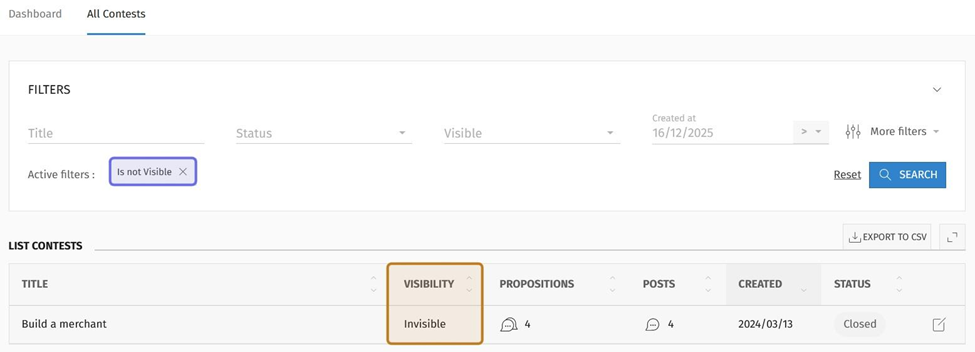
The active “Visible” filter is shown highlighted in purple. A matching result is shown highlighted in yellow.
Creation Date
The rightmost field in the “Filters” box is “Created at.” You can use this field to filter contests based on when they were first created.
To filter by a date, click the arrow on the right-hand side of the “Created at” field. Three options will drop down: “> After,” “< Before,” and “= Equal.” Select an operator from the dropdown.
Selecting “> After” will display contests created later than the selected date.
“< Before” will display contests created earlier than that date.
“= Equal” will display only contests created on that specified date.

The “Filters” box is shown above with the arrow in the “Created at” field highlighted in purple. Clicking this arrow opens a dropdown of operators.
To specify a date, click on the date field. A date picker will appear. Select the desired date from the calendar to add the filter.
More filters
On the right-hand side of the “Filters” box is a button labeled “More filters.” Click on “More filters” to open further options to narrow down the list of contests.

The “Filters” box is pictured above. The “More filters” button is highlighted in purple.
Propositions
To filter by the number of propositions that have been submitted to a contest, click the arrow on the right side of the “Propositions count” field. Three options will drop down.
Select whether you want to filter for results that are “> Superior” (greater than); “< Inferior” (less than); or “= Equal” to a specific number.
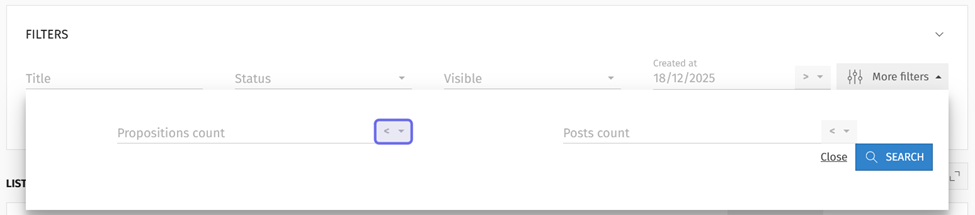
The “More filters” fields are pictured above. The arrow to select an operator for the “Propositions count” field is highlighted in purple.
Then, enter a number in the “Propositions count” field.
Click the “Search” button to add a new filter. The contests list will be updated to show only contests that meet the new criteria.

The “Propositions count” field is highlighted in purple above. The “Search” button is highlighted in yellow.
Posts
To filter by the number of posts in a contest, click the arrow on the right of the “Posts count” field. Three options will drop down.
Select whether you want to filter for results that are “> Superior” (greater than); “< Inferior” (less than); or “= Equal” to a specific number.
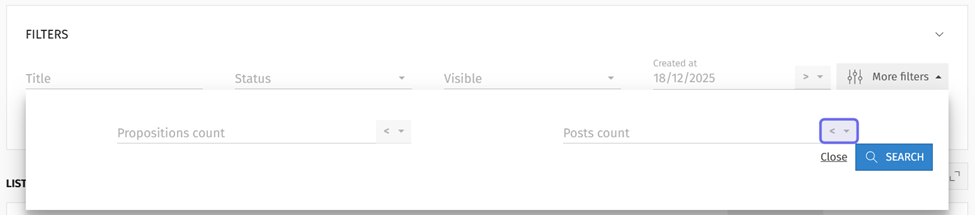
The “More filters” fields are pictured above. The arrow to select an operator for the “Posts count” field is highlighted in purple.
Then, enter a number in the “Posts count” field.
Click “Search” to add the new filter. The list of contests will update to only include contests that have a number of posts that meet the new criteria.
How do I sort contests in the back office?
The list of contests below the “Filters” box is laid out in a table. The list can be sorted by any of the table columns. You can sort the lists of contests with or without additional filters.
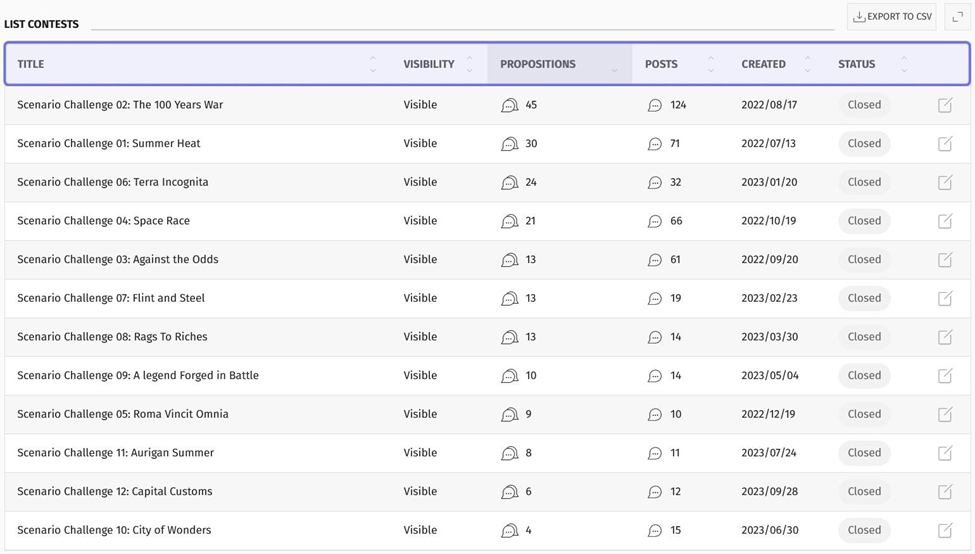
A table containing a list of contests is pictured above with the column headers highlighted in purple.
Click “Title” to sort contest titles alphabetically. Click again to reverse the sort.
Click “Visibility” to list visible contests at the top, followed by invisible contests. Click again to reverse the sort.
Click “Propositions” to sort contests by the lowest number of propositions submitted to the highest number submitted. Click again to reverse the sort.
Click “Posts” to sort contests by the lowest number of posts to the highest number. Click again to reverse the sort.
Click “Created” to sort by the earliest created contests to the most recent. Click again to reverse the sort. The list of contests is sorted from the most recently to least recently created by default.
Click “Status” to list open contests at the top of the list, followed by closed contests. Click again to reverse the sort.
Once you have filtered and sorted the list, you can export it to .csv by clicking the “Export to CSV” button. The “Export to CSV” button is located above the list on the right-hand side.

The “Export to CSV” button is highlighted in purple.