
How to manage IP and domain rules
Who can manage the “IP and Domain Rules” settings?
Admin and Devs can manage IP and domain rules.
Where can I manage IP and domain rules?
You can manage IP and domain rules in the back office. Click “Settings” at the bottom of the “Manage” menu.
Then, click “IP & Domain Rules” in the submenu.
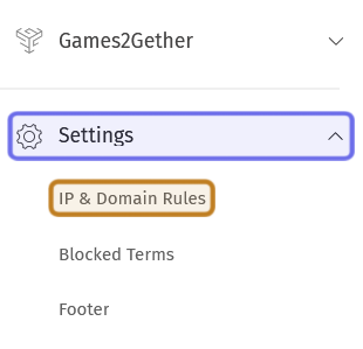
“Settings” in the “Manage” menu is outlined in purple. The submenu is expanded. “IP & Domain Rules” is highlighted in yellow.
At the top of the “IP & Domain Rules” page are two tabs. Click “IP Address” to manage IP addresses. Click “Domain” to manage domains.
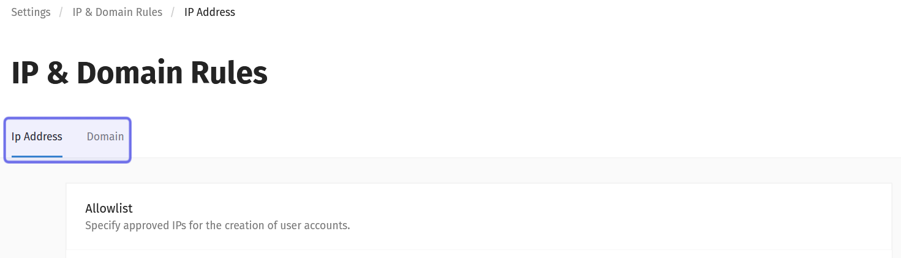
The “IP & Domain Rules” header is shown above. The “IP Address” and “Domain” tabs are highlighted in purple.
How do I add an IP to the allowlist?
The option to add an IP to the allowlist is located under the “IP Address” tab. Below the tab is a section labeled “Allowlist” with two fields.
Enter the IP you want to exempt from account creation restrictions in the field labeled “Allow IP.”
Note: You can also add IP addresses to the allowlist on the “Manage allowlist” page.
Below the “Allow IP” field is a text box labeled “Description.” Add some text to identify the IP in the “Description” field.
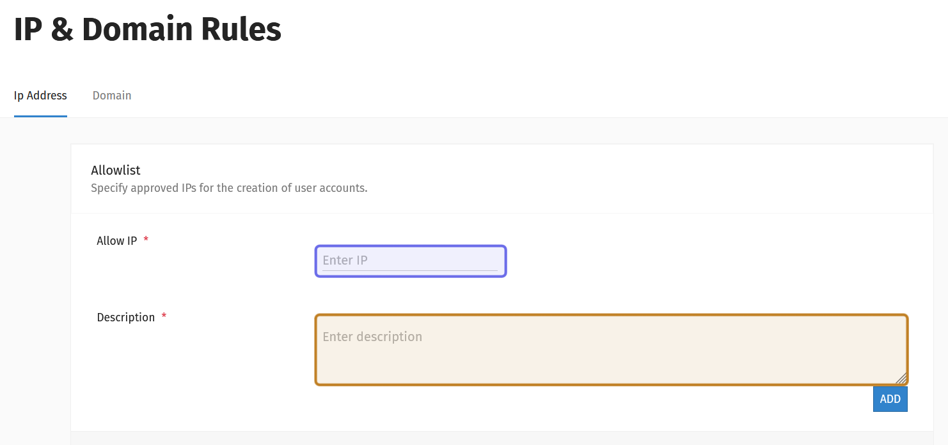
The section where you can add an IP to the allowlist is shown above. The “Allow IP” field is highlighted in purple. The “Description” field is highlighted in yellow.
Click “Add” to add the IP to the allowlist. The “Add” button is below the “Description” field on the right.
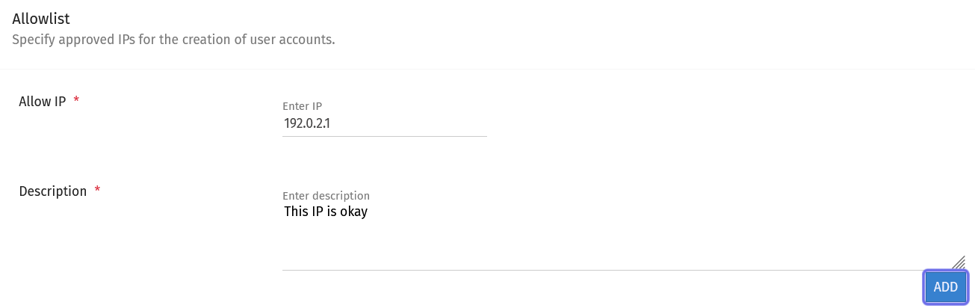
The “Add” button below the “Description” field is shown above outlined in purple.
You will be able to see the IP added beneath the “Add” button. To make changes to or delete the IP, click “Manage allowlist.”
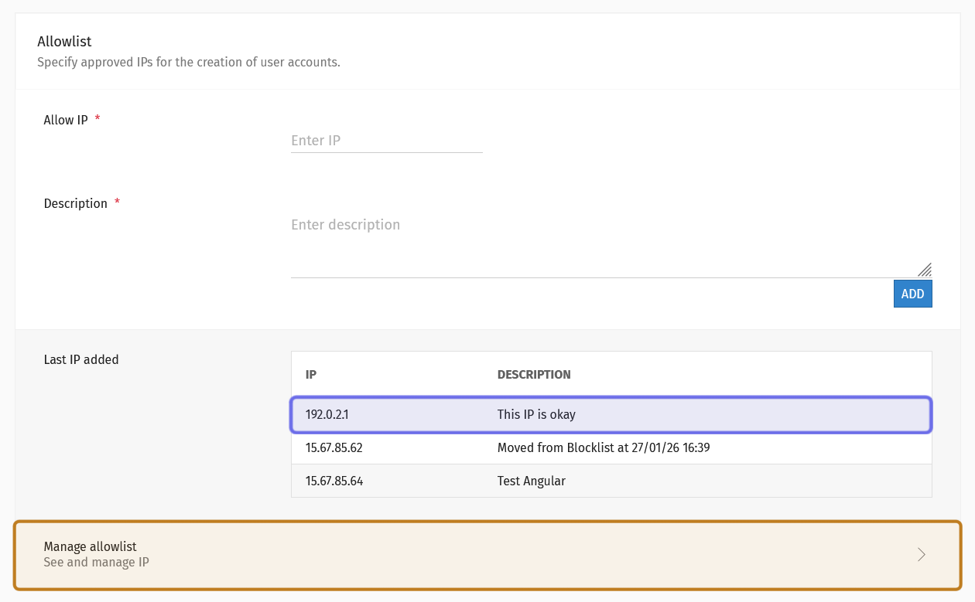
The most recently added IP is shown highlighted in purple. “Manage allowlist” is highlighted in yellow.
How do I add an IP to the blocklist?
IP addresses cannot be added manually to the blocklist. IP addresses are monitored automatically and added to the blocklist if an IP is used to create three new accounts in one day. If an IP is added to the blocklist in error, you can delete it or move it to the allowlist.
How do I manage IPs?
To manage IP addresses, click “Manage allowlist” or “Manage blocklist” under the “IP Address” tab. Choose “Manage allowlist” to edit or delete an IP from the allowlist. Choose “Manage blocklist” to move or delete an IP from the blocklist.
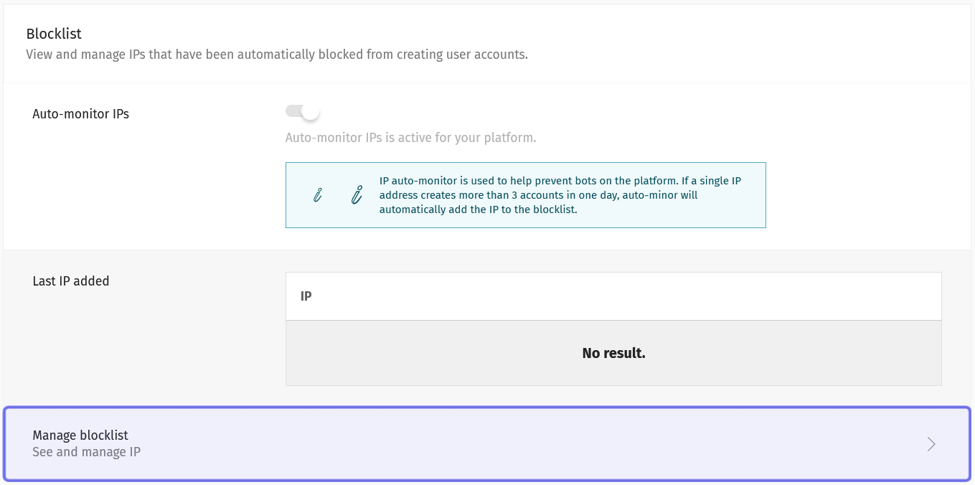
“Manage blocklist” under the “IP Address” tab is shown highlighted in purple above.
Search for an IP
Both the “Manage allowlist” and “Manage blocklist” pages have a “Filters” box and a table with all IPs in the specified list.
Search for an IP by entering an IP address or part of an IP address into the text field found in the “Filters” box.
Click “Search” to filter the list for IP addresses that match your search term.
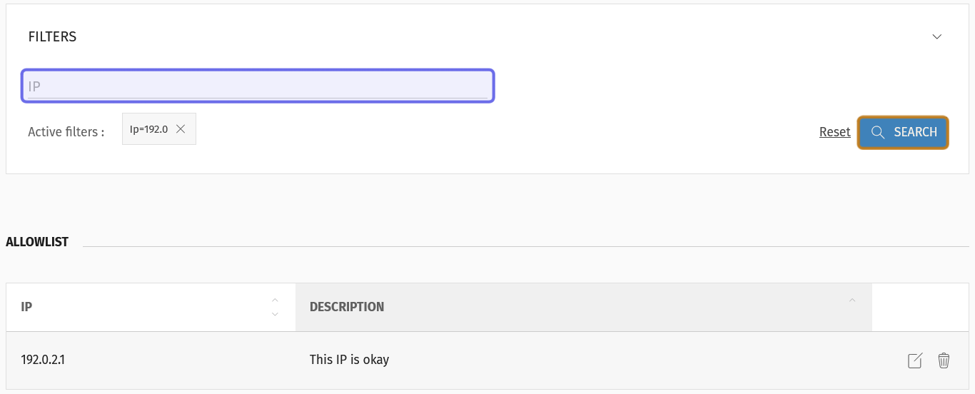
The “Filters” box and a filtered allowlist are shown above. The search field is highlighted in purple. The “Search” button is highlighted in yellow.
Edit an IP address on the allowlist
Once you’ve located the IP you want to edit in the allowlist, click the “Edit” button on the right-hand side of the row.

The “Edit” button is highlighted in purple above.
The IP address and description will appear in the fields at the top of the page. Edit the fields as needed.
Below the “Description” field is an “Update” button. Click “Update” to save your changes.
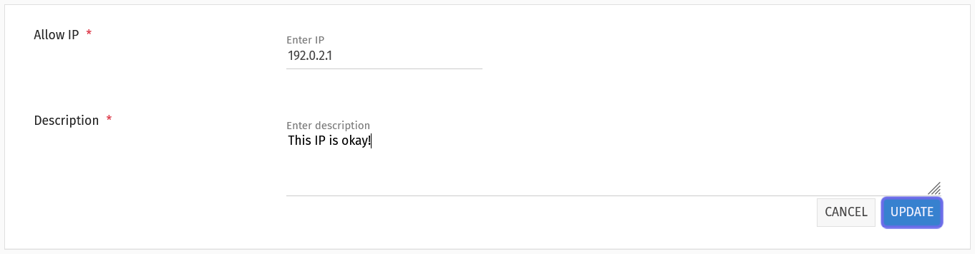
The fields to edit an IP address are shown above. The “Update” button is outlined in purple.
Delete an IP address
Navigate to either “Manage allowlist” or “Manage blocklist,” depending on the list that you want to delete an IP address from.
Search or scroll to locate the IP address you want to delete. There will be two icons on the rightmost side of that IP’s row in the list.
Click the trash can icon. A window will pop up asking you to confirm that you want to delete the IP address from the list.
Click “Delete” to confirm.

The “Delete” button is highlighted in purple above.
Move an IP address on the blocklist
IP addresses that have been automatically added to the blocklist can be moved to the allowlist. To move an IP address, navigate to the “Manage blocklist” page.
Search or scroll to locate the IP that you want to move. There will be two icons on the rightmost side of that IP’s row in the list. The “Move” button is an icon with an arrow.
Click the “Move” button. A window will pop up asking you to confirm that you want to move the IP address.
Click “Move To Allowlist” to confirm.

The “Move” button is highlighted in purple above.
How do I add a domain to the allowlist?
Check that you are under the “Domain” tab. Beneath the tab is a section labeled “Allowlist.”
Note: You can also add domains to the allowlist on the “Manage allowlist” page.
Enter the domain that you want to permit into the “Allow domain” field.
Then, click “Add.”
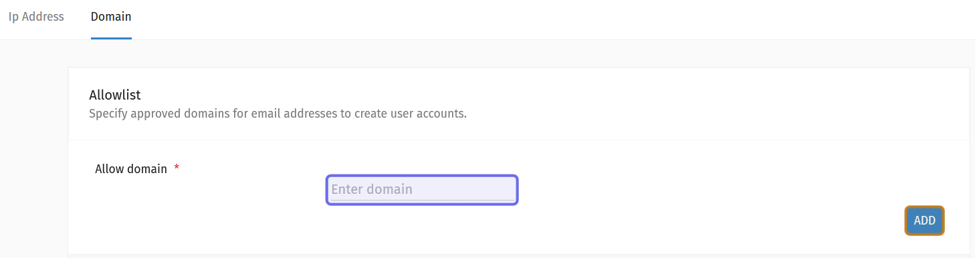
The “Allowlist” section under the “Domain” tab is shown above. The “Allow domain” text field is highlighted in purple. The “Add” button is highlighted in yellow.
Note: If you try to add a domain that is already in the blocklist or the allowlist, a warning will appear. It will specify which list the domain is already on.
You will see the domain on the “Last domains added” list below the “Add” button. To edit, move, or delete the domain, click “Manage allowlist.”
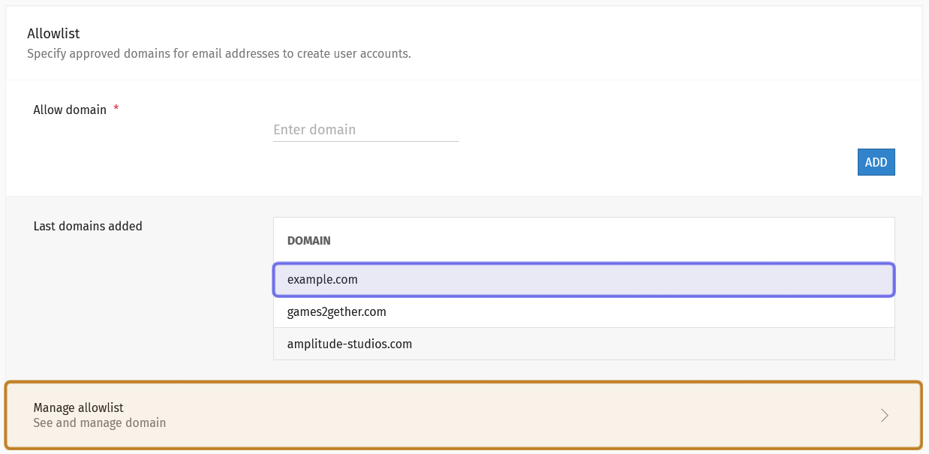
The most recently added domain is highlighted in purple. “Manage allowlist” is highlighted in yellow.
How do I add a domain to the blocklist?
Under the “Domain” tab, scroll down until you see a section titled “Blocklist.”
Note: You can also add domains to the allowlist on the “Manage blocklist” page.
At the top of the “Blocklist” section is a toggle. When “Auto-monitor domains” toggled on, a domain will be automatically added to the blocklist if over 100 accounts are created with email addresses that share that domain in a 24 hour period.
For example, if 100 accounts are registered with emails that all end with “@example.com” on the same day, example.com will be added to the blocklist. If example.com is currently on the allowlist, it will not be blocked.
If you don’t want domains to be added to the blocklist automatically, make sure this option is toggled off. The toggle is set to the left and greyed out when auto-monitoring is not active.
You can always add a domain manually by using the “Block domain.” It is found beneath the toggle for auto-monitoring domains.
To add a domain to the blocklist, type a domain name in the “Block domain” text field.
Then, click “Add.”
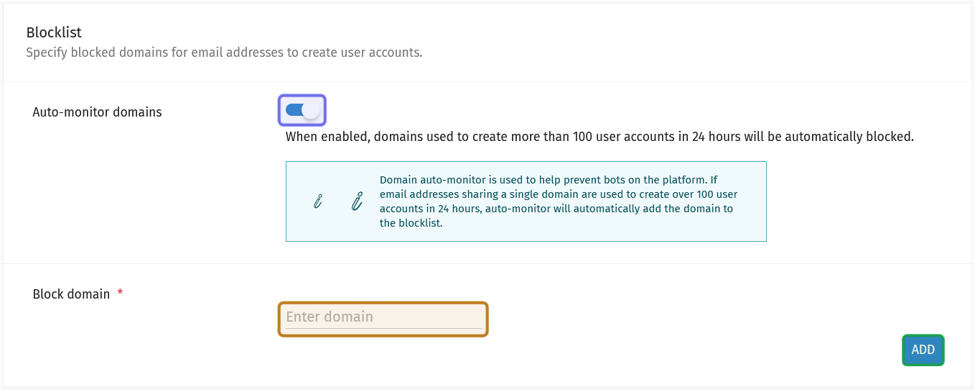
The “Blocklist” section under the “Domains” tab is shown above. The toggle to turn off auto-monitoring is highlighted in purple. The “Block domain” field is highlighted in yellow. The “Add” button is highlighted in green.
Note: If you try to add a domain that is in either the blocklist or allowlist, a warning will appear. The message will say which list the domain is already in.
You will see the domain in the “Last domains added” list. To make changes, delete, or move the domain, click “Manage blocklist.”
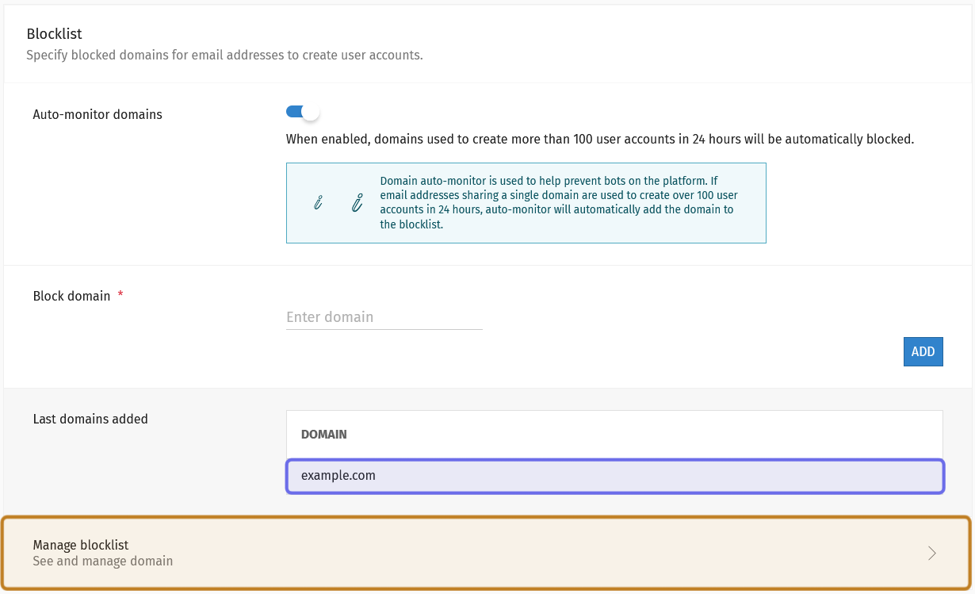
The most recently added domain is highlighted in purple. “Manage blocklist” is highlighted in yellow.
How do I manage domains?
To manage domains, click “Manage allowlist” or “Manage blocklist” under the “Domains” tab. You can edit, move, or delete domains from the allowlist and the blocklist.
Search domain
Both the “Manage allowlist” and “Manage blocklist” pages have a “Filters” box and a table with all domains in the specified list.
Search for a domain by entering a domain name or part of a domain name into the “Domain” text field.
You can also filter by extension. Enter a URL extension into the “Extension” field.
Click “Search” to filter the list for domains that match your search terms.
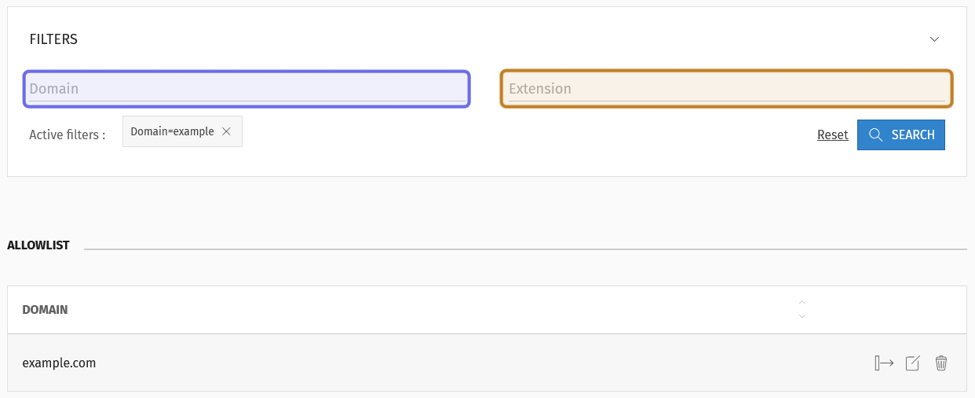
The “Filters” box and a filtered allowlist are shown above. The “Domain” field is highlighted in purple. The “Extension” field is highlighted in yellow.
Edit a domain
Once you’ve located the domain you want to edit in the allowlist or the blocklist, click the “Edit” button on the right-hand side of the row.

The “Edit” button is highlighted in purple above.
The domain will appear in the field at the top of the page. Edit the domain.
Then, click “Update” in the bottom-right corner.

The “Update” button is shown outlined in purple.
Move a domain
Domains can be moved between the allowlist and blocklist.
Search or scroll to locate the domain that you want to move. You will see three icons on the right-hand side of the domain’s row in the list. The “Move” button is an icon with an arrow.

The “Move” button is highlighted in purple above.
Click the “Move” button. A window will pop up asking you to confirm that you want to move the domain address.
To confirm, click “Move To Allowlist” or “Move To Blocklist.”
Delete a domain
Navigate to either “Manage allowlist” or “Manage blocklist,” depending on the list that you want to delete a domain from.
Search or scroll to locate the domain that you want to delete. There will be three icons on the right-hand side of the domain’s row.
Click the trash can icon. A window will pop up asking you to confirm that you want to delete the domain from the list.
Click “Delete” to confirm.

The “Delete” button is highlighted in purple.