
How to delete a Studio
Who can delete a Studio?
Only Admins can delete a Studio.
Where do I delete a Studio?
Find the Studio that you want to delete under “Pages.” Open the three dots menu on the Studio card and select “Configure.”
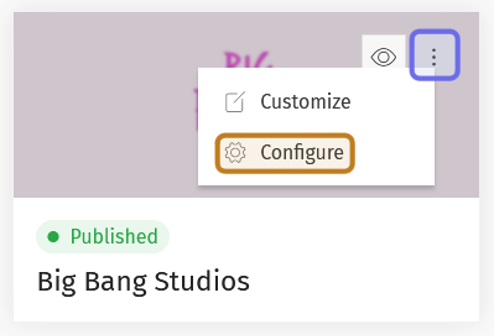
A Studio card is shown above. The three dots are highlighted in purple. The menu is expanded and “Configure” is highlighted in yellow.
How do I delete a Studio?
Click “Delete Studio” in the bottom-left corner of the “Configure” window.
Proceed with caution–deleting a Studio will also delete all of its Universes and all content associated with those Universes. If you only have one Studio, no content will be live on your platform.
Note: If you need to save data, use the export tools before beginning the deletion process.
A message will appear that explains deletion is permanent after 30 days. All data associated with the Studio and its Universes will be irretrievable after the 30 day window. This includes forums, news, and gamification.
Note: Studio content will be unavailable for all users immediately after deletion. This includes data in the back office. However, users’ G2G scores will be unaffected.
If you want to proceed, click “Next.” This will begin the deletion process. You can click “Cancel” at any time to exit the process.
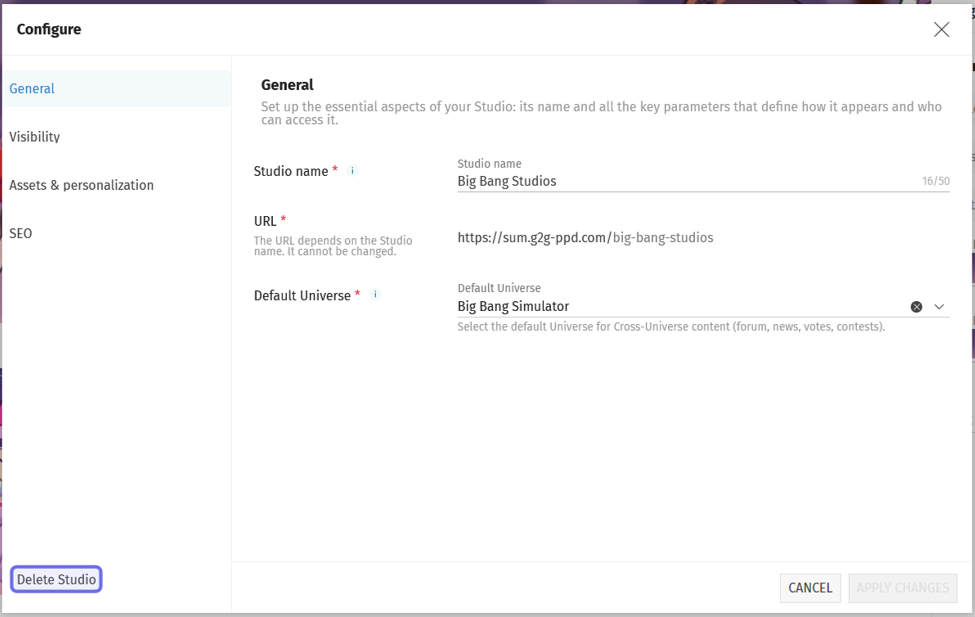
A Studio “Configure” window is shown above with “Delete Studio” highlighted in purple.
First, click the two checkboxes to affirm that you understand the outcome of deleting the Studio. Then, click “Next” in the lower right of the window.
Note: Although you can restore a Studio within 30 days of deletion, we strongly recommend not deleting the Studio unless you are willing to lose all associated data. Configuring the visibility of the Studio and its Universes can hide content from visitors without deleting data.
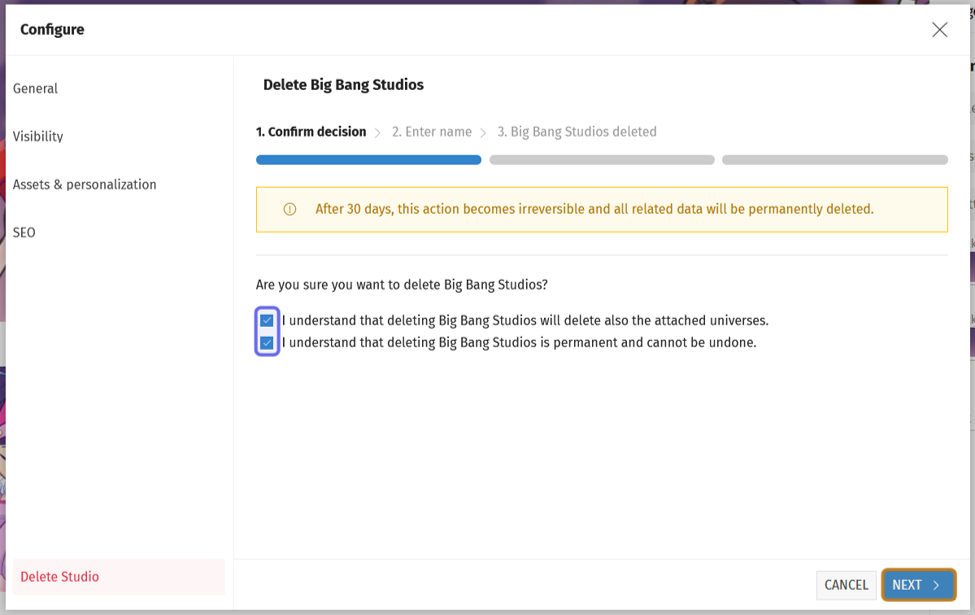
The two checkboxes are highlighted in purple above. The “Next” button is highlighted in yellow.
Next, you will be prompted to type the Studio name. Type the exact name of the Studio into the text field. This is to prevent accidental deletion of the Studio.
Then, click “Delete.”
A message will confirm that the Studio was successfully deleted. You can then exit out of the “Configure” window.
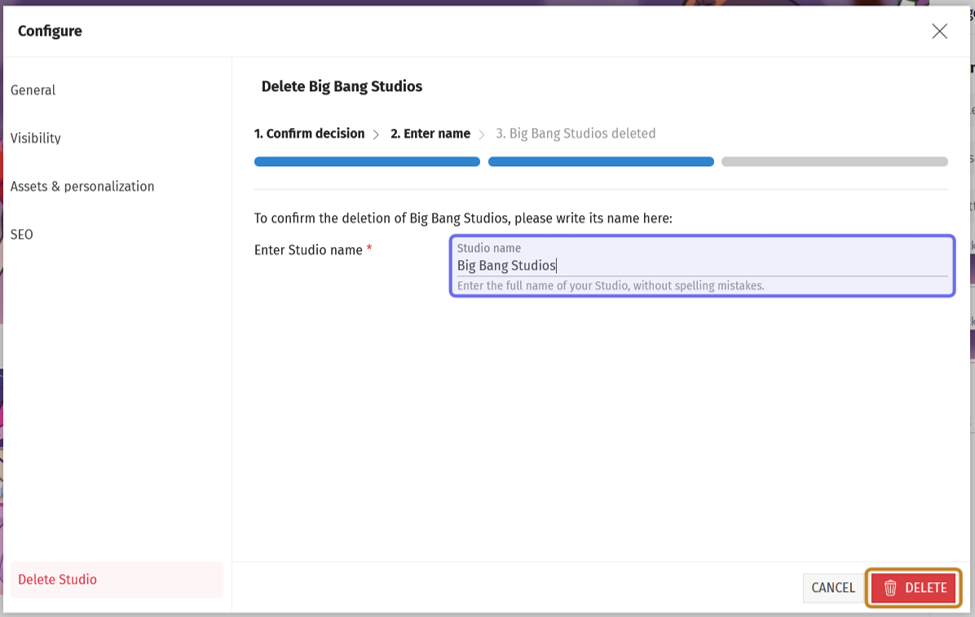
In the “Configure” window above, the text field is shown highlighted in purple. The “Delete” button is outlined in yellow.
A deleted Studio will no longer appear on the front end, but will remain in the list of Studios in the back office under “Pages” for 30 days. During these 30 days, you can restore the Studio. When you restore a Studio, its Universes will also be restored.
Note: The banner on a deleted Studio will count down the days remaining until the Studio is permanently deleted.
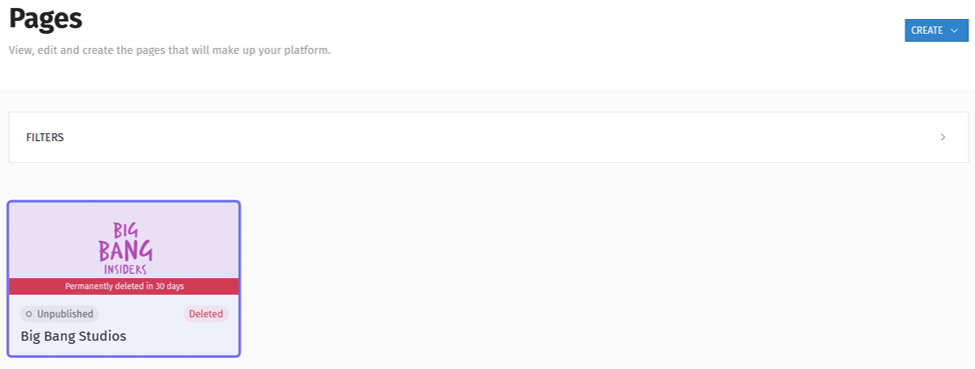
A recently deleted Studio as seen in the back office.
How do I restore a deleted Studio?
Access the “Configure” window via the deleted Studio’s card in the back office.
Click “Restore Studio” in the window’s lower right.
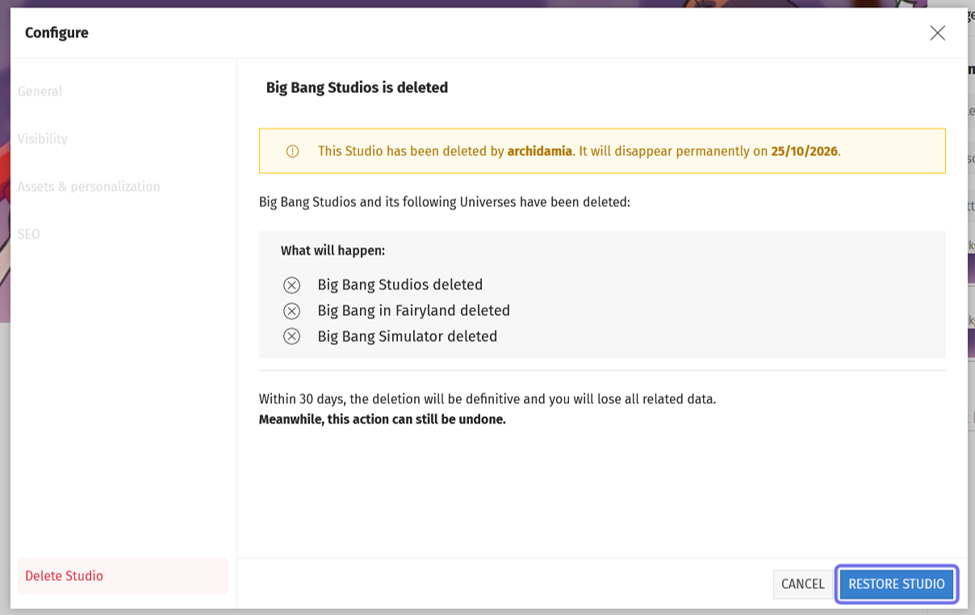
The “Configure” window of a deleted Studio is shown above. The “Restore Studio” button is outlined in purple.
You will be prompted to confirm that you want to restore the Studio. If you’re sure, click “Confirm.”
If you do not wish to restore the Studio, exit by clicking “Cancel.”
The restored Studio will be unpublished. Reconfigure the Studio visibility to make the Studio live.