
How to activate / deactivate a feature
Who can activate or deactivate a feature?
Admins and Devs can activate and deactivate Universe features.
Where do I activate or deactivate a feature?
TBD when how we want to redirect to central article decided.
You can activate and deactivate features in the back office. Navigate to the appropriate Universe and locate the feature.
How do I activate a feature?
A back office Universe page lists all features activated for that Universe. There is a button labeled “Add Feature” on the right-hand side of the page header.
Click “Add Feature.”
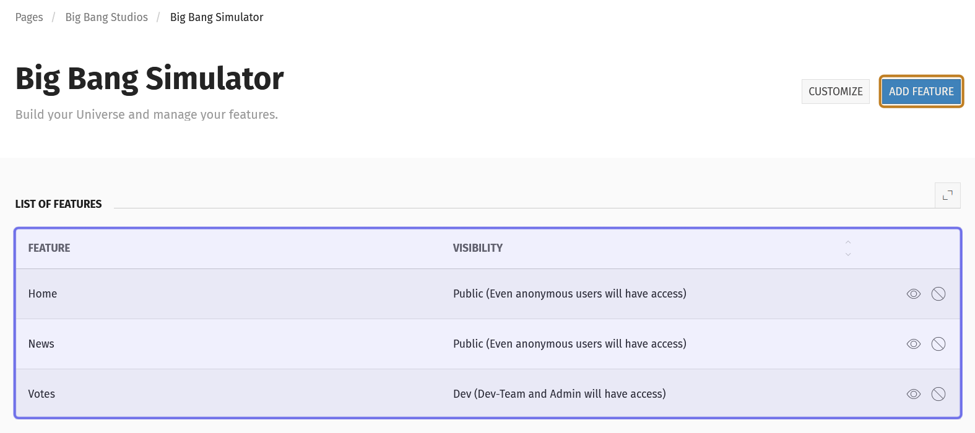
A back office Universe page is shown above. The list of features is highlighted in purple. The “Add Feature” button is highlighted in yellow.
A window will pop up with a selection of features. Select a feature to add. Features that have previously been added are tagged “Already added.”
Click “Add.”
Note: Some features will need to be activated by your account manager. Those features are listed below the options to add.
The added feature will have the visibility of “Dev” by default. You can edit feature visibility in the Universe configuration.
Note: Your Universe may be configured to have all features inherit the visibility of the Universe. Activating a new feature will disable this setting, but all other features will retain the same visibility as the Universe.
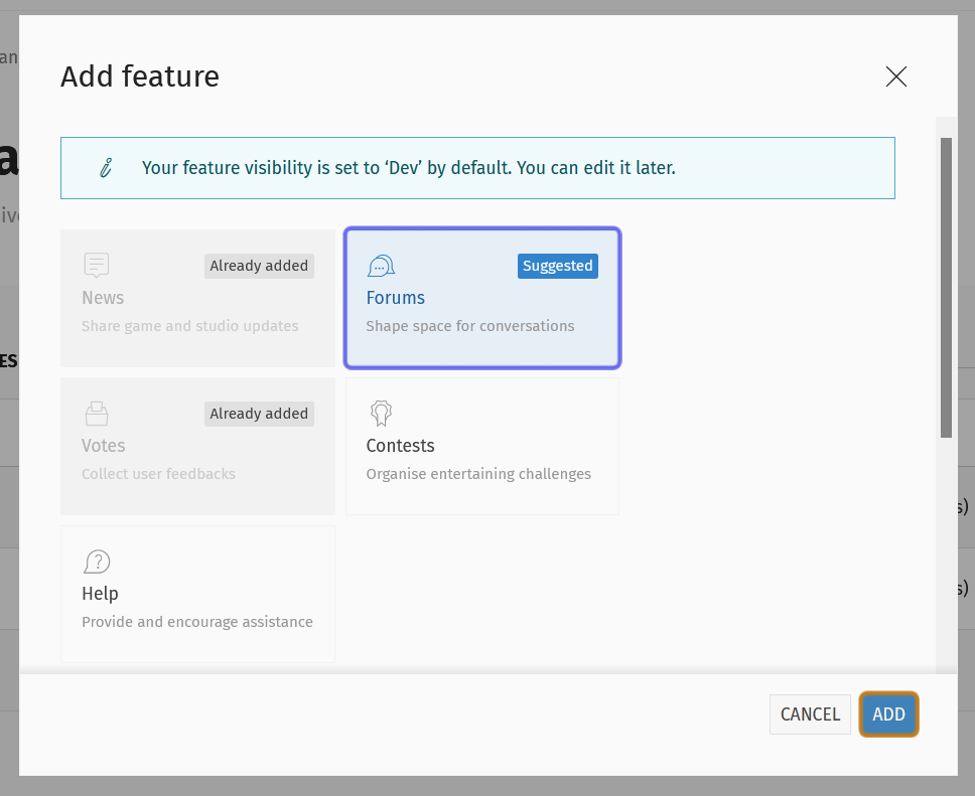
The “Add feature” window is shown above. A feature option to add, “Forums,” is selected and outlined in purple. The “Add” button at the bottom of the window is outlined in yellow.
Some features may require additional configuration to use. You can learn more about individual features elsewhere on the Help Center.
How do I deactivate a feature?
On the back office Universe page, there is a list of all features activated for that Universe. Find the feature you want to deactivate in the list.
On the right-hand side of the row, you will see a “prohibited” icon (🛇). Click the “prohibited” icon.
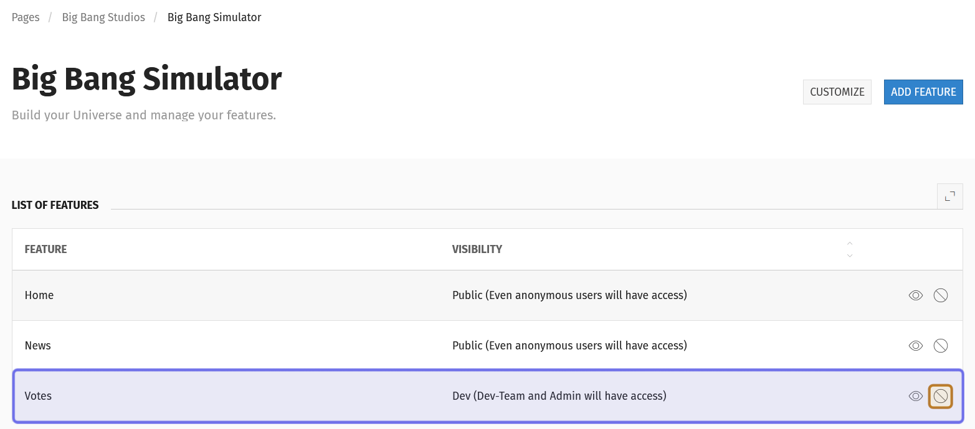
The list of features on a back office Universe page are shown above. A feature is highlighted in purple. The icon to deactivate the feature is outlined in yellow.
A pop-up window will ask you to confirm that you want to deactivate the feature. If you are sure, click “Deactivate.” Otherwise, click “Cancel.”
Note: Users will no longer have access to data related to the feature. However, the data associated with that feature will be stored, if you choose to activate the feature again in the future. For information on how to delete the feature entirely, see delete Universe.
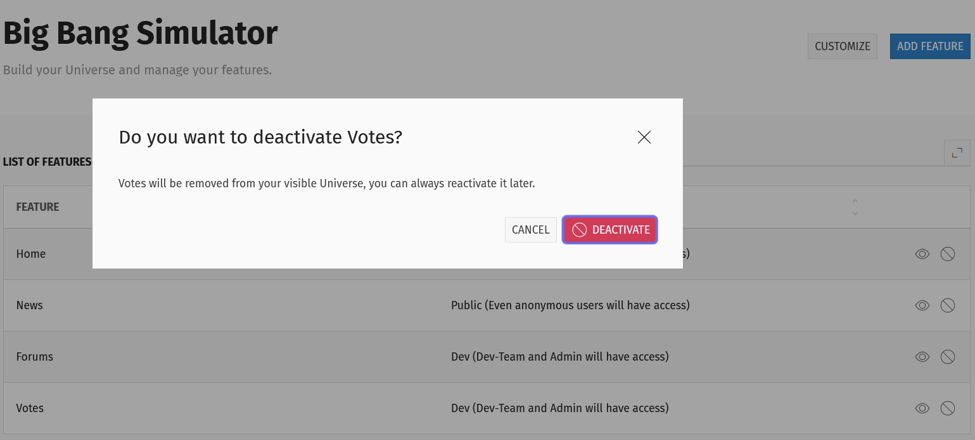
The confirmation pop-up is shown above. The “Deactive” button is outlined in purple.