
How to delete a Universe
Who can delete a Universe?
Only Admins can delete a Universe.
Where do I delete a Universe?
Find the Universe that you want to delete. Open the three dots menu on the Studio card and select “Configure.”
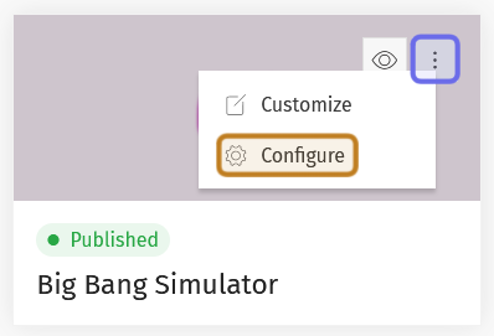
A Universe card is shown above. The three dots are highlighted in purple. The menu is expanded and “Configure” is highlighted in yellow.
How do I delete a Universe?
Click “Delete Universe” in the bottom-left corner of the “Configure” window.
Note: You cannot delete a Studio’s default Universe. To change a Studio’s default Universe, update the Studio configuration.
A message will appear that explains deletion is permanent after 30 days. All data associated with the Universe and its features will be irretrievable after the 30 day window.
Associated data includes posts made by members, badges linked to the Universe, and any cross-Universe content that has the Universe you are deleting set as its default Universe. Deleting a Universe will not affect users’ G2G scores, even if the content that awarded points is deleted.
Note: If you need to save data, use the export tools before beginning the deletion process.
If you want to proceed, click “Next.” This will begin the deletion process. You can click “Cancel” at any time to exit the process.
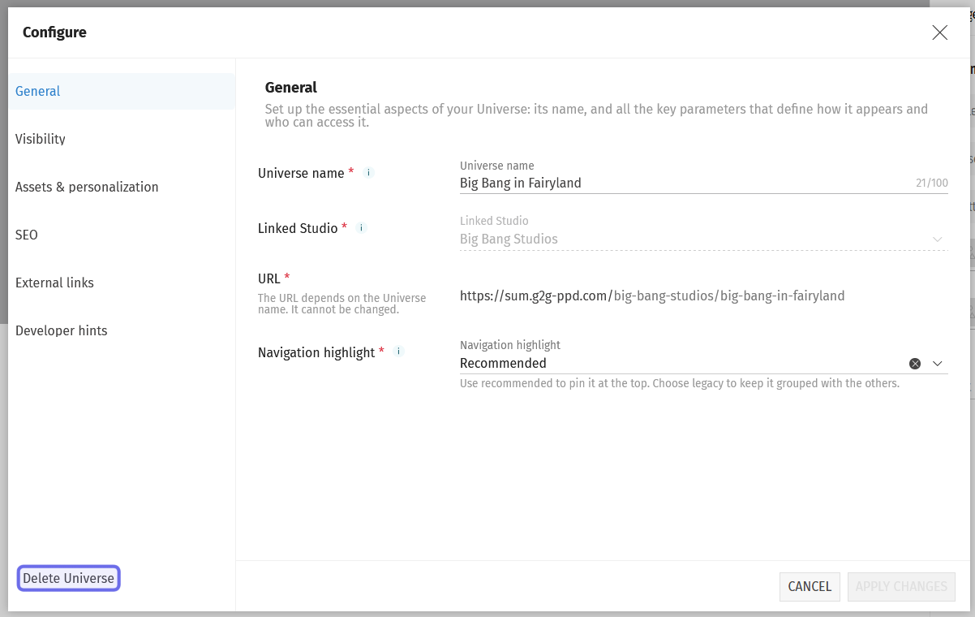
A Universe “Configure” window is shown above with “Delete Universe” highlighted in purple.
First, click the checkbox to affirm that you want to delete the Universe. Then, click “Next” in the lower right of the window.
Note: Although you can restore a Universe within 30 days of deletion, we recommend not deleting the Universe unless you are willing to lose all associated data. If you want to hide information from certain audiences, click “Visibility” to change who can view the Universe.
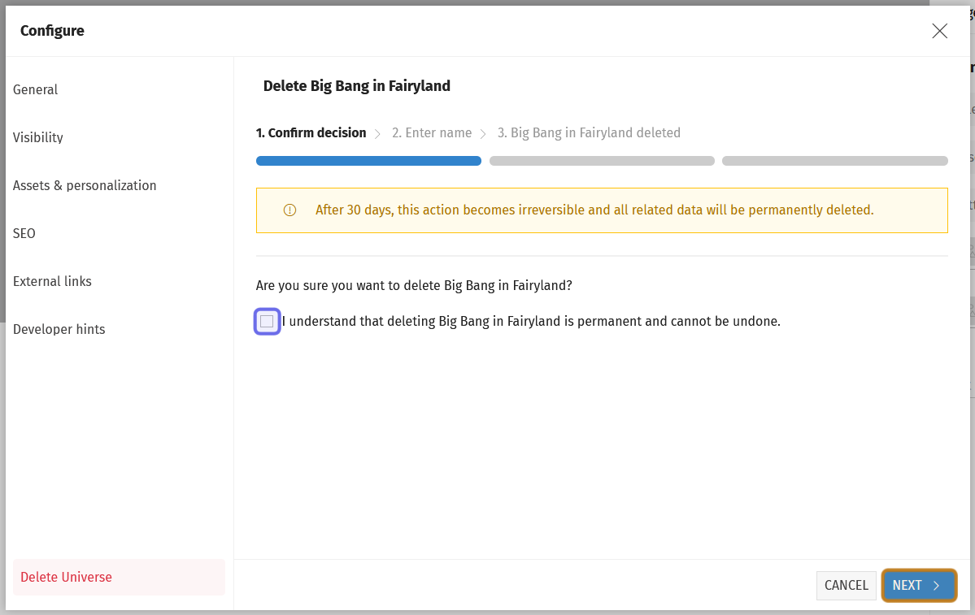
The checkbox to confirm deletion is highlighted in purple above. It is shown unchecked. The “Next” button is highlighted in yellow.
Next, you will be prompted to type the Universe name. Type the exact name of the Universe into the text field. Then, click “Delete.”
A message will confirm that the Universe was successfully deleted. The option to undo will briefly appear at the bottom of the page if you want to immediately reverse the deletion.
You can then exit out of the “Configure” window.
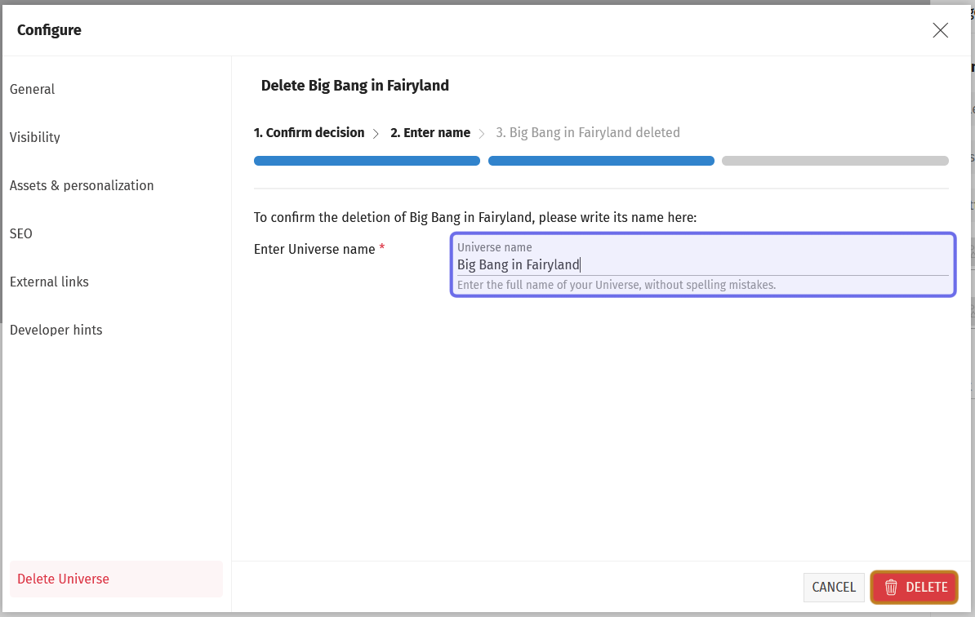
In the “Configure” window above, the text field is shown highlighted in purple. The “Delete” button is outlined in yellow.
A deleted Universe will no longer appear on the front end, but will remain visible in the back office for 30 days. During these 30 days, you have the option to restore the Universe.
Note: The banner across a deleted Universe counts down the 30 day window letting you know how long you have until all data is permanently deleted.
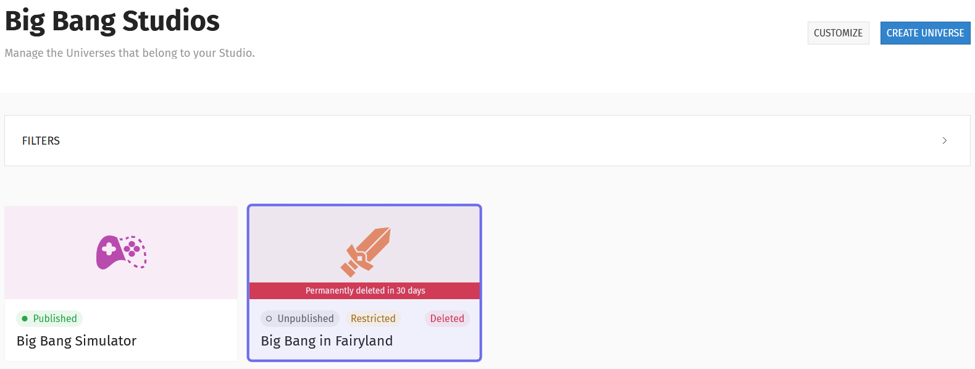
This back office Studio page shows a recently deleted Universe, which is highlighted in purple.
How do I restore a deleted Universe?
Access the “Configure” window via the deleted Universe’s card in the back office. There will be a button labeled “Restore Universe” in the window’s lower right.
Note: If a deleted Universe is associated with a deleted Studio, you cannot restore the Universe. You will need to instead restore the Studio.
Click “Restore Universe.”
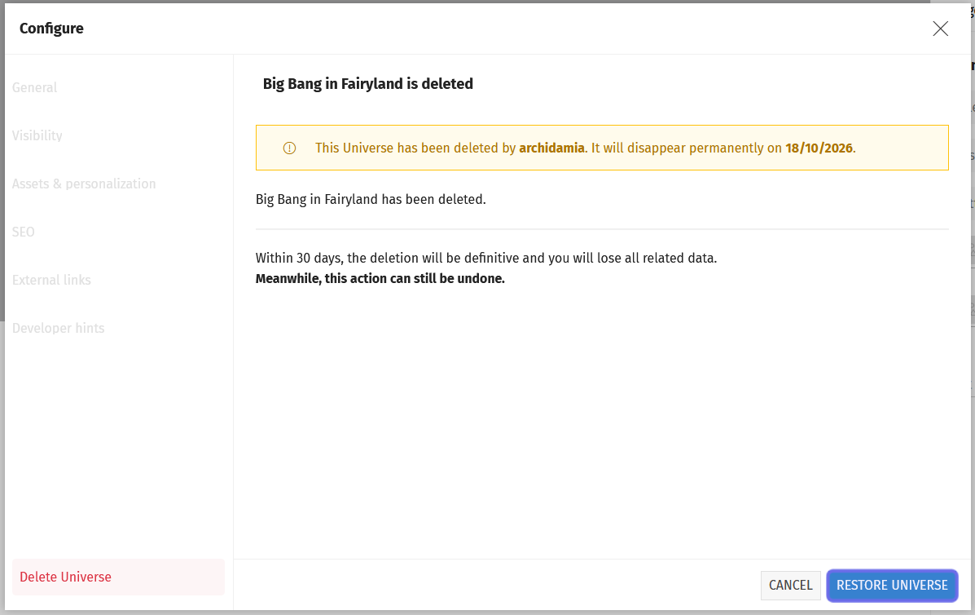
The “Configure” window of a deleted Universe is shown above. The “Restore Universe” button is outlined in purple.
You will be prompted to confirm that you want to restore the Universe. If you’re sure, click “Confirm.”
If you do not wish to restore the Universe, you can exit by clicking “Cancel.”
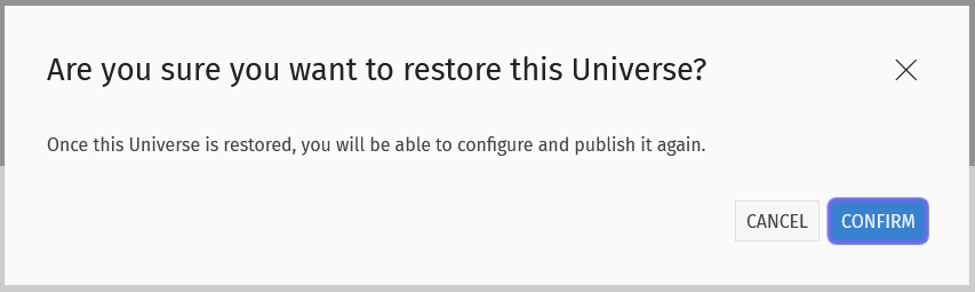
The confirmation prompt to restore a Universe is pictured about. The “Confirm” button is outlined in purple.
The restored Universe will be unpublished. Reconfigure the Universe visibility to make the Studio live.