
How to share a tutorial ?
Who can share video tutorials?
Generally, all registered users can share tutorials in a Universe with the “Tutorials” feature enabled.
Note: Some Universes may be limited to dev-only tutorials.
Where can I share a tutorial?
You can share tutorials on a Universe’s “Tutorials” page. To find a Universe’s “Tutorials” page, select that Universe in the side navigation.
Then, click “Tutorials” from the Universe menu. You can hover over the Universe icon when the side navigation is expanded or collapsed to show the Universe menu.
Note: Not all Universes have the “Tutorials” feature enabled.
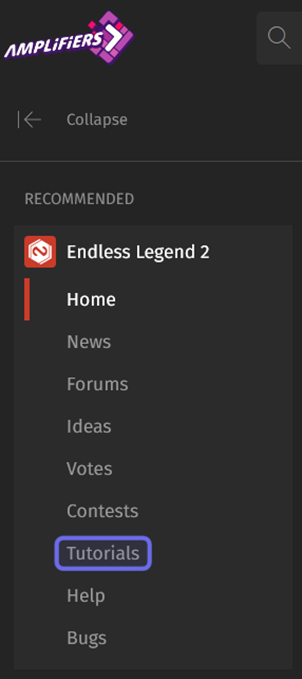
An open Universe menu in the side navigation is shown above. The link to the “Tutorials” page is highlighted in purple.
You can also access the “Tutorials” page from a Universe’s page menu.
How do I share a tutorial?
The “Tutorials” feature lets you share videos that explain elements of the game to other players. To share a video tutorial, first upload your video to YouTube. You will need the YouTube video link to share your tutorial on Games2gether (G2G).
Note: Make sure your videos comply with the platform’s conduct policies.
Video tutorials should address a focused topic in under three minutes. You can get an idea about what sort of topics would make a good tutorial by exploring a Universe’s “Tutorials” page.
The “Tutorials” page is made up of a search bar, a language filter, and a section titled “Explore” that contains menus. Tutorials are organized into menus, chapters, and categories. You will need to know which tutorial category your video should be shared to.
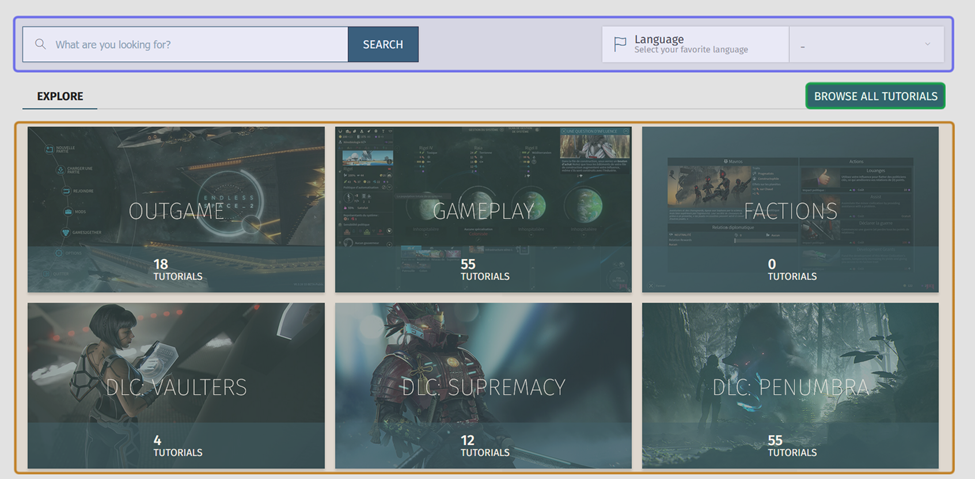
A Universe’s “Tutorials” page is shown above. The search bar and language filters are highlighted in purple. The tutorial menus are highlighted in yellow. The “Browse All Tutorials” button is highlighted in green.
View a menu’s chapters by clicking on the menu name in the “Explore” section. You can also click the “Browse All Tutorials” button above the “Explore” section to view all menus and chapters on a single page.
Chapters are displayed with a title and short description. Click on a chapter name to view the categories that make up that chapter.
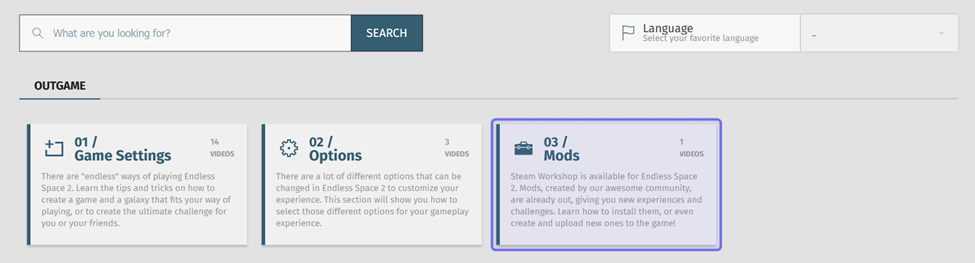
Menu chapters are shown above. The menu name is shown above the chapters separated by a horizontal divider. In the image above, the menu is “Outgame.” One of the menu’s three chapters is highlighted in purple.
Each category has a title and short description. Click on the category that best fits your tutorial. Explore multiple chapters as needed to find a suitable category.
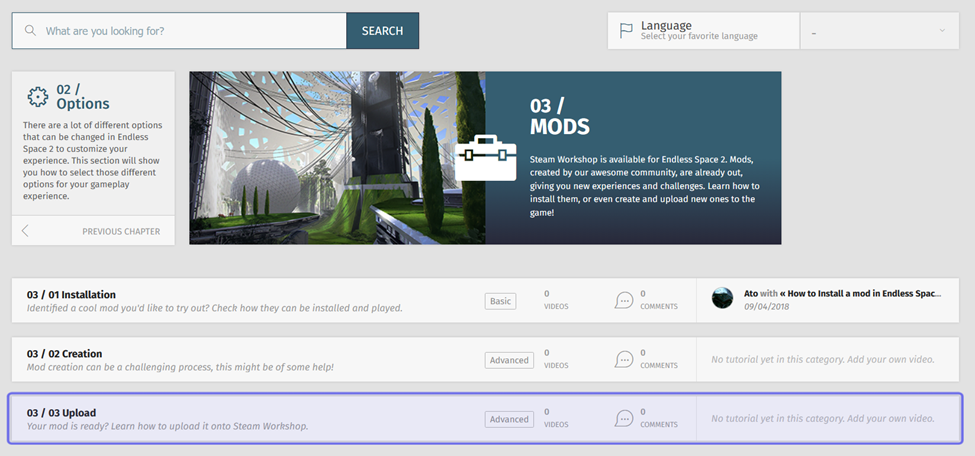
A tutorial chapter is shown above. The chapter contains a list of categories. The category “Upload” is highlighted in purple.
After clicking on a category, the option to add your own tutorial will appear. If the category does not yet contain any videos, there will be a greyed out tutorial mock-up. Click on “Add Your Own Video Tutorial” in the rectangle representing the video content. This will open the “Upload” page.”
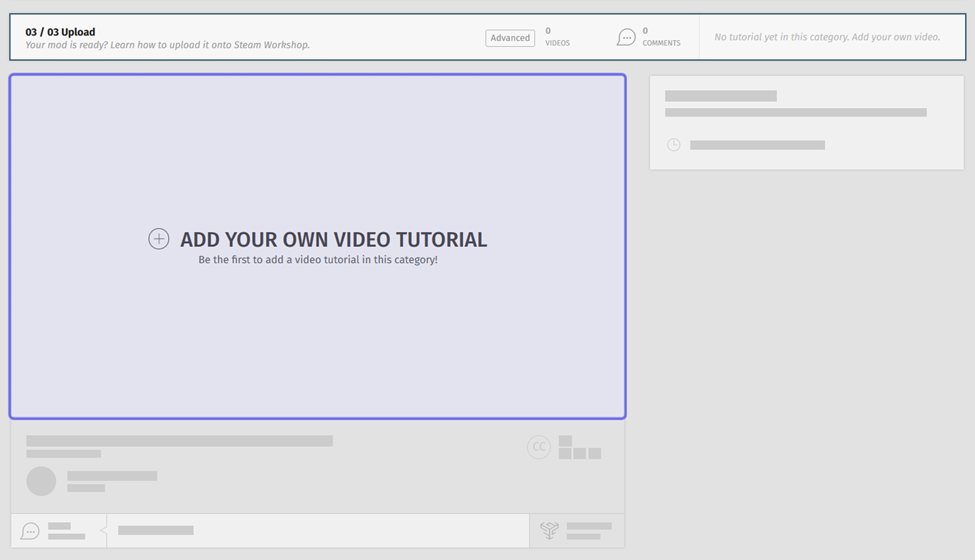
In the above image, a tutorial category with no videos has been clicked. Clicking on the box highlighted in purple will take the user to the “Upload” page.
If the category already contains tutorials, click the “Add Your Video” button to the right of the video(s).
Note: There is no limit to how many tutorials can be uploaded into a category.
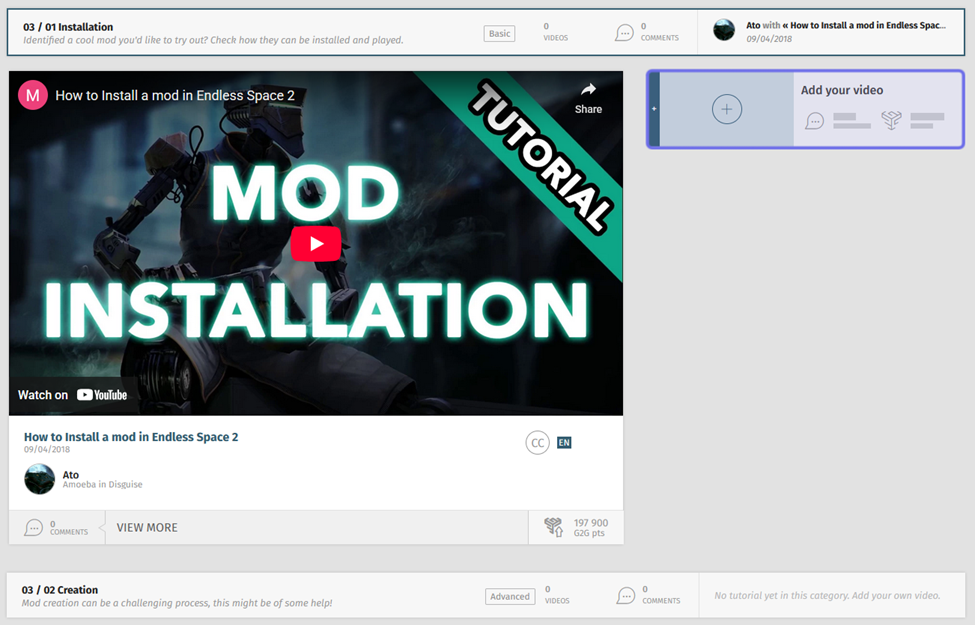
In the above image, a tutorial category with one video has been clicked. Clicking on the button highlighted in purple will take the user to the “Upload” page.
You will see a single field labeled “Insert your link” on the “Upload” page. Enter the YouTube video URL into the field to begin the process of sharing your tutorial on G2G.
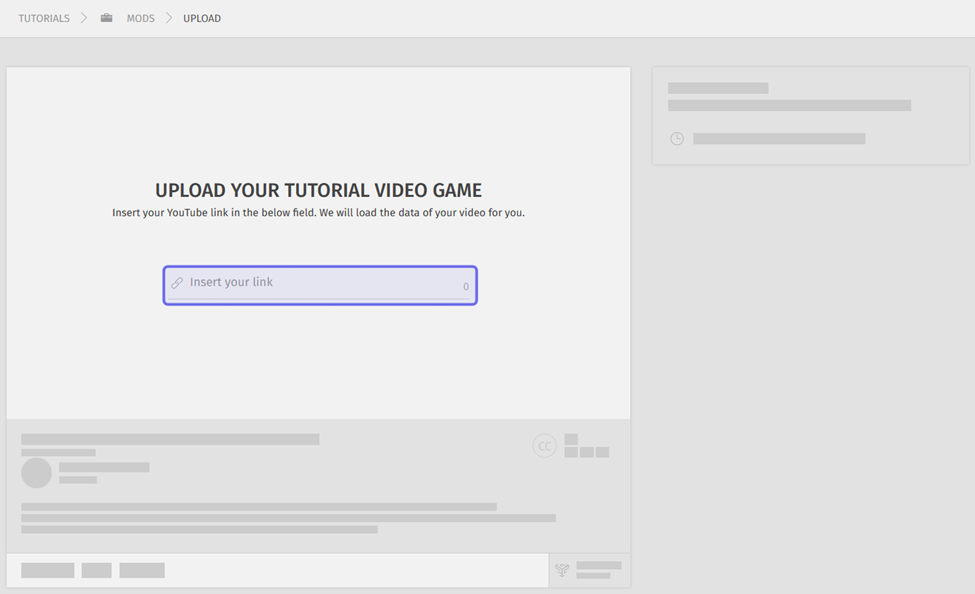
The “Upload” page URL field is highlighted in purple.
The title, language, and description will automatically populate below the video. The language will be marked by a two letter language code that cannot be edited.

A tutorial posted on a Universe’s “Tutorials” page is shown above. The language code is on the right and highlighted in purple.
The title and description will populate in editable fields. Edit the title and description as needed. The description field provides some options to format text.
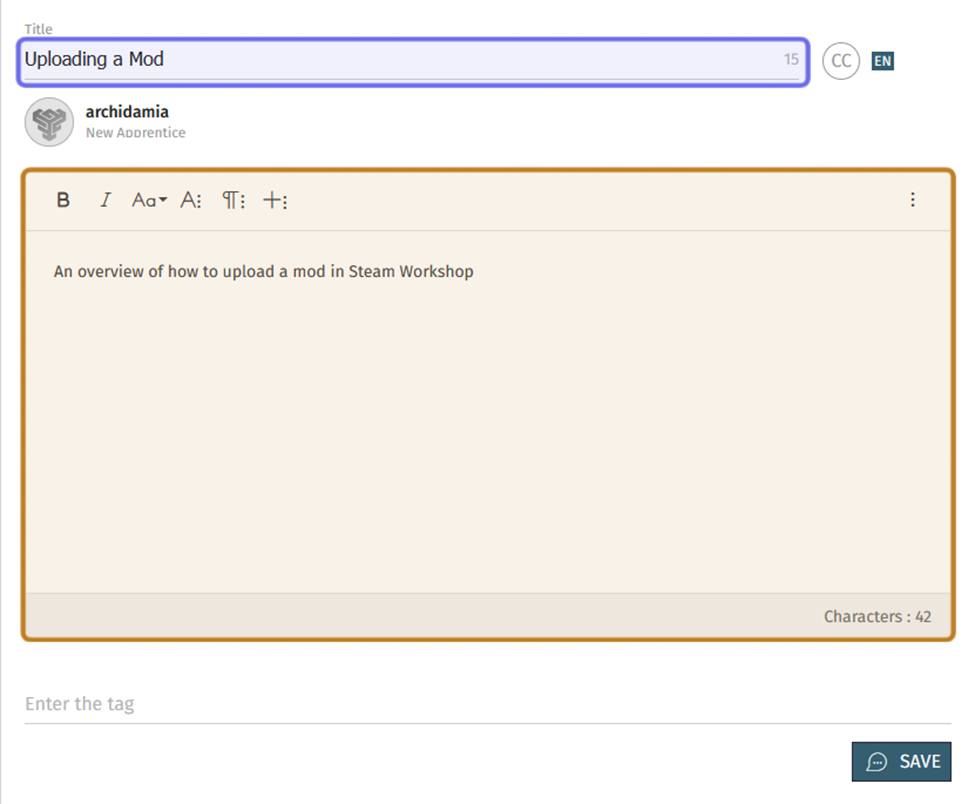
The fields that appear when the user enters a YouTube URL are shown above. The title field, highlighted in purple, and the description field, highlighted in yellow, can be edited.
Below the description text editor is a field labeled “Enter the tag.” Tags help users find related tutorials.
To add a tag, begin typing a tag in the “Enter the tag” field. Matching tags will drop down.
Click a tag to add it to the list of tags. You can add multiple tags.
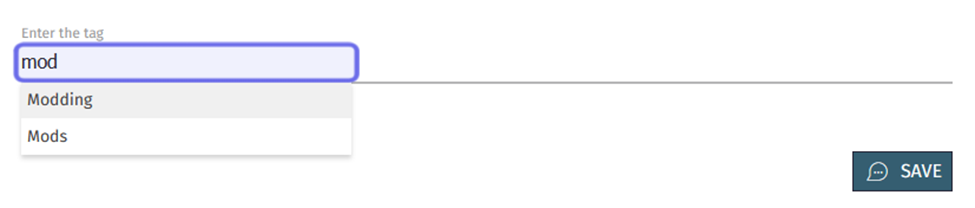
The “Enter the tag” field is highlighted in purple. The first three letters of a tag have been entered causing matching tag options to drop down.
Once you have edited the fields, click “Save” to share your video tutorial.
Note: You can add multiple videos to a category.
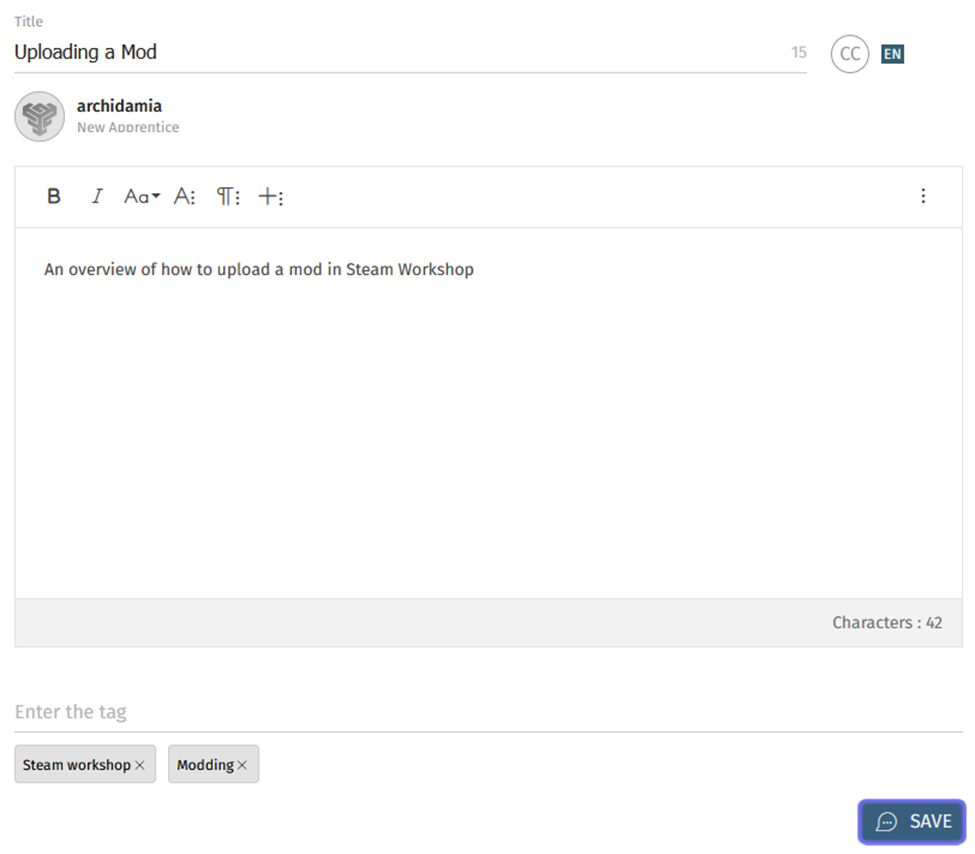
A tutorial’s information fields are shown above. The “Save” button is highlighted in purple. Clicking “Save” will share the tutorial publicly.
Your tutorial will now be available for all visitors to view. Registered users will be able to upvote and comment.