
How to set up the “Tutorials” feature
Who can set up the “Tutorials” feature?
Clients should contact their G2G Account Manager to request activation of the “Tutorials” feature.
Note: We are actively working on reducing the number of features that need to be configured directly by the G2G team.
How do I set up the “Tutorials” feature?
To set up the “Tutorials” feature, you will need to provide some information to your G2G Account Manager.
A Universe’s “Tutorials” page consists of at least one menu. A menu comprises chapters, which are further subdivided into categories. A “Tutorial” page must include at least one menu with one chapter that has one category, but building out the structure further will make tutorials more accessible to your community!
You can download and use the template attached to the article to send the information needed to set up the “Tutorials” feature for a Universe.
Note: Please be sure to clearly identify assets with unique names, so it is easy for our team to pair the right image with the right menu or chapter.
Menu
Menus are the top-level navigation of the “Tutorials” feature. You may only need one menu, but multiple menus can be useful if you have interrelated but distinct pieces of content under a single Universe. For example, you might have one menu for a game’s single-player narrative and another for its competitive multiplayer, or you might have one menu for a base game and a separate menu for each of that game’s DLCs.
To add a menu, you need to provide:
Menu name (maximum 255 characters)
Menu image (400x235px JPEG under 100KB)
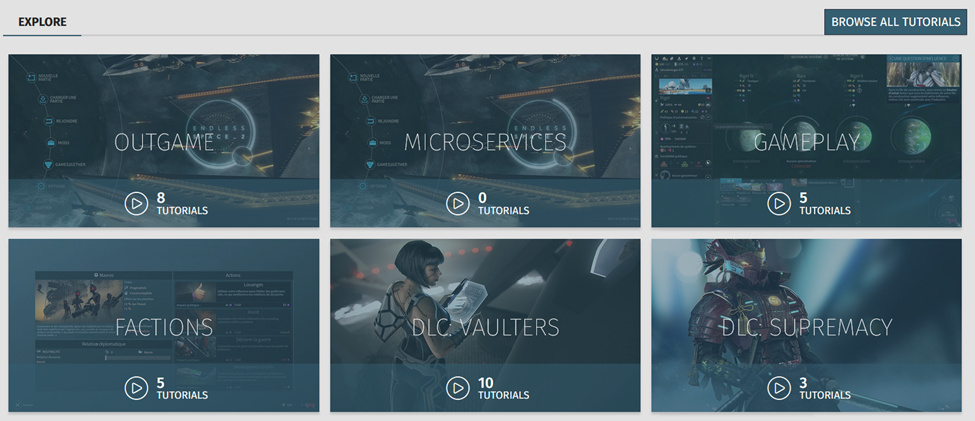
Six menus on a Universe’s “Tutorials” page are shown above.
Chapters
Chapters are used to organize tutorials by high-level game concepts. This helps the community know where they should share their own tutorials and more easily locate others’ by creating groupings such as Gameplay, Environment, Modding, etc.
To add a chapter, you need to provide:
Name of the menu this chapter belongs to
Chapter name (maximum 100 characters)
Chapter description (maximum 240 characters)
Icon (single-layer 32x32px SVG)
Chapter image (400x235px JPEG under 100KB)
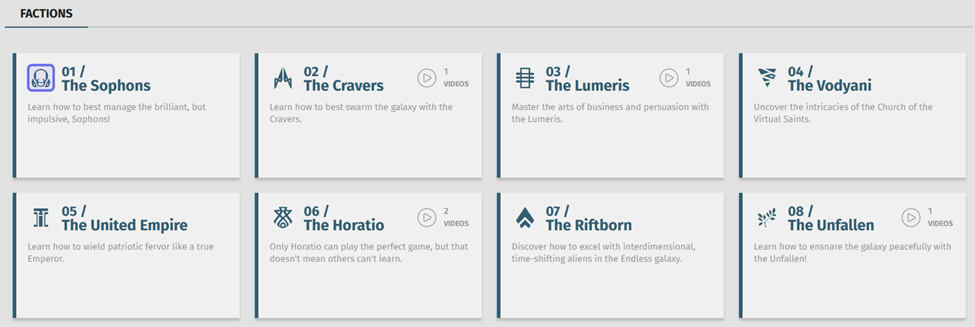
The “Factions” menu’s chapters are shown above. A chapter icon is highlighted in purple.
Categories
Categories narrow down tutorial subjects even further. For example, a “Skills” chapter could have categories that group skills based on shared attributes (e.g. “Physical Skills,” “Mental Skills”) or have a category for each individual skill (e.g., “Combat,” “Persuasion,” “Herbalism”).
To add a category, you need to provide:
Name of the chapter this category belongs to
Category name (maximum 100 characters)
Category description (maximum 250 characters)
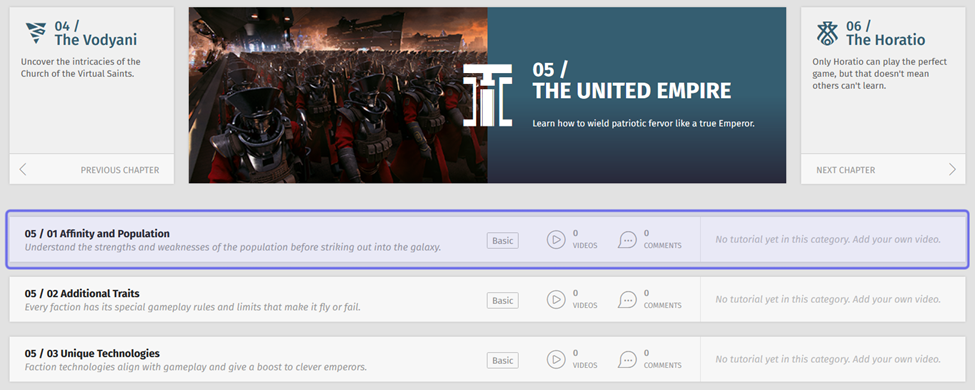
Three categories are shown in “The United Empire” chapter above.
A category is highlighted in purple.
Languages
Video tutorials in any language can be shared. To make it easier for your community to find the explanations they can best understand, users are asked to specify the tutorial language when sharing a video and are able to filter tutorials by language.
The “Tutorials” feature does not have a default list of languages. The Account Team will populate the filter options based on the language options you provide. For example, you may want to provide a language list that matches the list of official translations.
How do I include tutorials in my gamification strategy?
A G2G member who shares a tutorial can be rewarded with unique badges and linked rewards when other community members upvote their tutorial.
Create a new badge that is unlocked by the “Tutorial Vote” quest. You can specify how many upvotes a tutorial needs to receive before the badge and any associated rewards are unlocked. If you want to reward members who post multiple tutorials, you can create a ranked badge where each rank is unlocked with successively higher numbers of upvotes. The number of upvotes is all upvotes across all of a member’s tutorials, so may represent multiple upvotes by the same user.