
How to configure infraction and report types
Who can configure infraction and report types?
Admins and Devs can configure infraction types and report types.
Infraction types are used by moderators on the front end. Sharing possible infractions in your community code of conduct helps to clarify expectations and possible consequences for conduct violations.
Report types are used by non-moderator members on the front end. Report types allow members to flag content for moderators and provide insight into what type of content is commonly reported.
Where can I configure infraction and report types?
To configure infraction and report types, navigate to the back office.
Click “Community” in the “Manage” menu on the right. This will expand the “Community” submenu.
Click “Moderation” in the submenu. This will take you to the back office “Moderation” page.
Then, scroll to the bottom of the “Moderation” page. You will see a list of report types and a list of infraction types.
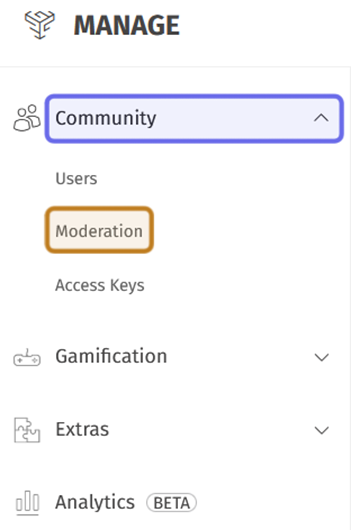
The “Community” dropdown in the “Manage” menu is highlighted in purple above. “Moderation” is highlighted in yellow in the submenu.
How do I add an infraction type?
Scroll to the bottom of the “Moderation” page. The “Infraction Types List” block is at the bottom right. If you have previously added infraction types, they will be organized in this block by severity.
Click the “Manage the Infraction Types List” button at the bottom of the block. This will open the “Infraction Type Management” side panel.
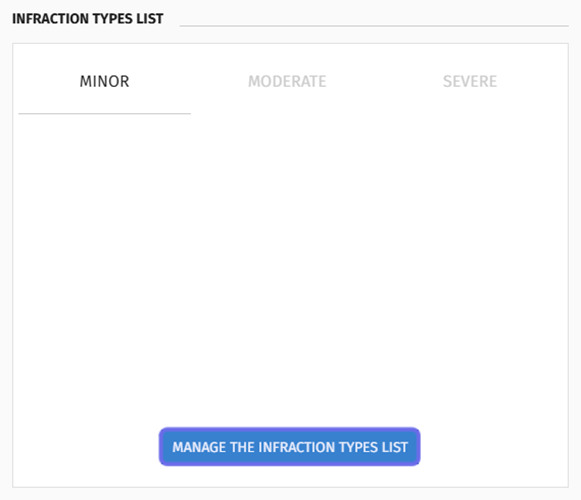
An empty “Infraction Types List” block is shown above. The “Manage the Infraction Types List” button is highlighted in purple.
At the top of the side panel is a section labeled “Add Infraction Type.” This section contains the fields needed to add a new infraction type.
Type a title for the new infraction in the “Name” field. This is how the infraction will be identified in the “Moderation” panel on the front end. The infraction name also appears on lists of an individual user’s infractions. These lists may be visible to the user, moderators, and in the back office.
Click the “Studio” dropdown and select a Studio from the list. Each infraction type must be associated with a specific Studio, but will be available for moderators across all Studios.
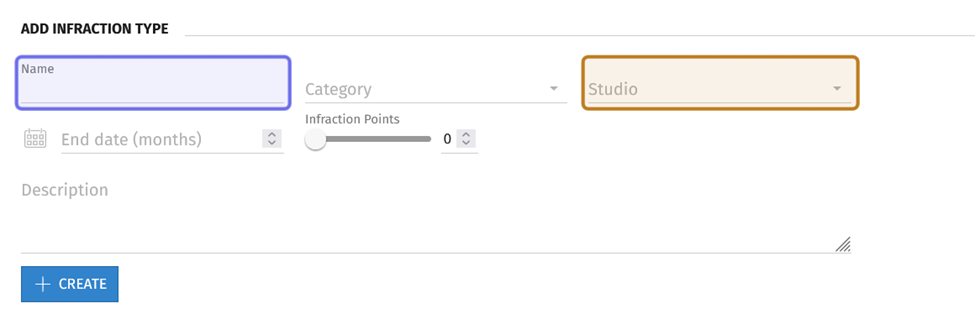
The “Add Infraction Type” section is shown above. The “Name” field is highlighted in purple. The “Studio” field is highlighted in yellow.
An infraction belongs to one of three categories of severity: minor, moderate, and severe. An infraction’s category impacts how many infraction points a violation puts on a member’s account. A member with six or more infraction points is subject to a ban.
The “Category” dropdown is between the “Name” and “Studio” fields. Click the “Category” dropdown and select an infraction severity.
Selecting “Minor” will let you assign the infraction one or two points. Selecting “Moderate” will allow you to set the infraction points to three or four. If you select “Major,” the infraction points can be set to five or six.
Assign infraction points using the slider or numerical field to the right of the slider.
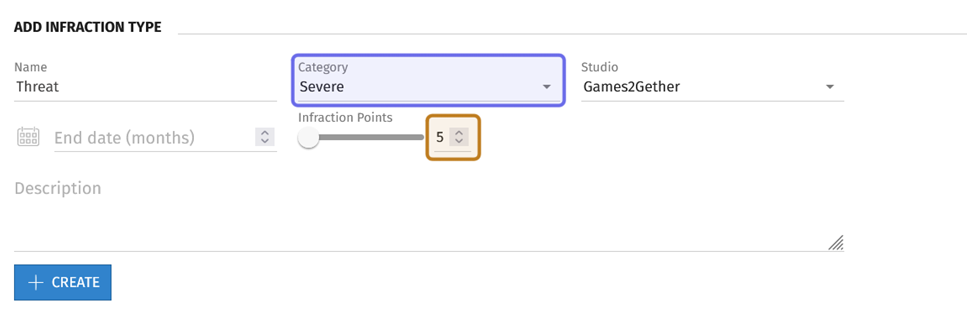
The “Category” dropdown is highlighted in purple above. The “Infraction Points” numerical field is highlighted in yellow. Since the category is severe, this infraction is assigned five infraction points.
To the left of the “Infraction Points” field, you can set an end date. Use the “End Date (months)” field to set how many months after the infraction it will expire. When an infraction expires, it no longer contributes infraction points to a member’s account. However, the infraction is still visible on their account.
Leave the “End Date (months)” field blank if you would like the infraction type to always add infraction points to a member’s account.
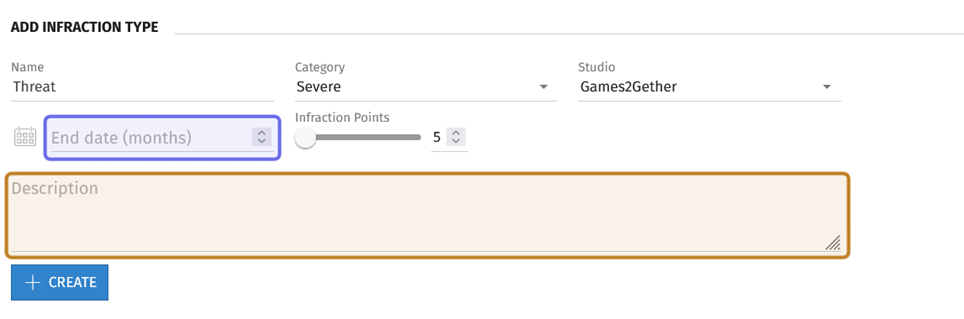
The “End Date (months)” field, which can be used to set an expiration date, is highlighted in purple. The “Description” field is highlighted in yellow.
Then, add a short description of the infraction type in the text box labelled “Description.” The infraction description is visible to the user who committed the infraction.

The description as seen on the front end is highlighted in purple above.
Click “+ Create” to add the infraction type to the infraction types list.
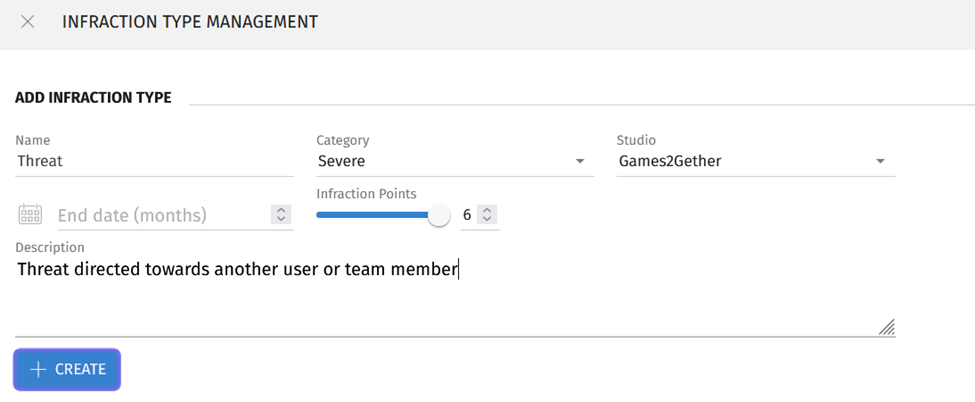
A completed “Add Infraction Type” section is shown above. The “+ Create” button is highlighted in purple.
How do I delete an infraction type?
To delete an infraction type, scroll to the bottom of the “Moderation” page. Click on the “Manage the Infraction Types List” button at the bottom of the “Infractions Type List” block.
If you want to view what infraction types are available to moderators on the front end, you can use the tabs at the top of the block to view infractions grouped by severity.
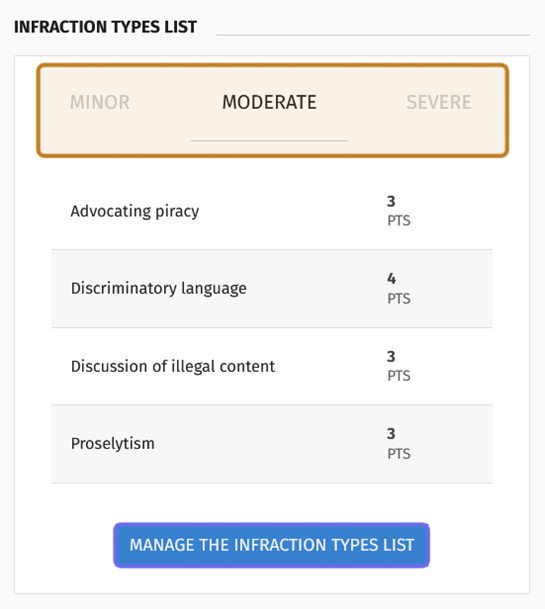
The “Infraction Types List” block is shown above. The tabs to view infractions by severity are highlighted in yellow. The “Manage the Infraction Types List” button is highlighted in purple.
The “Infraction Type Management” side panel will open. Below the “+ Create” button is the “Infraction Types List.” The list shows all infraction types with a column displaying each infraction type’s name, category (severity), expiration (end date), studio, and infraction points.
Click on any column header to sort the list by that column.
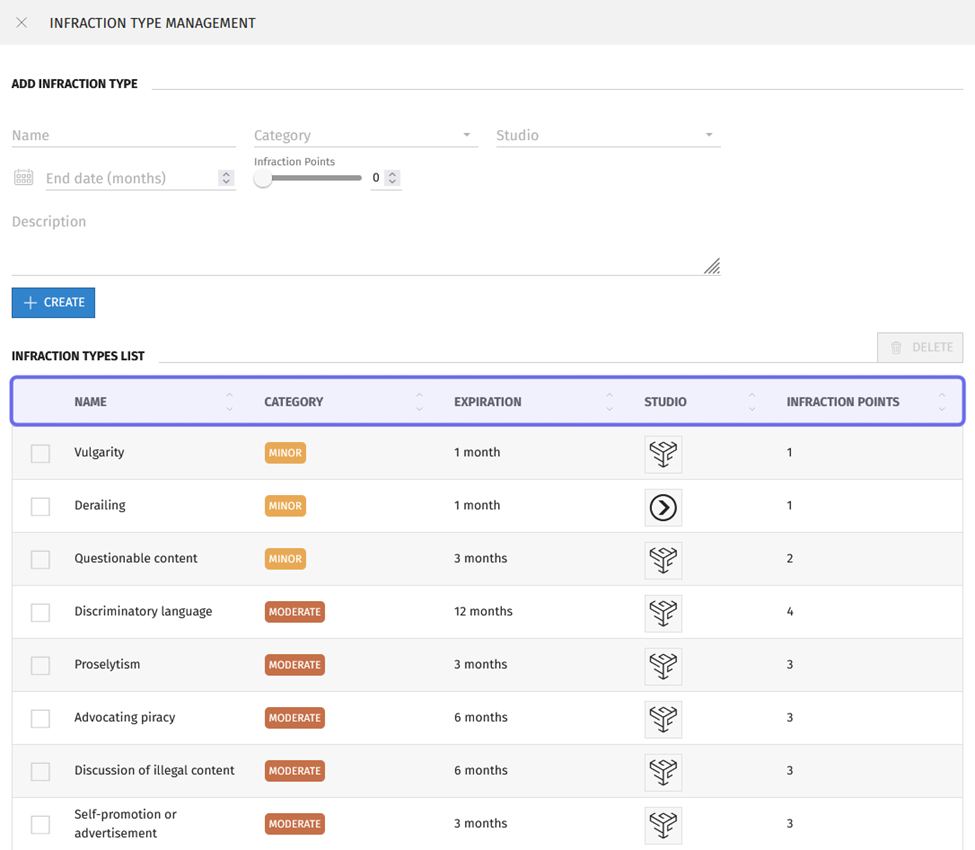
The “Infraction Type Management” side panel is shown above. The column headers that can be used to sort the “Infraction Types List” are highlighted in purple.
Once you find the infraction type you want to delete in the list, click the checkbox to the left of the infraction type name.
The greyed-out “Delete” button at the top right of the “Infraction Types List” will turn red once a valid infraction type has been selected.
Note: Only an infraction type that has not been used in any infraction reports can be deleted.
Click “Delete.”
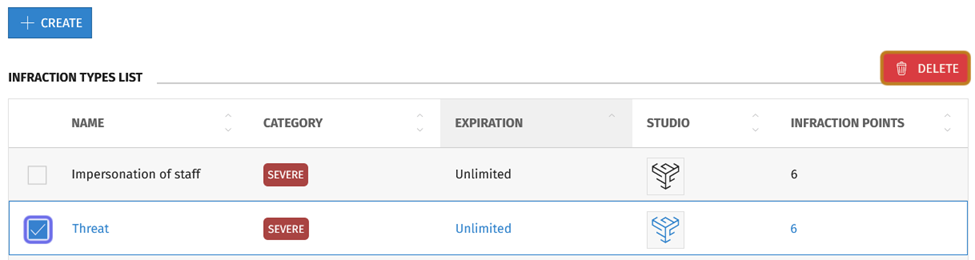
A specific infraction type has been selected by clicking the checkbox, shown highlighted in purple above. The “Delete” button above the “Infraction Points” column on the right is highlighted in yellow.
A window will pop up asking if you want to confirm the deletion. Click “Delete” to confirm.
How do I add a report type?
At the bottom of the “Moderation” page is the “Report Types List.” Click the “Manage the Report Types List” button at the bottom of the “Report Types List” block.
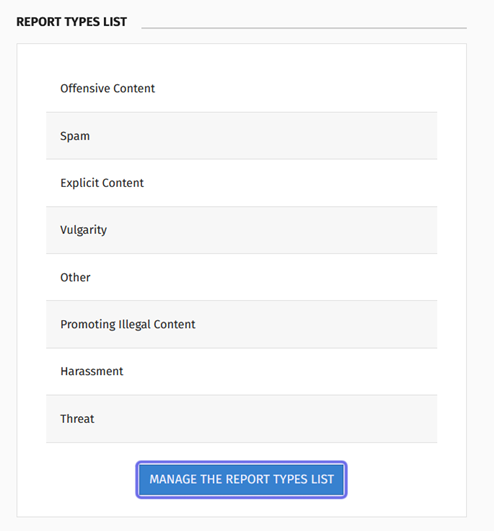
The “Report Types List” block at the bottom of the back office “Moderation” page is shown above. The “Manage the Report Types List” button is highlighted in purple.
The “Report Type Management” side panel will open. The side panel lists the report types that have already been added. To add a new report type, click “+ Add Report Type” at the bottom of the list.
Note: You can only add ten report types. If you have ten report types and want to add a new one, you will need to delete a report type from the list.
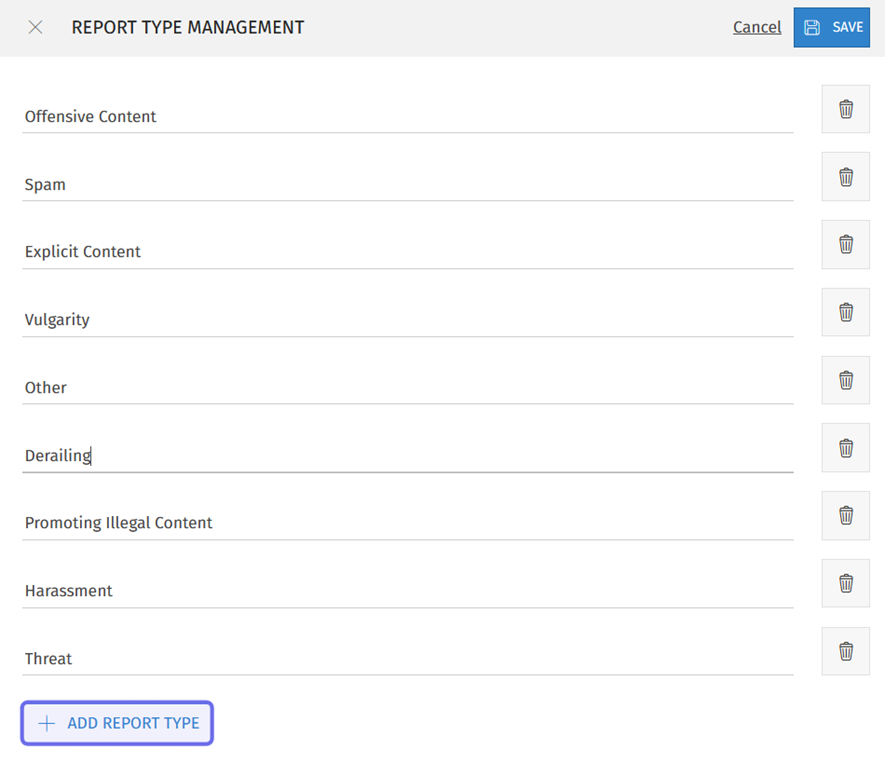
The “+ Add Report Type” button at the bottom of the “Report Type Management” side panel is highlighted in purple above.
An empty text field will be added at the bottom of the list. Enter the new report type name into the empty text field.
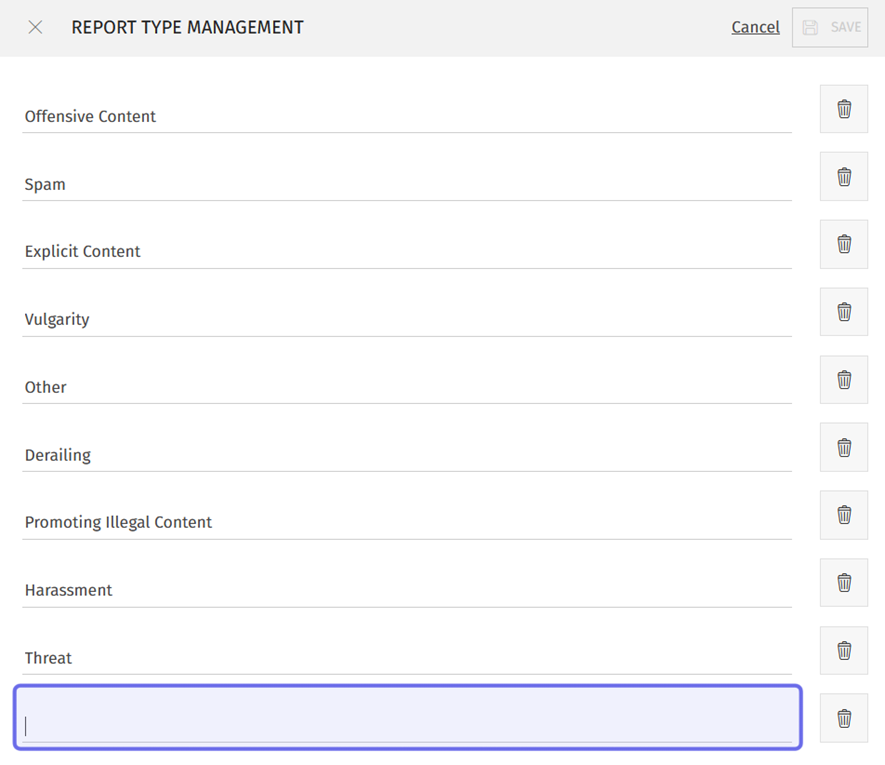
An empty text field in the “Report Type Management” side panel is highlighted in purple above.
The “Save” button in the top right will no longer be greyed-out. Click “Save.” The new report type will be added for members on the front end.
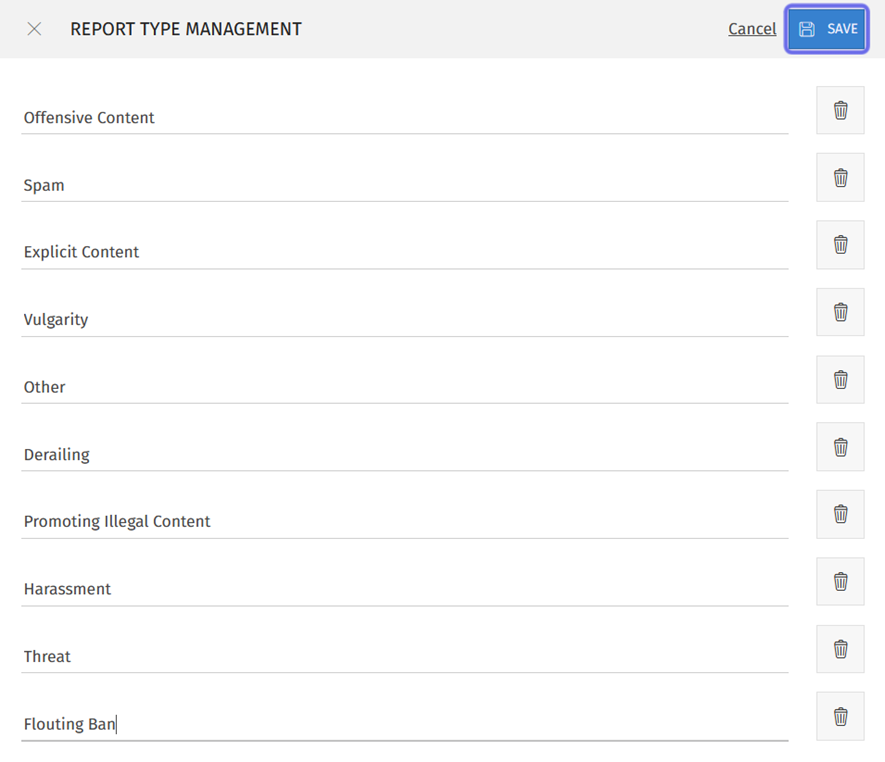
The “Save” button is highlighted in purple above.
When a member reports content, they will be prompted to select a report type from the saved list.
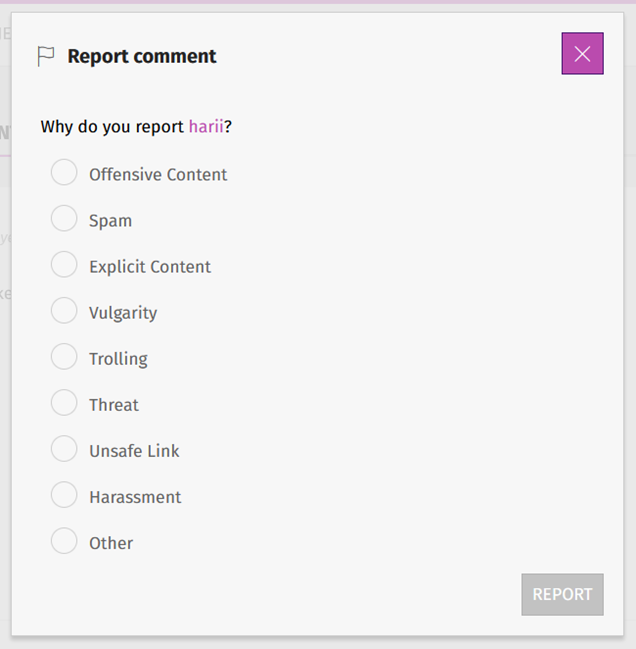
Report types as seen by a member on the front end are pictured above.
How to delete a report type?
Navigate to the “Report Types List” block at the bottom of the “Moderation” page. Click “Manage the Report Types List” to open the “Report Type Management” side panel.
Note: You can only delete a report type that has not previously been used to report content.
Click the trash can icon to the right of the report type you want to delete.
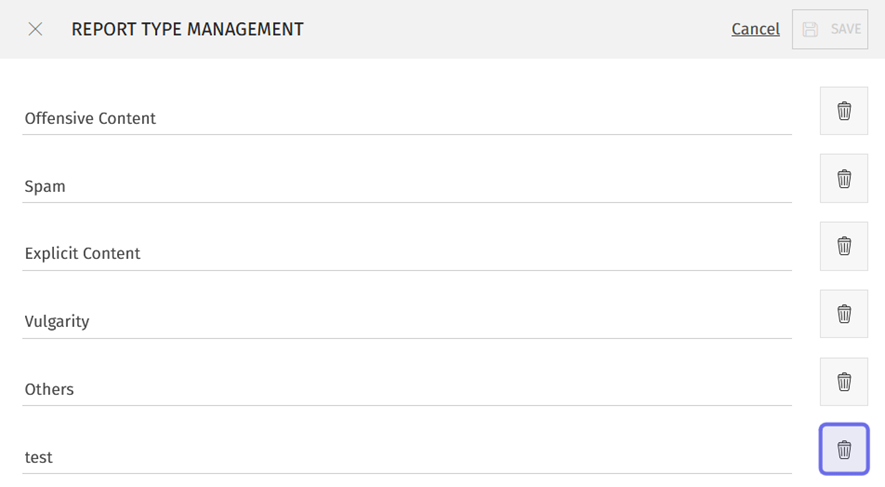
A trash can icon in the “Report Type Management” side panel is highlighted in purple above. The highlighted button will delete the entry “test.”
After you click the trash can icon, the report type will no longer be listed and the “Save” button in the top right will no longer be greyed-out. Click “Save” to confirm the updated list.
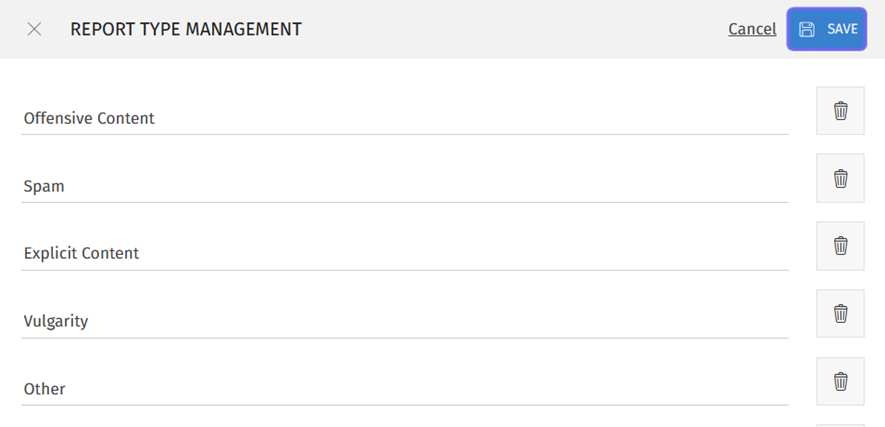
The “Report Type Management” side panel above is shown after a report type has been deleted. The “Save” button is highlighted in purple.