
How to create coupons ?
Who can create coupons?
Devs and Admins can create coupons.
Where can I create coupons?
You can create coupons in the back office. First, click “Extras” in the “Manage” menu.
Then, click “Coupons” in the submenu.
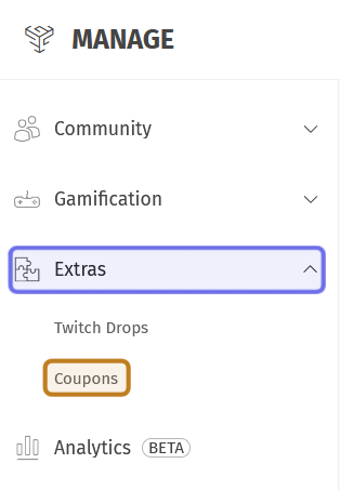
The top of the “Manage” menu is shown above with “Extras” highlighted in purple. The submenu is expanded. “Coupons” is shown highlighted in yellow.
You will be redirected to the “Coupons” page. There is an “Add Coupon” button on the right-hand side of the page header. Click “Add Coupon.” You will be redirected to the “New Coupon” page.

The “Coupons” page header is pictured above. The “Add Coupon” button is outlined in purple.
How do I create a coupon?
The fields to add a new coupon as listed in the “Coupon Information” box are found at the top of the “New Coupon” page.
Enter a name for the coupon in the “Name” field. The coupon name is only used in the back office. It is not visible to users who claim the reward.
Next, select a distributor. This is the platform on which players can use the keys that they have claimed.
Note: The distributors can choose from will depend on which distributors you have connected to your platform. G2G allows you to connect to Steam, Epic Games Store, and Xbox Game Pass.
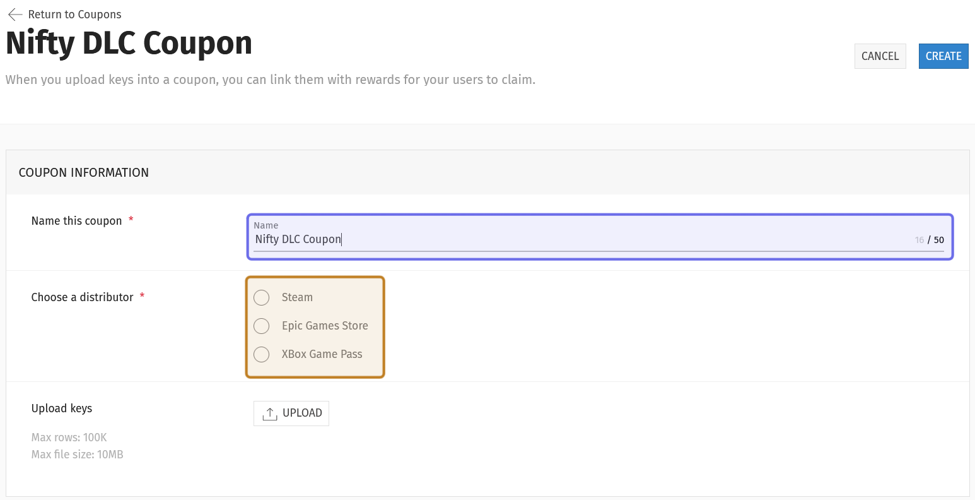
In the “New Coupon” page screenshot above, the “Name” field is highlighted in purple. The distributor options are highlighted in yellow.
Generate a list of keys on the distribution platform. Check your distributor’s documentation for more information. G2G allows you to upload a list as either a .csv or a .txt file.
Note: In a .csv file, each key should have its own row in the same column. In a .txt file, each key should be placed on its own line with no additional separation.
Click “Upload” to add the keys to the coupon. A window will pop up with further instructions.
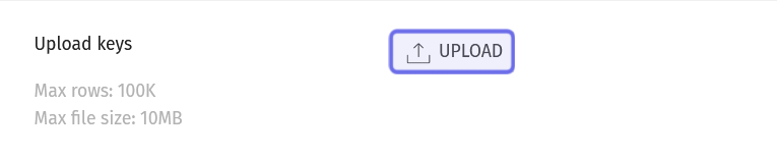
The “Upload” button is shown highlighted in purple.
Drag and drop a file or click the grey box to open a file browser. After adding your file, click “Upload.”
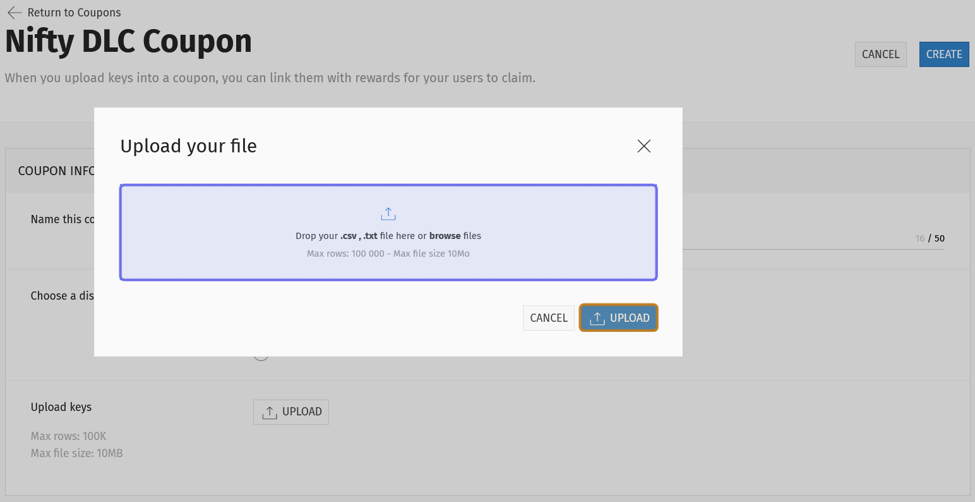
The window that pops up after clicking “Upload” is shown above. The space to drag-and-drop a file is highlighted in purple. The “Upload” button is outlined in yellow.
The uploaded keys will appear below the “Coupon Information” box. Click “Create” in the top right.
Note: Depending on the number of keys, there may be a brief delay while the coupon is created.
Exporting keys
You can export a coupon’s list of keys by clicking “Export to .csv” above the list of keys on the right. Each row in the exported file will show the key, the date it was added to the coupon, whether or not the key has been claimed, and the username of the person who claimed the key, if it has been claimed.
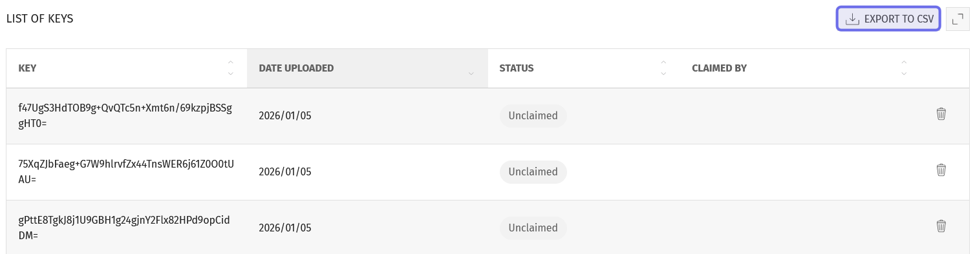
The list of keys for a coupon is shown above. The “Export to .csv” button is outlined in purple.
Can I edit a coupon?
You can update the name of a coupon, add new keys, and delete unclaimed keys. To edit a coupon, first find the coupon in the list on the “Coupons” page.
You can find a coupon by scrolling through the list, or by using the filters to narrow down the list.
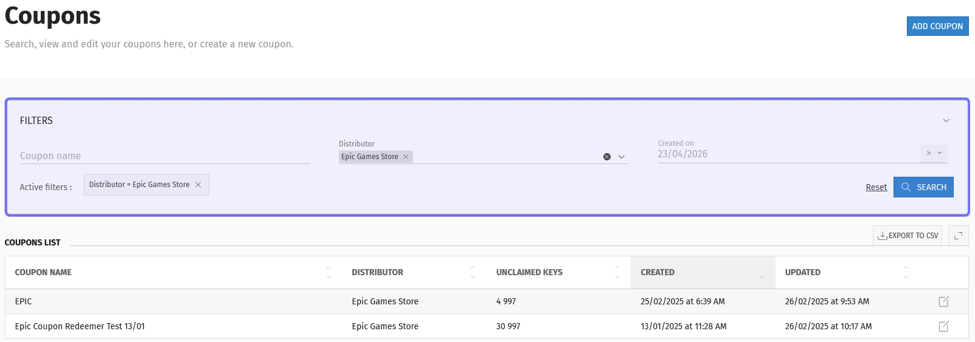
The “Coupons” page is pictured above. The filters available are highlighted in purple.
Using the “Filters” box at the top of the page, you can search for a coupon by name. Enter a word or phrase into the “Coupon name” field and click “Search.”
Show only coupons with keys for a specific distributor with the “Distributor” dropdown. Click to expand the dropdown. Then, select a distributor to filter the coupon list.
The rightmost field allows you to filter for when the coupon was created. First, click on the sign to the right of the “Created on” field. It shows a greater-than (>) symbol by default. Select an option from the list.
“> After” will show coupons created after a given date.
“< Before” will show coupons created before a given date.
“=Equal” will show coupons created on a specific date.
Next, click the “Created on” field to open a date picker. Select a date from the calendar. The coupon list will be filtered to only include coupons that were created on, before, or after that date.
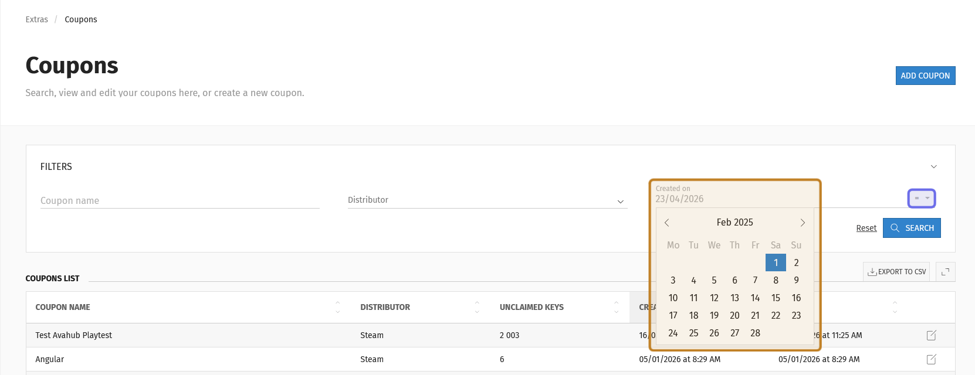
The two elements of adding a date filter are highlighted above. The dropdown to select how a coupon’s “Created” date should relate to the selected date is highlighted in purple. The date picker is highlighted in yellow.
Once you’ve found the coupon you want to edit in the list, click the “Edit” button located on the right-hand side of the coupon row. You will be redirected to the “Edit Coupon” page.

A coupon “Edit” button is outlined in purple.
You can edit the name and add further keys using the same process as when you created the coupon.
Note: Once a coupon is created, the distributor can’t be changed. If you want to upload keys from another distributor, create a new coupon. Multiple coupons can be linked to the same reward.
Once you’ve made your changes, click “Save” in the top right.
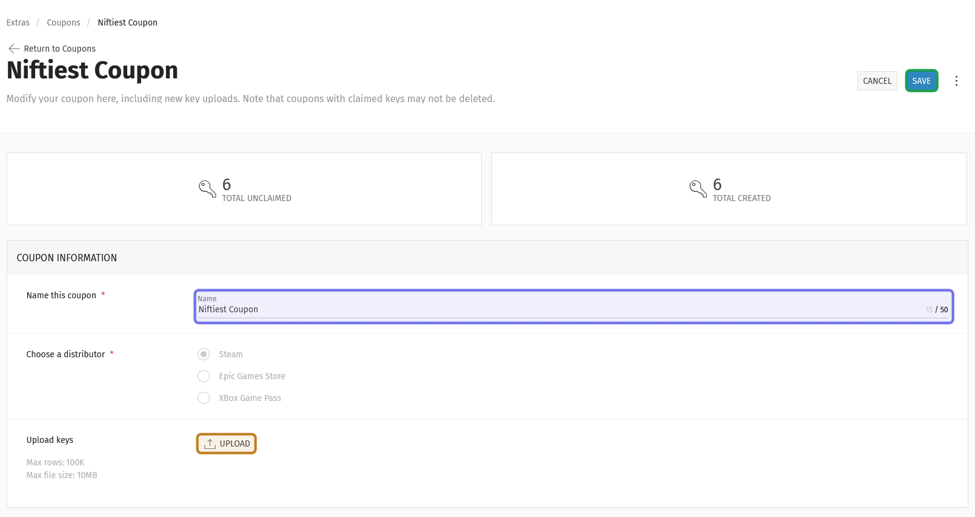
An “Edit Coupon” page is shown above. The “Name” field is highlighted in purple. The “Upload” button is highlighted in yellow. Changes can be made to either or both. The “Save” button to confirm changes is shown outlined in green.
Deleting keys
You can also delete unclaimed keys from the list of keys. Scroll down to the list and click the trash can icon at the rightmost side of the row with the key you want to delete. Click the trash can icon.
First, find the key you want to delete in the list on the “Edit Coupon” page. To narrow down the list of keys, use the fields in the “Filters” box. Use the “Status” dropdown to see only unclaimed keys. If you have uploaded multiple batches of keys, you can use the “Date uploaded” filter to view only keys uploaded on a specific date.
Then, click the trash can icon on the rightmost side of the key’s row to delete.
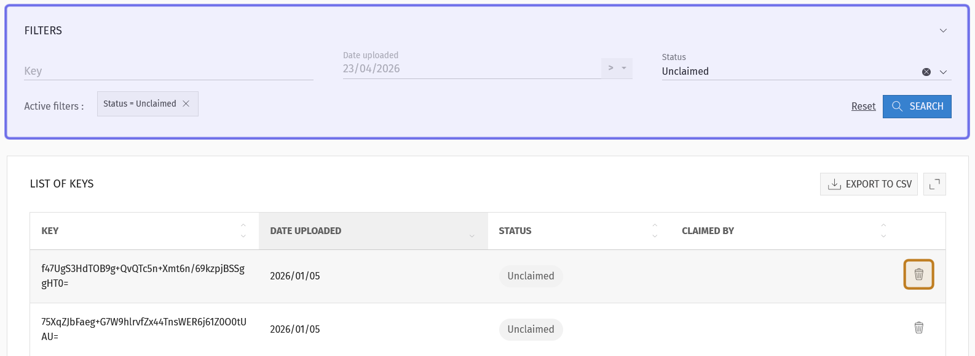
The bottom of an “Edit Coupon” page is pictured above. The “Filters” box is highlighted in purple. The “Delete” button for the first key in the list is highlighted in yellow.
How do I delete a coupon?
To delete a coupon, navigate to the “Edit Coupon” page. Click the “Edit” button on the rightmost side of a row in the list of keys. The “Edit Button” is the icon on the rightmost side of the row.
To the right of the coupon name in the “Edit Coupon” page header are three vertical dots. Click on the three dots. A menu will drop down with the option to delete the coupon.
Note: If any keys have been claimed, you will not be able to delete the coupon.
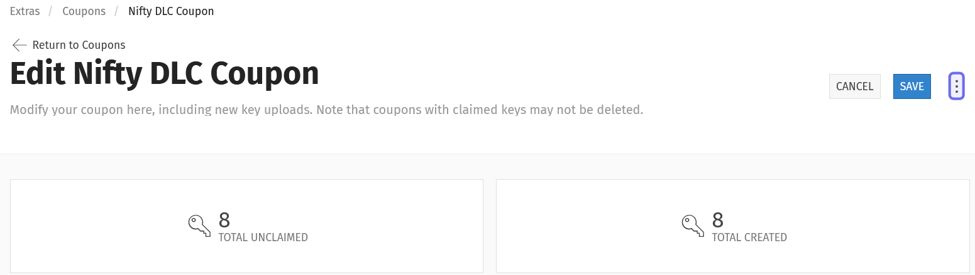
The top of an “Edit Coupon” page is shown above. The three vertical dots in the page header are highlighted in purple.
Click “Delete Coupon.”
A window will pop up asking you to confirm that you want to delete the coupon. Click “Delete.” If you don’t want to delete the coupon, click “Cancel.”
You will see a confirmation message and be redirected to the “Coupons” page when the coupon has been deleted.