
How to create a game reward ?
Who can create game rewards?
Admins and Devs can create game rewards.
Where do I create a game reward?
Game rewards can be created in the back office. To create a game reward, find the “Gamification” dropdown in the “Manage” menu on the left. Select “Rewards.”
Then, click the “Add Reward” button on the right-hand side of the page header. This will open the “New Reward” page.

The “Add Reward” button in the back office “Rewards” page header is highlighted in purple above.
How do I create a game reward?
When the “New Reward” page opens, it will display a single section: “General Settings.” The page will continue to populate with new fields as you progress.
To create a game reward, first click on the “Type” dropdown. Select “Game.”
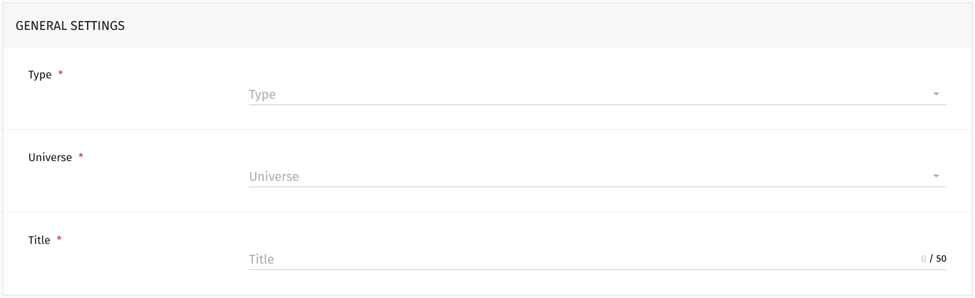
The screenshot above shows the three fields initially available on the “New Rewards” page.
A new toggle will appear beneath the “Type” dropdown labeled “FullGame.” Toggle “FullGame” on to display the in the carousel at the top of the “Rewards” section of a user’s “Profile” page.
Below this toggle is the “Universe” dropdown. Click the “Universe” dropdown and select which Universe the reward belongs to.
Next, enter a name for the reward in the “Title” field. Once you’ve added a title, several more sections will populate.
Note: The title cannot exceed 50 characters.
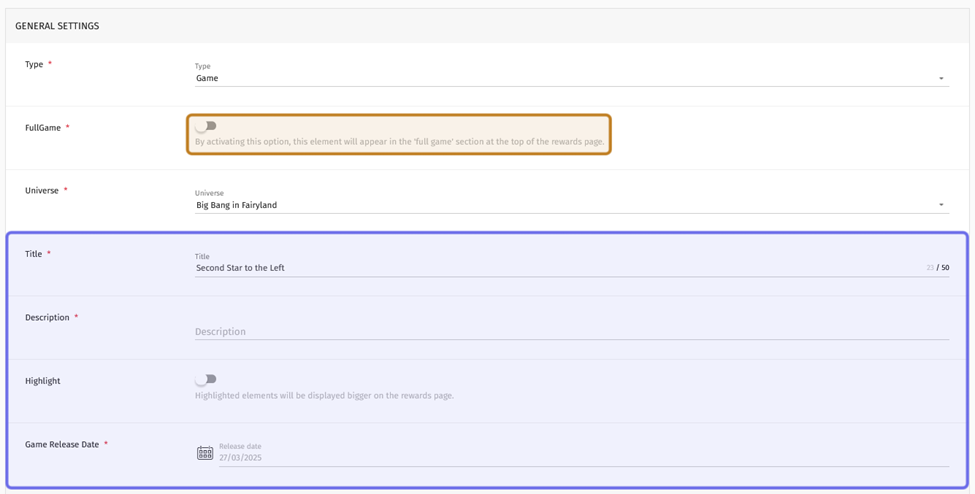
The “FullGame” toggle is highlighted yellow above. “Title” and the additional fields that populate when a title is added are highlighted in purple.
Directly below the “Title” field, three additional fields will appear.
Description is a text field. Enter a short description of the reward here.
Highlight is a toggle. If this is toggled on, this reward’s preview will be displayed larger on the “Rewards” section of the “Profile” page. Click to toggle on.
Game Release Date is a date field. Click to bring up a date picker and choose the date the game is set for release.
Continue scrolling down to the “Visibility” section. At the top of this section is a dropdown labeled “Badge Descriptor Id.” Click the “Badge Description Id” dropdown to link the reward to a badge.
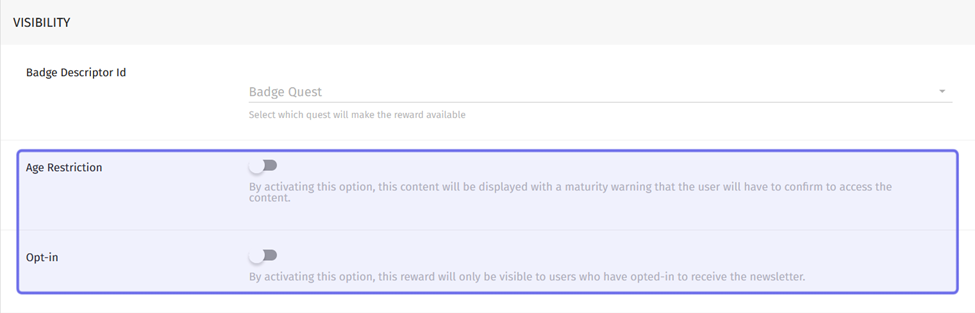
The “Visibility” section with the “Age Restriction” and “Opt-in” toggles highlighted in purple
There are two toggles in the “Visibility” section. Toggle on “Age Restriction” if you want to label the reward as mature.
The second is the “Opt-in” toggle. Toggle on “Opt-in” to restrict the reward to members who are subscribed to one of your newsletters. Click to toggle on, then select a newsletter from the dropdown that appears.
In the next section, you can specify when the reward should be published and when it should be removed from the front end. To set a publication date, click the “Start Date” field on the left-hand side of the “Dates” section. This will open a date picker. Select a date from the calendar, then type a start time into the HH:MM SS field to the right.
On the right-hand side there is an “End Date” field. If you want to specify a time after which the reward will no longer be accessible on the front end (even for Admins and Devs), click this field. Select a date from the calendar. Then type an end time into the HH:MM SS field to the right.
Note: You don’t need to specify a start or end date. If you enter no dates in this section, the reward will be available immediately upon publication and remain available.
Next add images in the “Assets” section, so you can show off the reward!
First, add a main picture. Locate “Main Picture” on the left of the “Assets” section. To the right is a grey rectangle with an “Upload Picture” button below. Click “Upload Picture” to browse and upload the picture that will represent your reward.
The main picture must be a 1024x576px .jpeg under 150KB. If you need help formatting an image, download the Figma template at the top of the “Assets” section.
Below “Main Picture” there is a space to upload additional images. Click “Upload Picture” in the “Images” row to upload another image. Add further images by clicking the plus button to the right of the grey rectangle. At least one additional image is required.
Note: Additional images are especially useful if you are displaying the game reward in the “Full Game” carousel on the “Rewards” section of the “Profile” page.
You can optionally upload a video, such as a trailer or gameplay example. To add a video, click “Upload Video” in the next row. You will be able to browse for and upload a video file. The file requirements are on the left under “Video.”
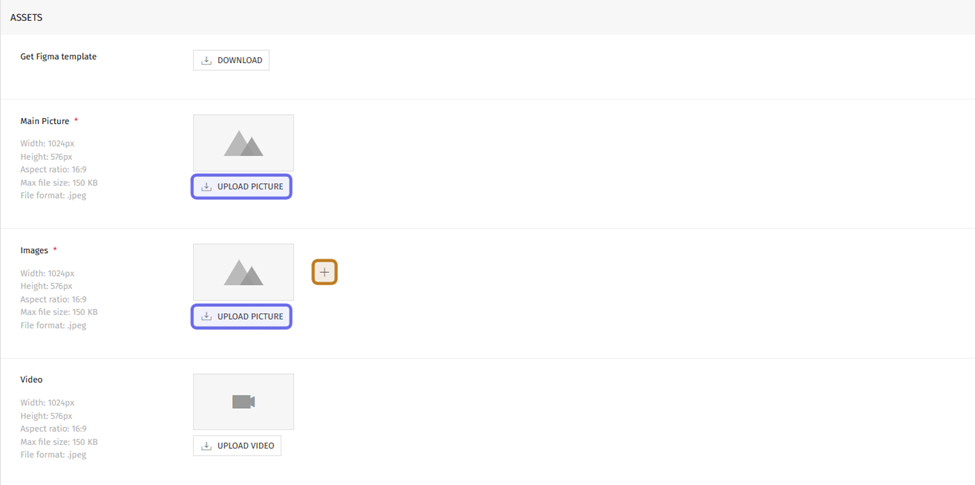
The “Assets” section is shown above. The buttons to upload a main picture and additional images are highlighted in purple. The plus icon to add images is highlighted in yellow.
Below the “Assets” section, there is space to add credits. In the top field, enter the developer. In the bottom text field, enter the publisher.
Lastly, you need to set up how a user can redeem their reward. Under “Redeem,” there are three options: G2G Redeemer, Epic Games ID access, and Direct inventory access. Select a redemption option.
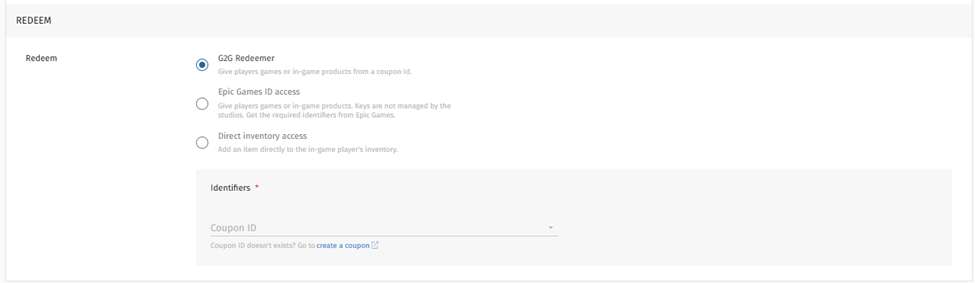
This screenshot shows the “Redeem” section with the “G2G Redeemer” option selected. The grey “Identifiers” field is visible at the bottom.
Then, fill out the fields in the “Identifiers” box to complete the selected redemption process.
After setting up the redemption process, publish the new reward or save it as a draft.
There are two buttons at the top of the page on the right-hand side. Click “Save” to save the reward as a draft. Click “Publish” to publish the reward to the front end.
Note: If you have set a specific publication date, clicking “Publish” will not immediately display the reward on the front end. The reward will be made visible at the specified date and time.

The “Save” and “Publish” buttons are shown on the right of the “New Reward” page header. They are highlighted in purple above.
How do I configure the redemption process for a game reward?
G2G supports three options for users’ to redeem a game reward.
G2G Redeemer provides a key to the user via G2G coupons. The key can be redeemed on Steam, the Epic Store, or the xBox Game Pass.
Epic Games ID Access allows users to claim an Epic Games Store item without a key.
Direct Inventory Access allows users to redeem an item using the G2G “Inventory” service.
G2G Redeemer
To use the “G2G Redeemer" option, you need to first create a coupon. Once you have created a coupon, return to the "Redeem" section of the new game reward.
On the “New Reward” page, select “G2G Redeemer.”
Click the “Coupon ID” dropdown in the grey “Identifiers” box. Select the coupon that redeems that game reward.
You can add up to three options: one for Steam, one for the Epic Games Store, and one for Xbox Game Pass. Remember that you must connect your platform to the key provider before creating coupons.

The “Identifiers” box when “G2G Redeemer” is selected is shown above.
Epic Games ID Access
To use Epic Games ID Access, you first need to create an offer through the Epic Games Store Developer Portal. Note down the namespace and offer ID.
Then, on the “New Reward” page, select “Epic Games ID access.”
In the grey “Identifiers” box, enter the namespace from the Epic Games Store Developer Portal into the “Epic Namespace” field.
Then, enter the offer ID into the “Epic offer id” field.
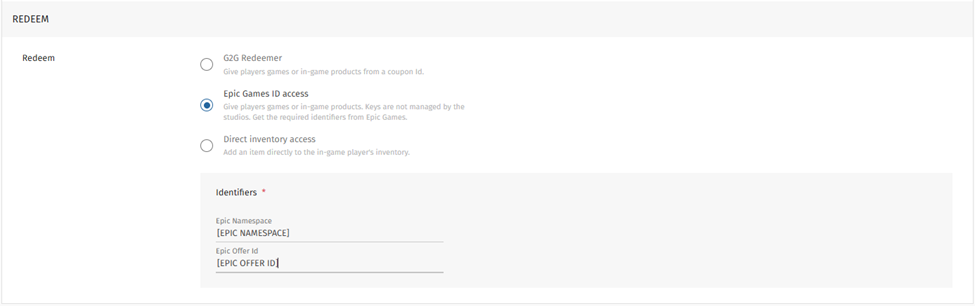
The “Identifiers” box when “Epic Games ID access” is selected is shown above.
Direct Inventory Access
To use Direct Inventory Access, you must have the “Inventory” service set up and active. The “Inventory” service allows players to unlock items on G2G that are then provided in-game.
On the “New Reward” page, scroll down to the “Redeem” section. Select “Direct inventory access.”
In the grey “Identifiers” box, enter the asset name in the top “Name” field. This field should exactly match the name of the item as it appears in the game code.
Below the “Name” field is a “Characteristics” row. This row allows you to add more item details that can be used in your game. The row has three fields, none of which are required.
Name: This should match the characteristic name used in your game code.
Type: You can select one of three variable types–string, number, or boolean–from the dropdown.
Value: Enter the value that should be assigned to the characteristic you are defining here.
If additional information is required, click “Add row.”
Note: Add characteristics only when it is specifically required for the item to function correctly in game. Otherwise, the characteristics fields should be left empty.
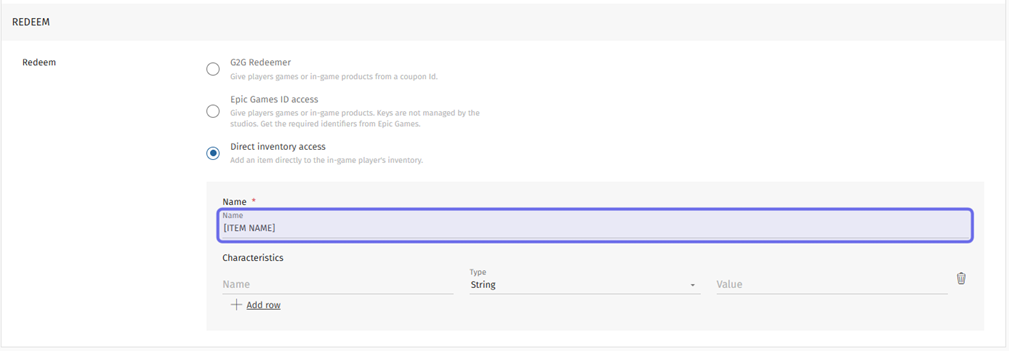
The “Identifiers” box when “Direct inventory access” is selected is shown above. The field highlighted in purple is where the asset name that matches the name in the game code should be entered.
When a member claims the reward on G2G, the item will be added to their G2G inventory. If their account is connected in-game, the item is available in their in-game inventory immediately. Allowing players to connect their game account and G2G account is part of the “Inventory” service set up process.
Note: You can check your users’ G2G inventories. Speak to your Account Manager for access.