
How to set up the “Inventory” service?
Who can set up the “Inventory” service?
To set up the “Inventory” service, you need to have access to the back office and will need to communicate with your Games2gether (G2G) Account Manager.
What is the “Inventory” service?
The “Inventory” service allows you to connect your game directly to Games2gether’s gamification. Player actions on G2G or Twitch (via Twitch Drops) can unlock in-game rewards without players needing to download a file or use a key.
The “Inventory” service is not activated by default. If you’d like to use the “Inventory” service, speak with your Account Manager.
How do I set up the “Inventory” service?
Setting up the “Inventory” service requires some collaboration between your team and the G2G devs. The exact process will depend on how your team is organized and the tools you have available. Generally, it requires team members with access to the G2G back office and team members who can work with your game code.
Set up a Universe
Before activating the “Inventory” service, you must first set up a Universe on G2G in the back office. If you had a Universe that represented multiple games when you first configured the platform (such as a Universe that included content for a game and its sequel), you may need to set up a new Universe. Each Universe should only be linked to one game through the “Inventory” service.
Ask your Account Manager for the Universe ID. You’ll need this when linking the G2G inventory and in-game inventory.
Link players and G2G accounts
Your team will need to link in-game accounts to the G2G platform, either with the G2G account system or an SSO account system.
Your Account Manager will provide you with the in-game connection services documentation.
The aim is to be able to identify individual members of your G2G community in-game. This allows us to sync their G2G inventory with their in-game inventory when a new item is unlocked. If you use an SSO account system, your system will need to send a user’s unique identifier through the “Inventory” service to link accounts.
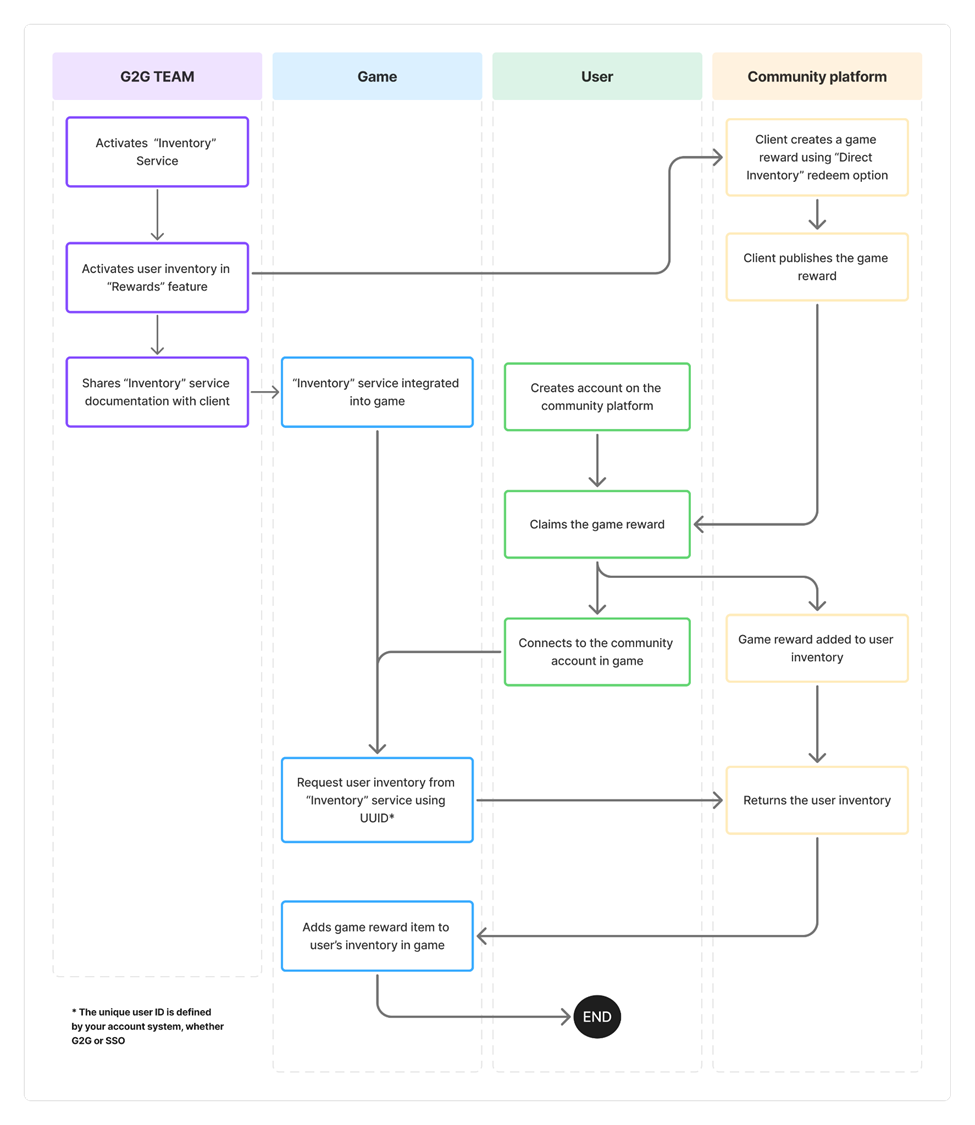
The above chart gives an overview of how the “Inventory” system connects the G2G platform and a game.
Activate the “Inventory” service
Once you’re ready, our team will activate the “Inventory” service.
Connect G2G and in-game inventories
Your Account Manager will provide the “Inventory” service documentation and give you an API key.
The documentation provides the details you need to enable G2G to add unlocked rewards to players’ in-game inventories. The API will allow you to create, read, update, and delete inventory items. The “Inventory” service is agnostic; there are as few requirements as possible to allow the service to integrate with any game code. As a result, there is no one process or step-by-step guide. Your team will need to implement the connection between the G2G inventory and players’ in-game inventories in the way that works best for your game.
Test the connection
We strongly recommend testing the connections between G2G and your game before letting players know about a new way to earn rewards. Ensure that members of your G2G community can be identified in your game. Double-check that items in a G2G inventory are successfully appearing in the game inventory.
If you encounter any issues, please contact your Account Manager.