
How to set up Twitch Drops ?
Who can set up Twitch Drops?
Admins and Devs can link Twitch Drops to Games2gether (G2G).
When you first set up Twitch Drops, you may need to involve additional members of your team.
What do I need to set up Twitch Drops?
Before setting up your first Twitch Drop on G2G, a few things need to be set up off the platform.
Connect to Twitch
Connect your account system to Twitch. If you use the G2G Account Service, contact your Account Manager. If you use an SSO system, add Twitch Connect.
Connect your account system to your game
Configure the in-game connection so that you can identify members of your G2G community in game. Your Account Manager can provide the in-game connection services documentation.
Set up a Twitch Drop campaign
Go to Twitch Developer Portal and set up a Drops campaign. You’ll need the “Reward ID” and “Game ID” from your campaign to link your Drop to G2G.
Configure your in-game inventory
Set up G2G’s “Inventory” service and configure your in-game inventory. This enables you to provide items to your players through G2G. Contact your Account Manager for additional documentation.
Communicate with players
Spread the word that Drops are available on G2G! You can make an announcement in News, sticky an explanation of how the process works in Forums (like the example here), and use the “Stream” block to help members find the right stream to access a Drop.
Where can I set up Twitch Drops?
You can set up Twitch Drops on G2G in the back office. Click on “Extras” in the “Manage” menu. Then, click “Twitch Drops.”
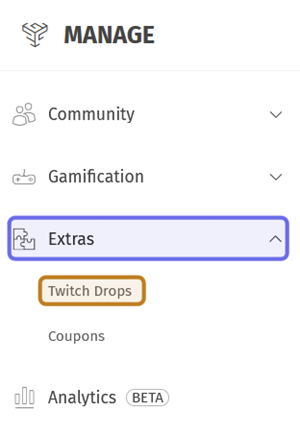
The “Manage” menu is pictured above. The “Extras” dropdown is highlighted in purple. “Twitch Drops” is highlighted in yellow.
On the “Twitch Drops” page, click “Add Twitch Drop.” The button is on the right-hand side of the page header.
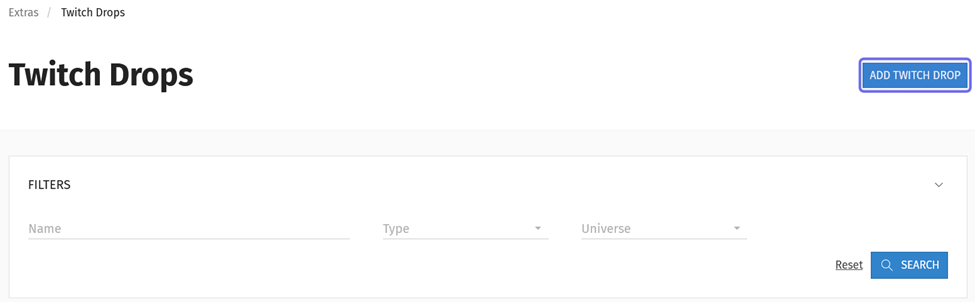
The top of the “Twitch Drops” back office page is shown above. The “Add Twitch Drop” button is outlined in purple.
How do I set up Twitch Drops?
Clicking “Add Twitch Drop” will take you to a “New Twitch Drop” page listing Drop properties.
The “Type” dropdown is in the top left. Click on the “Type” dropdown and select “Inventory.”
Then, click on the “Universe” dropdown to the right. Select the Universe that fits the game you’re creating a Drop for.
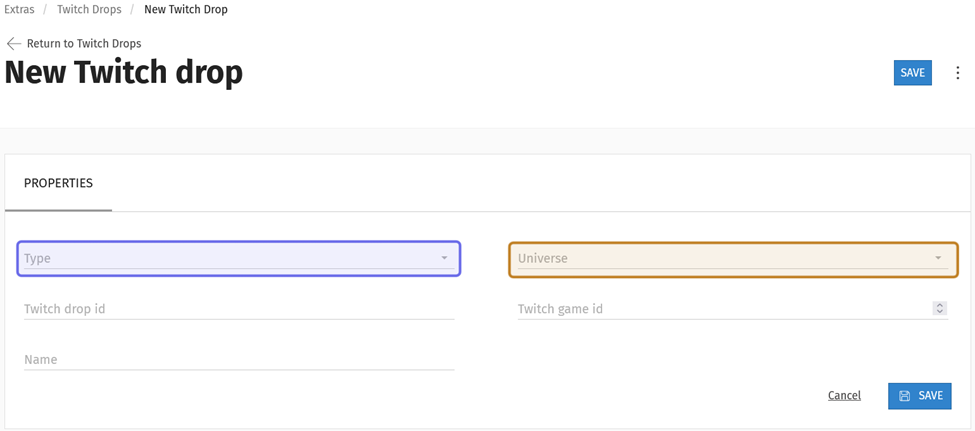
The “New Twitch Drop” page is shown above. The “Type” dropdown is highlighted in purple. The “Universe” dropdown is highlighted in yellow.
Enter the alphanumeric “Reward ID” in the field labeled “Twitch drop id.” The “Reward ID” was generated when you set up the Drop campaign on Twitch.
Enter your number “Game ID” in the field labeled “Twitch game id.” This is the unique ID of your game used by Twitch. You can find it in the Twitch developer portal under “Campaign Details.”
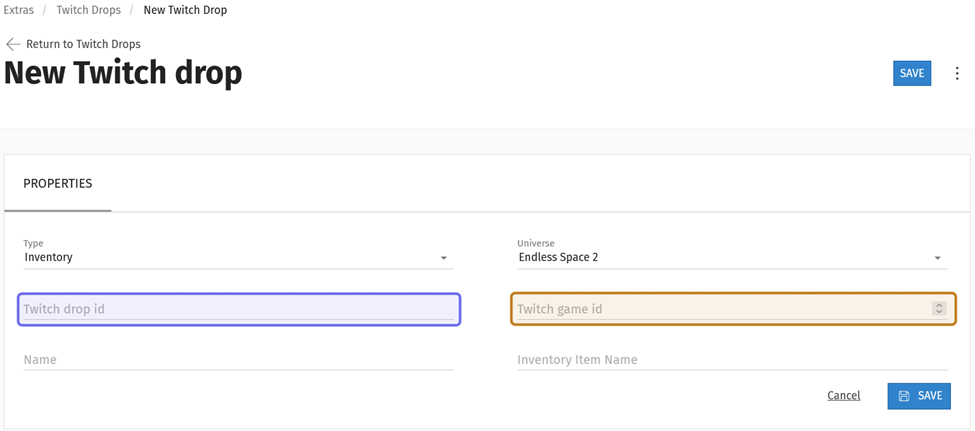
In the above screenshot, the “Twitch drop id” field is highlighted in purple. The “Twitch game id” field is highlighted in yellow.
Enter a name for the Drop item in the “Name” field found beneath the “Twitch drop id” field. This is only used to identify the item in the G2G back office.
Then, enter the in-game item reference in the "Inventory Item Name” field to the right. The item name must match the name used in your game code.
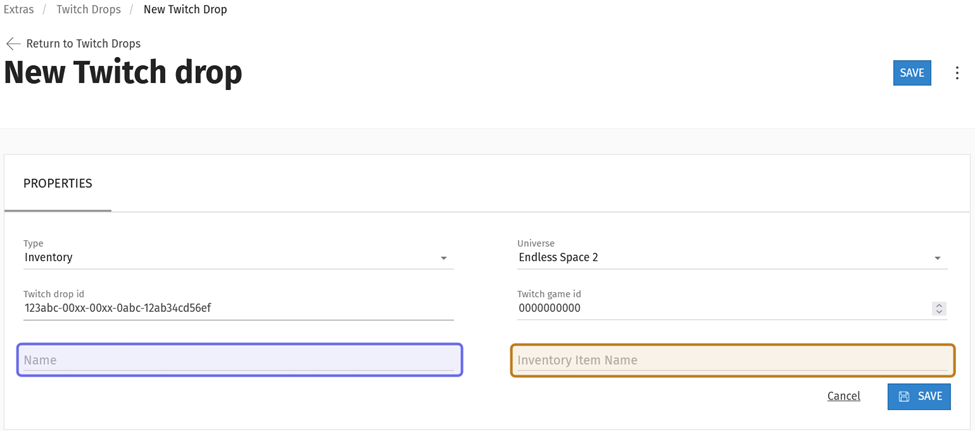
The “Name” field is highlighted in purple above. The “Inventory Item Name” field is highlighted in yellow.
Click “Save” to save the new Twitch Drop.
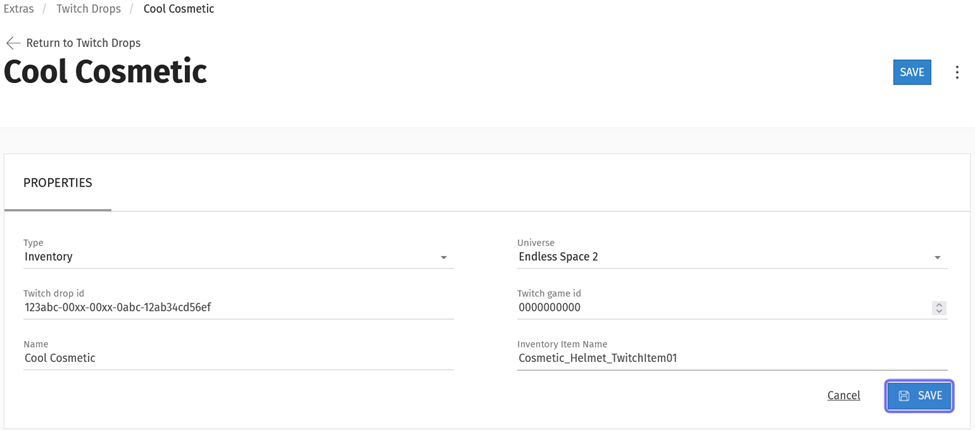
A new Twitch Drop with all fields filled out is shown above. The “Save” button to finalize the new item is outlined in purple.
After you save the details of your new Twitch Drop, it will be added to the list on the “Twitch Drops” page. If you need to later edit any of the Drop details, click the “Edit” button. The “Edit” button is on the rightmost side of a Drop item’s row.

The “Edit” button on the “Twitch Drops” page is outlined in purple above.