
What you can find on a user’s profile
Who can view public profiles?
All site visitors can view public profiles.
Where can I view a user’s public profile?
There are several ways you can find a user’s profile.
When you see a piece of content posted by a user, you can click on their username to be taken to their public profile.
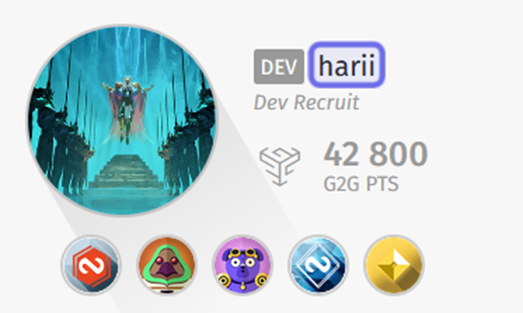
The user information displayed when a member posts on the Forums.
The username is highlighted in purple.
You can also search for a user in the navigation bar. Type the user’s name into the search bar. Results will appear beneath.
If you see the username you are looking for, click on the username.
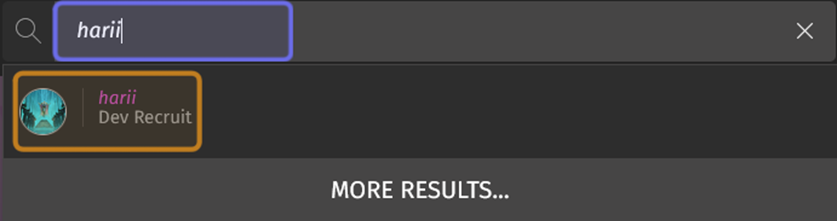
The search bar in the navigation bar is shown with an active search. The search term is highlighted in purple. The result that will take the user to a profile is highlighted in yellow.
If you don’t see the username you are looking for, click “More Results.” This will take you to a “Results” page. Options to narrow down your results will be on the left.
Click on “Members” under “Type” to only display matching usernames.
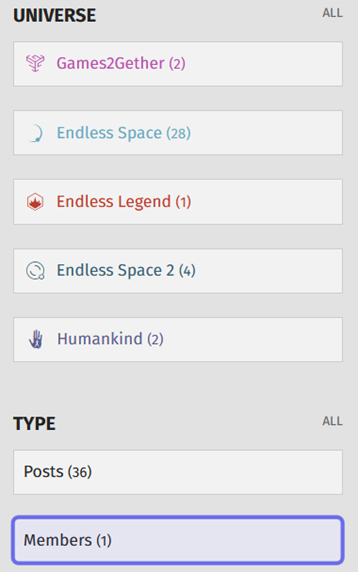
The filter options on a search “Results” page is shown above. The option to narrow down only to show member usernames is highlighted in purple.
You can also reach a user’s profile by clicking on a username in the leaderboard.
Note: The URL of a user’s public profile is usually: https://community.[platform domain]/profile/[username]/about
What can I find on a user’s public profile?
When you land on a user’s public profile, you will see a header at the top with a page menu beneath it.
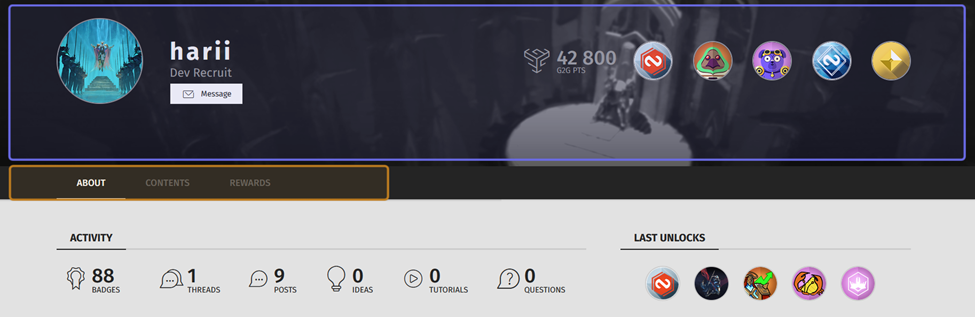
The top half of a user’s public profile is shown above. The header is highlighted in purple. The page menu is highlighted in yellow.
The user’s name is on the left-hand side of the header. To the left of the username is the user’s avatar. Directly beneath the username is the user’s title.
Underneath the username and title is a button with an envelope icon labeled “Message.” Click this button to private message the user.

A profile header is shown above. The user’s avatar and title are highlighted in yellow. The “Message” button is highlighted in purple.
On the right-hand side of the header, you can see the user’s number of G2G points. Clicking on the G2G points will take you to the profile’s “Badges” section.
Next to the G2G points are five badges that the user has unlocked. Users can choose which five badges their profile highlights.

A profile header is shown above. The user’s G2G points total is highlighted in purple. The user’s favorite badges are highlighted in yellow.
A public profile has three main sections that are accessed via the tabs in the page menu.
The leftmost and default tab is “About.” If a user has added a description, signature, or links to their profile, they will be shown here. The section will also automatically display a summary of activity on the platform and the badges the user has most recently unlocked.
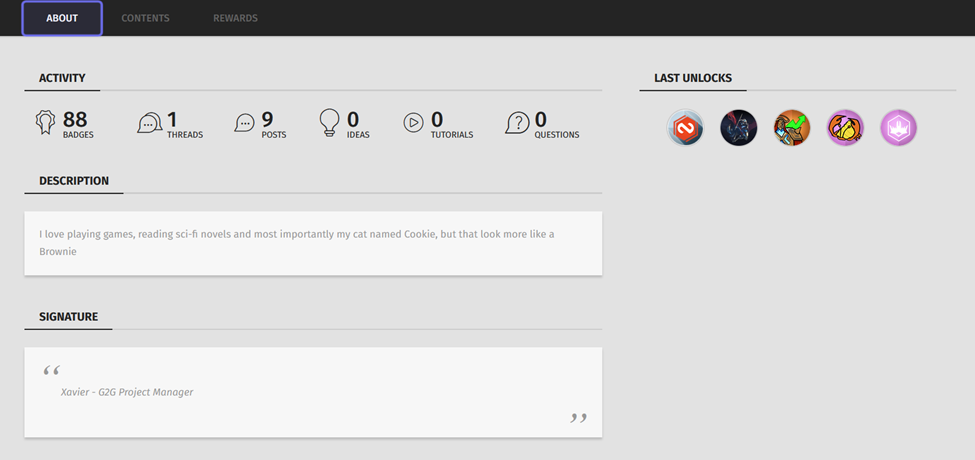
A profile’s “About” section is shown above. The “About” tab in the page menu is highlighted in purple.
The middle tab will take you to the “Contents” section. The “Contents” section displays any content that the user has posted to the platform. It is divided by content type. The different content types can be accessed via the tabs in the submenu, located below the page menu.
Click on a tab in the submenu to see content of that type that the user has posted in all Universes. There is a list of Universes on the left that you can use to filter the displayed content for specific Universes.
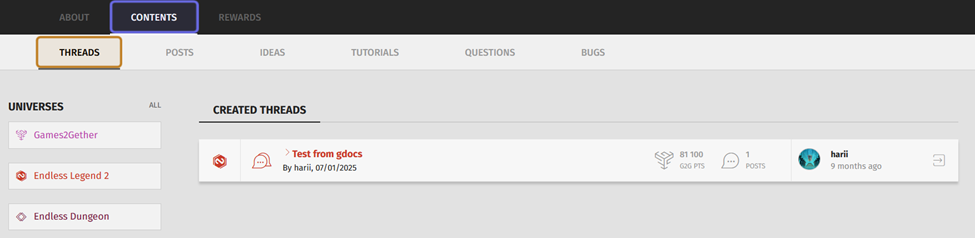
Part of a profile’s “Content” section is shown above. The “Contents” tab is highlighted in purple. “Threads” in the submenu is highlighted in yellow.
The rightmost tab is “Rewards.” Click on the “Rewards” tab to show all badges the user has unlocked. You can narrow these down by Universe using the list of Universes on the left. Click on a Universe to only display badges associated with that Universe.
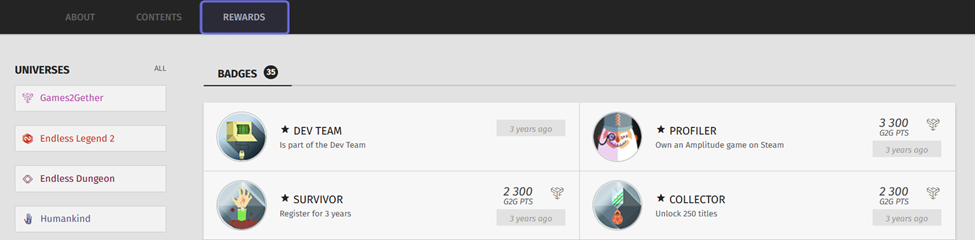
A public profile’s “Rewards” section is shown above. The “Rewards” tab in the page menu is highlighted in purple.