
What you can find on your private profile
Who can view private profiles?
Each registered user can view their own private profile.
Where can I view my private profile?
You can find your profile by clicking on your avatar in the navigation bar. This will open the user menu.
Then, click on “Profile.”
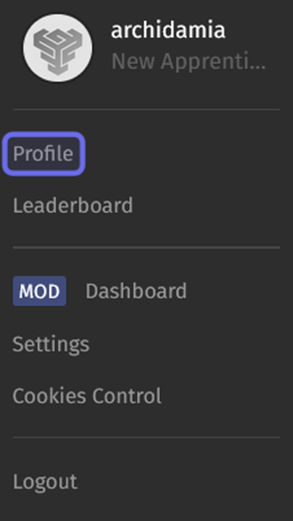
The user menu is shown above. The “Profile” link is highlighted in purple.
What can I find on my profile?
Header
At the top of your profile is your profile header. The information it displays is visible on your public profile and identifies you when you post content on G2G.
By clicking on certain header elements, such as your avatar and favorite badges, you can make customizations to your profile.
Next to your username is a link to the “Account Settings” page. (You can also access account settings from the user menu.) This is where you can update your information (such as your password), connect external accounts, set cookies settings, view users you have blocked, and request deletion of your account.
Note: If the Studio does not use the G2G Account System, the “Account Settings” button may lead to an external account system or may not be present.

A profile header is shown above. The “Account Settings” link is highlighted in purple.
Below your profile header is the profile page menu. The profile page menu consists of a series of tabs that allow you to access the other elements of your profile.
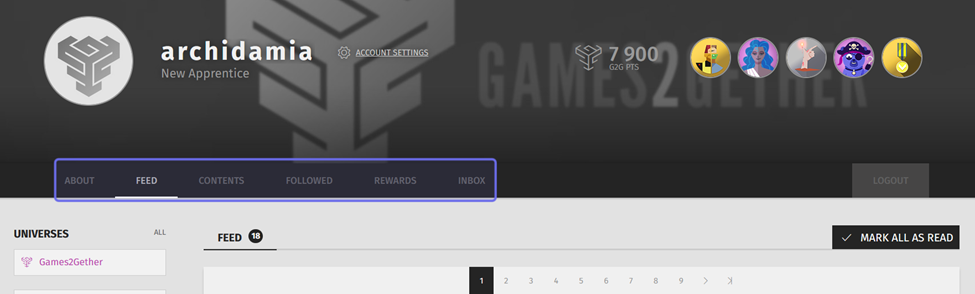
The top half of a user’s private profile is shown above. The page menu is highlighted in purple.
About
Under the “About” tab you can find summaries of your activity and additional opportunities to customize your profile. You can share a description, signature, and links in the “About” section.
Below the page menu is the “Activity” section. This gives you an overview of contributions you’ve made to the community. You can find more details under the “Contents” tab and the “Rewards” tab.
On the right there is a section labeled “Last Unlocks.” This shows you which badges you have earned most recently.
Note: Above “Last Unlocks” is “Steam Connect.” Click to link your Steam account.
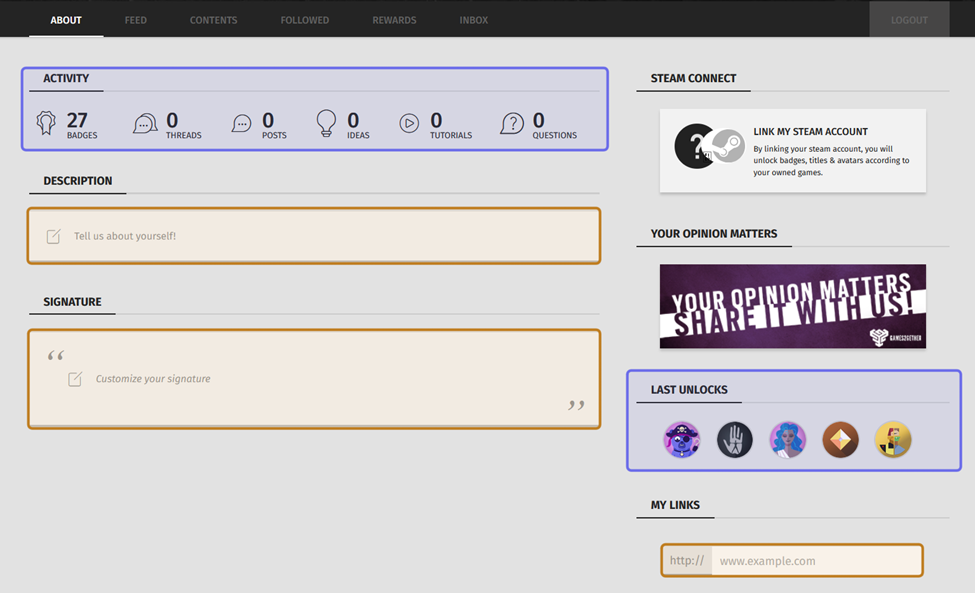
The “About” tab is shown above. The sections showing activity are highlighted in purple. The elements you can customize are highlighted in yellow.
Feed
The “Feed” tab is where you can find all of your notifications. You will receive a notification when you unlock badges and avatars, when someone replies to one of your threads, when an idea you follow is updated, and more.
Review notifications by scrolling and using the pagination at the top and bottom of the list of notifications.
You can filter your notifications using the filters on the left. Click on the options under “Universes” to show only notifications from the selected Universes. Use the two options under “States” to filter for only read or only unread notifications. Select from “Types” to filter for specific kinds of content, such as notifications that you’ve unlocked new rewards.
If you’ve recently received a lot of notifications and want to clear them quickly, click “Mark All As Read” above the feed on the right-hand side.
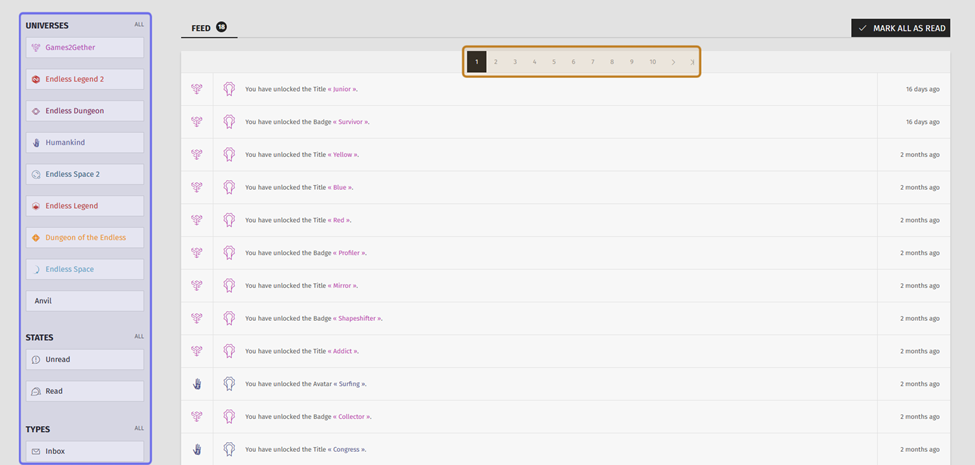
The “Feed” tab is shown above. The filters are highlighted in purple. The pagination at the top of the feed is highlighted in yellow. A second pagination at the bottom is not shown in the image.
Contents
Under the “Contents” tab, you can view everything you have posted to the platform, from a thread you created yesterday to a bug report you submitted a year ago.
Click on “Contents” in the page menu to open a submenu. The submenu lists six types of content. Click on a type of content to see the posts you’ve made of that type.

The profile page menu with the “Contents” submenu is shown above. The “Contents” tab is highlighted in yellow. The submenu is highlighted in purple.
You can view
posts you have made in threads created by you or others,
questions you have asked using the “Help” feature,
For example, if you click on “Posts” in the submenu, you will see a list of threads that you have replied to. Clicking on one of the listed threads will take you directly to your post.
If necessary, there will be pagination to allow you to navigate back to earlier content.
You can narrow down the content shown by using the “Universe” filters on the left. Select one or more Universes from the list to display only content posted to the selected Universe(s).
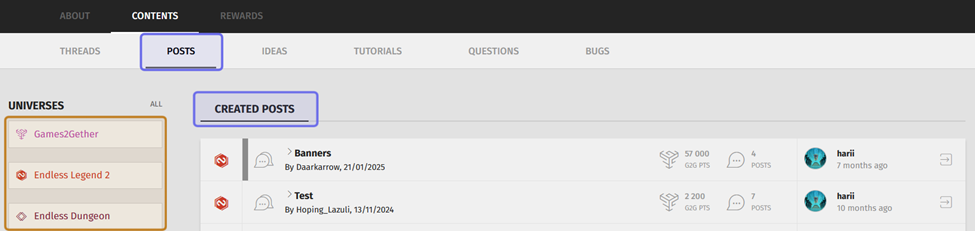
Part of the “Contents” tab is shown above. “Posts” has been selected from the submenu, so the tab displays the user’s created posts as highlighted in purple. The “Universe” filters are highlighted in yellow on the left.
Followed
You can check out the content that you’ve followed under the “Followed” tab. Clicking “Followed” will open a submenu.
The submenu lists the four types of content that you can follow: forums, threads, ideas, and questions.
Click on a tab to view the content of that type that you have followed.
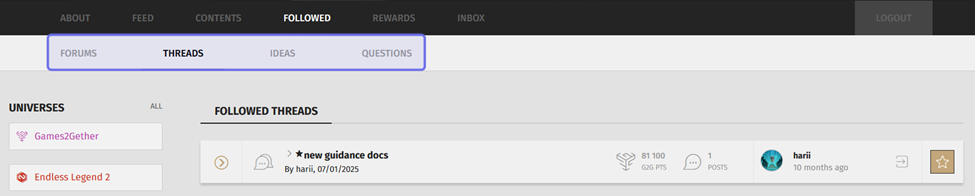
Part of the “Followed” tab is shown above. The submenu of different types of followed content is highlighted in purple.
You can narrow down the list of followed content using the filters on the left. To display content you have followed from a specific Universe or Universes, click on the relevant Universe(s). You can also use the “States” filters to show only read or only unread content.
Note: You can unfollow content from the “Followed” tab by clicking the star icon on the rightmost side of a displayed forum, thread, idea, or question.
Rewards
Clicking on “Rewards” in the profile page menu will open a submenu. Find freebies you can claim and a summary of your badge progress under “Home” in the “Rewards” submenu.
Each section under “Home” has a plus or minus icon on the right-hand side. Click the plus (+) to expand a section. Click the minus (−) to close it.
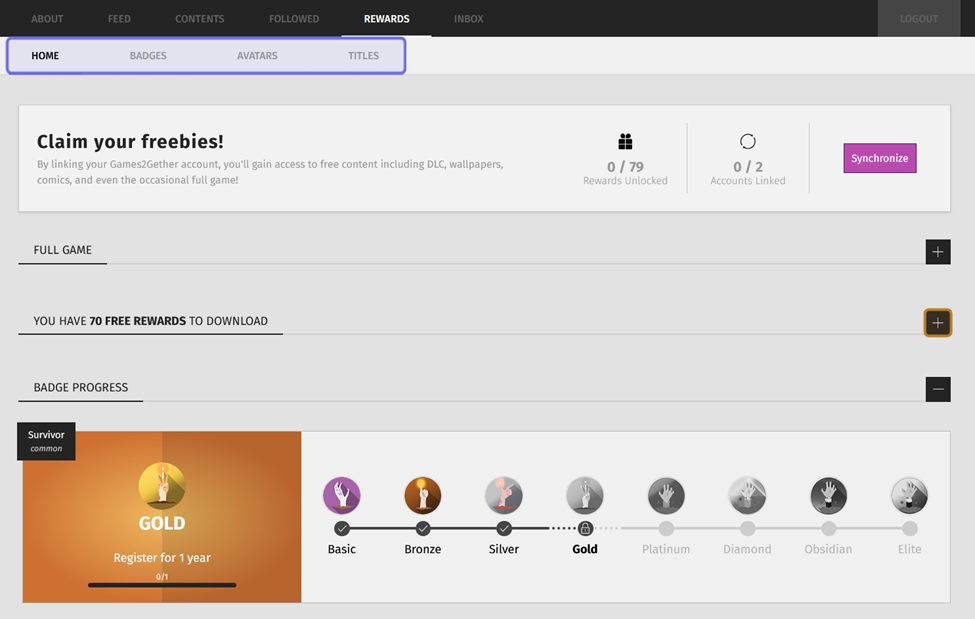
“Home” under the “Rewards” tab is shown above. The “Rewards” submenu is highlighted in purple. An example of the plus icon to expand a section is highlighted in yellow.
You can download freebies you’ve earned by expanding the section titled “You have # free rewards to download.” Use the three dropdowns in the “Filters” box to narrow down the rewards displayed by Universe, type of reward, and whether or not you have already downloaded it.
Click on a reward to download it. A window will appear with more details and the option to download the content.
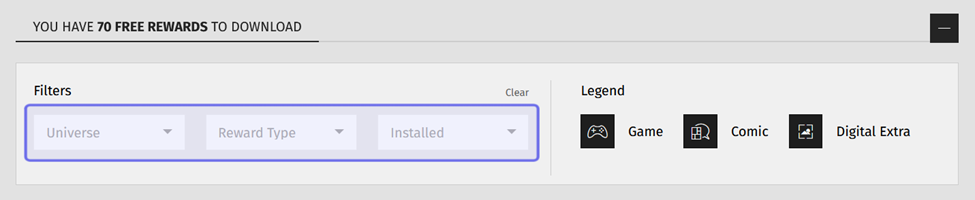
The section of the “Rewards” tab where a user can download their freebies is shown above. The filter dropdowns are highlighted in purple.
Click on “Badges” in the submenu to see a list of the badges that you have unlocked and all visible locked badges. Clicking “Titles” or “Avatars” will show a similar list of those rewards.
You can use unlocked badges, titles, and avatars to customize your profile.
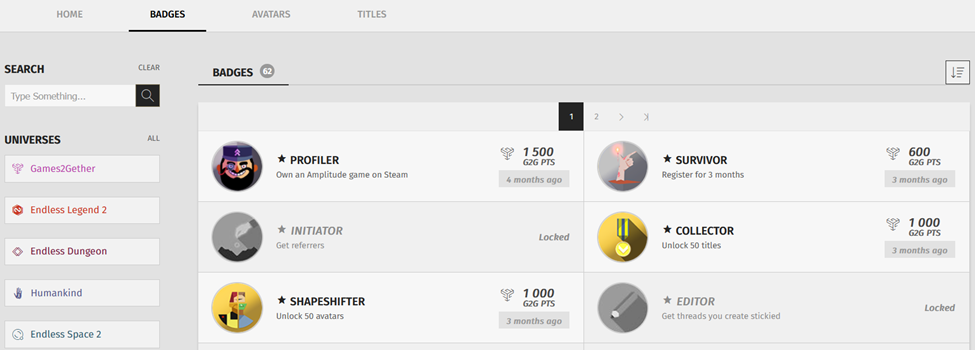
In the profile tab shown above, “Badges” has been selected from the “Rewards” submenu.
Inbox
The rightmost tab is “Inbox.” You can find the direct messages that you have sent or been sent in this tab. Click on a direct message in your inbox to read and reply to the message.
If you know a member’s username, you can send a message from the “Inbox” tab by clicking on “Send New Message.”
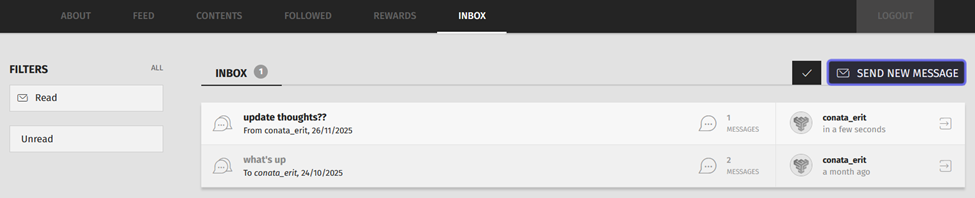
A user’s inbox is pictured above. The “Send New Message” button is highlighted in purple.
Note: You can also send a direct message by visiting another user’s profile