
How to send and check your direct messages?
Who can send and receive direct messages?
All registered users can send and receive direct messages.
Your ability to send a direct message may be restricted if another user has blocked you, or if moderation action has been taken against you.
Where do I find my inbox?
Click on the envelope icon in the navigation menu to access your inbox.
You can also reach your inbox from the private profile page menu by clicking on the “Inbox” tab.

The right side of the navigation menu is shown above.
The “Inbox” button is highlighted in purple.
How do I check my direct messages?
Direct messages are stored in your inbox. You can access your inbox by clicking on “Inbox” in the private profile page menu or by clicking on the envelope icon in the navigation menu.

The right side of the navigation menu is shown above. The “Inbox” button is highlighted in purple.
Click on any message title to view the full message thread. You can read and reply to an expanded message thread.
If you have a high volume of messages, you can narrow them down using the “Read” and “Unread” filters on the left.
You can mark all messages as read by clicking on the checkmark to the left of the “Sent New Message” button.

The “Inbox” tab is shown above. The “Unread” filter is highlighted in purple. Clicking on the check highlighted in yellow will mark all messages as read.
How do I send a direct message?
When you message a user or users, you create a new thread only visible to the community members included in the original message. Direct messages are stored and viewed in your inbox.
Send a new message
If you know a member’s username, you can send a message from your profile by clicking on the “Send New Message” button above your messages on the right-hand side.

The “Send New Message” button in a member’s inbox is highlighted in purple above.
A “New message” window will pop-up. The top field is titled “Enter usernames here.” Begin typing a username in the top text field.
As you type, matching usernames will drop down. Click on the username of the member whom you want to message.
You can enter another username into the “Enter usernames here” field to include additional members in the message.
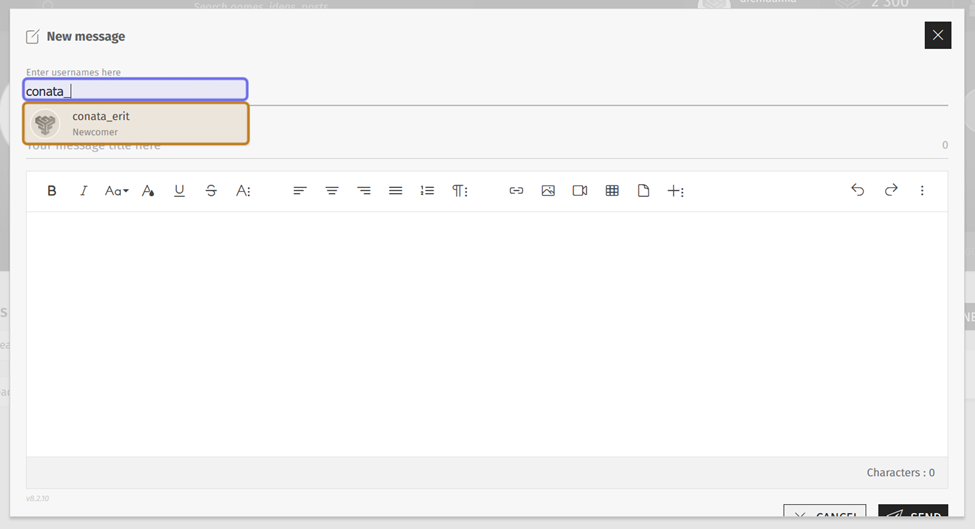
A “New message” window is pictured above. The field where you type a message recipient username is highlighted in purple. A matching username is highlighted in yellow.
You can also send a message by clicking on “Send Message” on a member’s public profile. The member’s username will automatically be included in the list of recipients.
Note: You can add additional recipients when you send a message from a member’s profile by typing additional usernames in the “Enter usernames here” field.
Enter a message subject in the field labeled “Your message title here.”
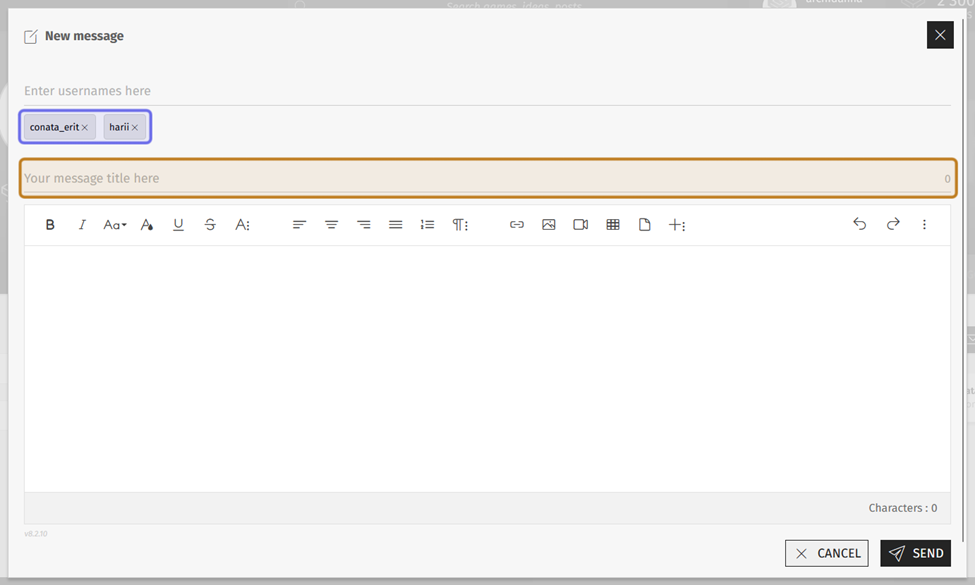
In the “New message” window pictured above, the recipients are highlighted in purple. The field for a message subject is highlighted in yellow.
Then, type your message in the text editor. You can use the toolbar to format text and add media to the message.
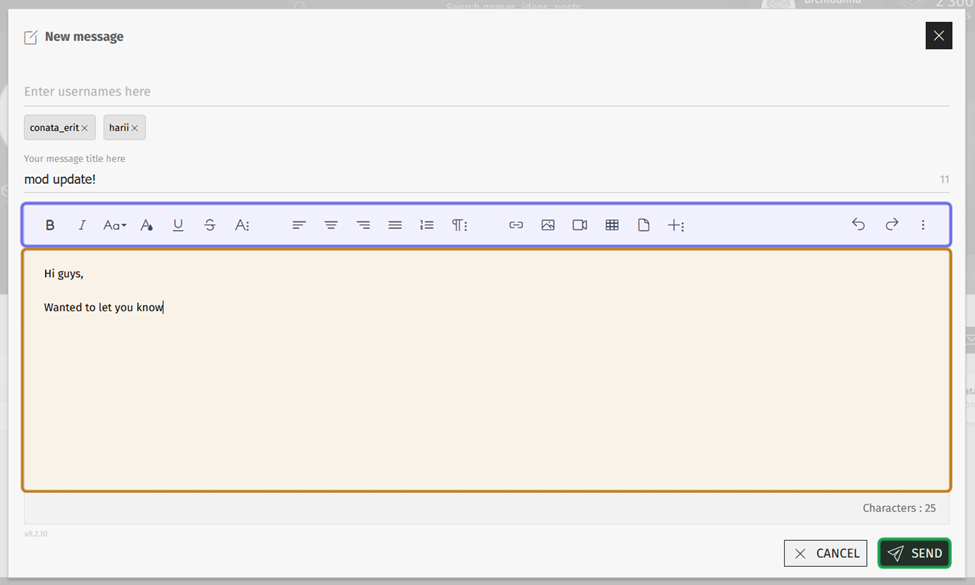
The text editor toolbar is highlighted in purple above. The text field where a sender can type their message is highlighted in yellow. The “Send” button at the bottom of the window is highlighted in green.
When your message is complete, click the “Send” button at the bottom of the “New message” window.
If you no longer wish to send the message, you can click “Cancel” or the “X” in the top-right corner of the window.
Note: If you cancel a direct message, a draft will not be saved.
Reply to a message
To reply to a direct message, navigate to your inbox. You will see collapsed direct message threads that you have sent or received.
Click on a message subject to expand that direct message thread.

A member’s inbox is shown above. A received direct message is highlighted in purple.
After the message thread is expanded, click “Reply” at the bottom of the thread.
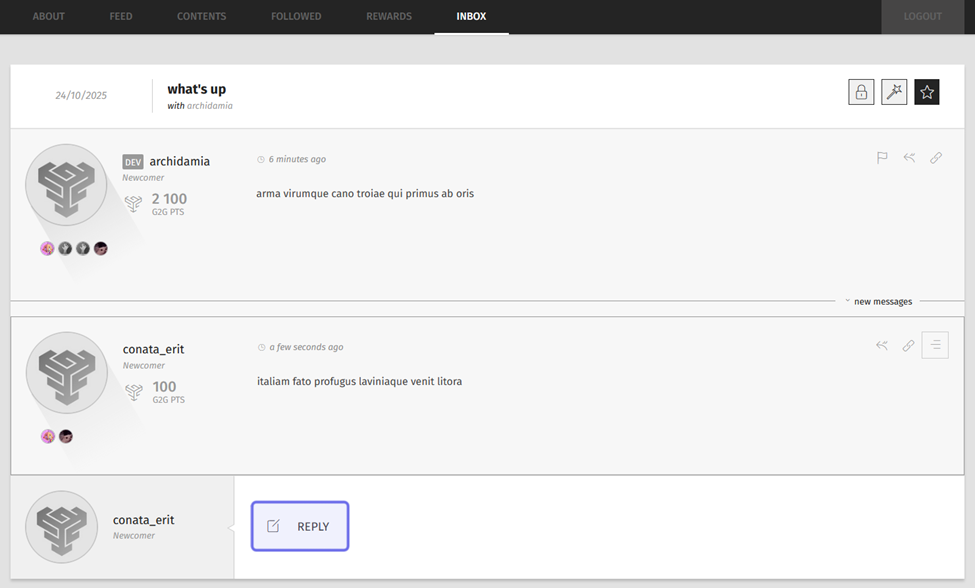
An expanded direct message is shown above. The “Reply” button is highlighted in purple.
Type your reply in the text editor that appears below the thread. You can use the toolbar to format text and add media to the message.
When your message is complete, click the “Post” button below the text editor.
If you no longer wish to send your reply, you can instead click the “Cancel” button or the “X” above the toolbar on the right.
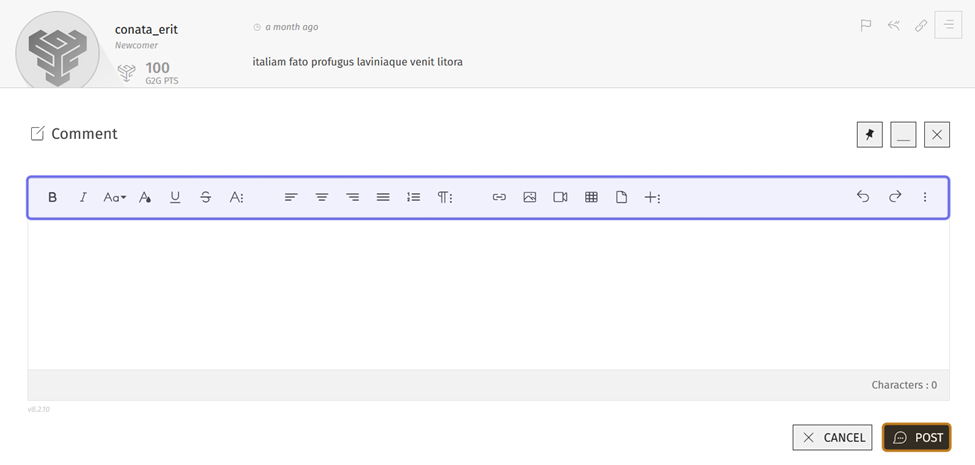
The text editor toolbar is highlighted in purple above. The “Post” button is highlighted in yellow.