
How to create a contest ?
Who can create a contest?
Admins and Devs can create a contest.
Where can I create a contest?
You can create a contest in the back office.
Select a Universe with the “Contest” feature enabled from the “Manage” menu.
Click “Contests” in the Universe menu.
Once on the “Contests” page, click “Create Contest.” The “Create Contest” button is on the right-hand side of the header.

A “Contests” page header is shown above. The “Create Contest” button is outlined in purple.
How do I create a contest?
Clicking “Create Contest” will take you to the “New Contest” page. There are two fields on the left: “Title” and “Content.”
Enter a title for the contest in the “Title” field. The contest will be listed by its title on the front-end “Contests” page.

A contest’s front-end listing is shown above. The title and description are highlighted in purple.
Enter a short description for the contest in the “Content” text box. A toolbar provides limited formatting options.
The text entered in the “Content” field will appear directly below the title when the contest is listed on the front end. Space is limited, so we recommend including only one or two key points in your summary.
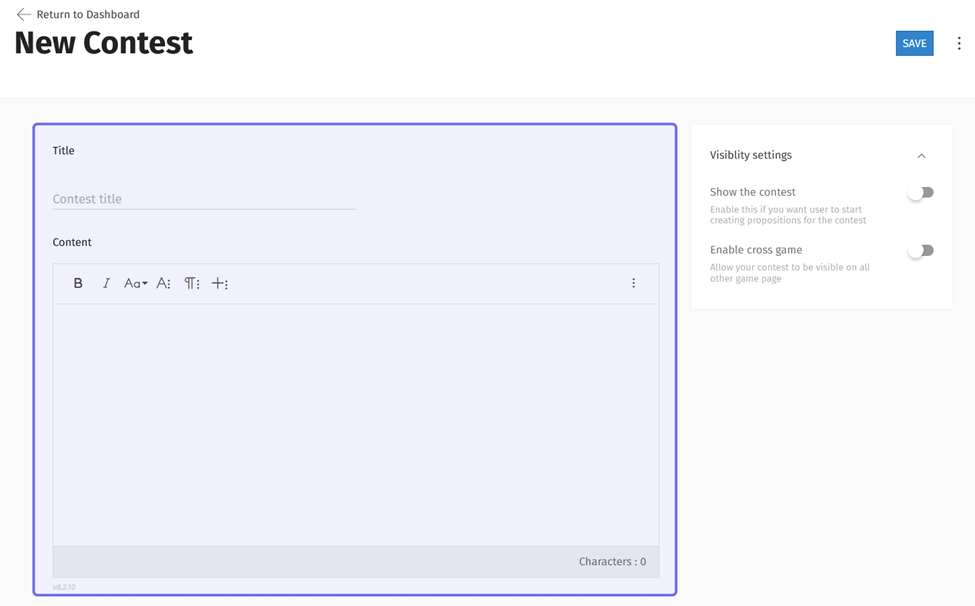
The “Title” and “Description” fields on a “New Contest” page are shown highlighted in purple.
Set up your contest using the “Visibility settings” toggles on the right side of the page. Click to toggle on and off.
To show a contest on the front end, toggle on “Show the contest.” When this is toggled to the right, additional toggles will appear to set up the contest.
Toggle on “Allow proposal creation” to launch the contest. When this toggle is set to the right, registered users can make contest submissions by clicking “Submit Proposition” in the contest on the front end. The process of submitting a proposition is similar to creating a thread.
If you want members to be able to vote on propositions, toggle on “Enable upvotes.” When the contest is closed, the contest winner will be determined by the total number of G2G points of all the users who upvoted a proposition.
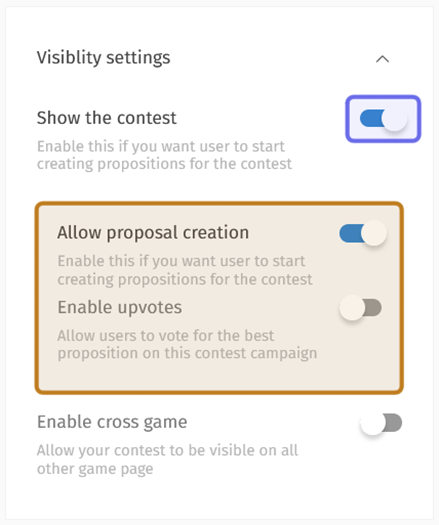
A contest’s “Visibility settings” is shown above. “Show the contest” is toggled on and highlighted in purple. The additional options are highlighted in yellow.
Every contest is associated with a single Universe, but you can opt to have the contest displayed across all Universes that are under the same Studio and that have the “Contests” feature enabled.
To list the contest on all front-end “Contests” pages, toggle on “Enable cross game.”
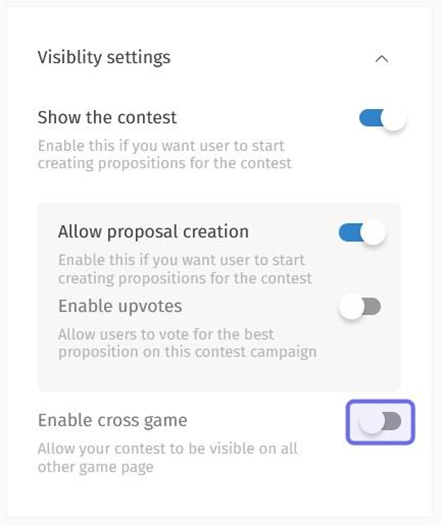
The “Enable cross game” toggle is highlighted in purple above.
Click “Save” to create your new contest. If “Show the contest” is toggled on, it will be visible on the front end.
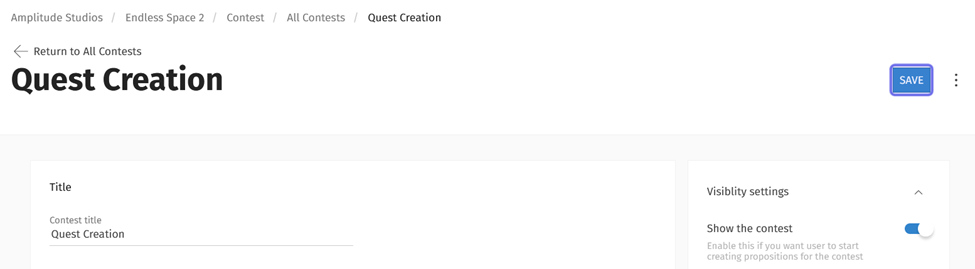
The “Save” button is located in the “New Contest” page header. The button is shown highlighted in purple above.
Note: We recommend adding a proposition to the top of the contest where you outline the contest rules and explain how submissions will be used.

An empty contest on the front end is shown above. The “Submit Proposition” button is highlighted in purple.
To add a contest introductory post, click “Submit Proposition.” Craft a post in the text editor that explains the contest rules, notes how the community can be involved, and provides an example or template as needed. Once you’ve shared the post, stick it to the top of the contest using the pin icon in the top right of the proposition to ensure that everyone sees the introductory post.

The “Sticky” button at the top of a proposition is outlined in purple above.
Can I edit a contest?
You can edit a contest at any time in the back office.

In the example above, the contest title was edited to indicate that the contest has been closed.
Return to the back office “Contests” page where you created the contest. Select the “All Contests” tab in the header. Then, search for the contest that you want to edit.
Click on the title of the contest that you want to edit. The contest will open and display the same fields used for contest creation.
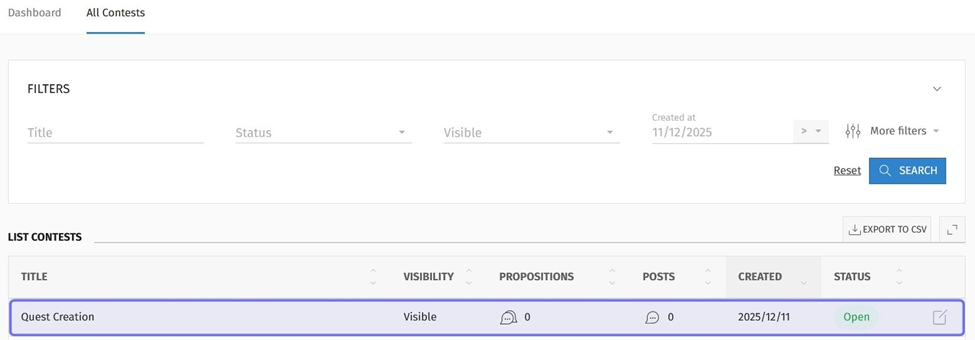
The “All Contests” tab is shown above. A contest is highlighted in purple. Clicking on the contest will take you to the individual contest’s back office page.
Make the desired edits. Both text fields and all toggles can be edited.
Once you are done editing, click “Update” in the top right to confirm.

The “Update” button is on the right of the header and shown here outlined in purple.
What can I see on a contest dashboard?
Each contest has a dashboard. To view an individual contest’s dashboard, return to the back office “Contests” page where you created the contest.
Select the “All Contests” tab in the “Contest” page header. Scroll through the list of contests or search for the contest.
Click on the title of the contest that you want to view. The dashboard sits below the “Title” and “Content” fields.
The dashboard has four elements. The largest shows a graph of views over time. You can set the time range the graph displays using the “Start Date” and “End Date” fields in the top right of the graph.
To specify a time range, click on the “Start Date” field. A date picker will open. Click on the earliest date that you want the graph to display. Then, click the “End Date” field and select the latest date that you want the graph to display.
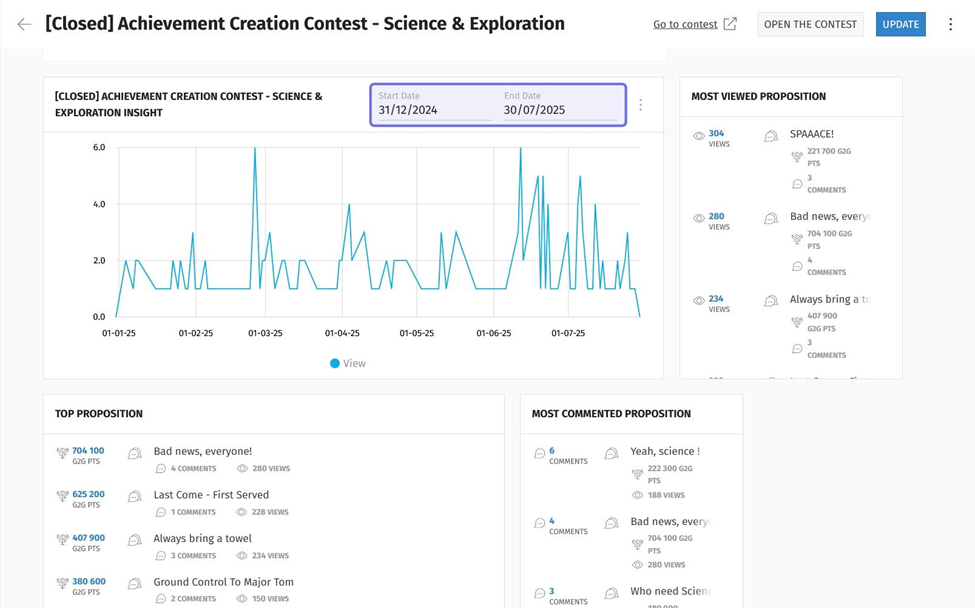
An individual contest dashboard is shown above. The date fields that can be used to specify a time range for the graph are highlighted in purple.
The other three elements provide a quick summary of the most popular propositions. Each block displays submitted propositions ordered by a specific metric.
The dashboard shows the following blocks:
“Most viewed proposition,” which orders propositions by views,
“Top Proposition,” which orders propositions by the G2G points earned from upvotes,
“Most commented proposition,” which orders propositions by the number of comments.
How do I close or delete a contest?
You can close or delete a contest from the individual contest page in the back office. To find that page, first return to the back office “Contests” page where you created the contest.
Next, select the “All Contests” tab in the “Contest” page header. Scroll through the list of contests or search for the contest. Click on the title of the contest you want to close or delete.
There is a button labeled “Close the contest” in the top right next to the “Update” button. To close the contest, click “Close the contest.” When a contest is closed users are not able to add new propositions, but are still able to upvote.
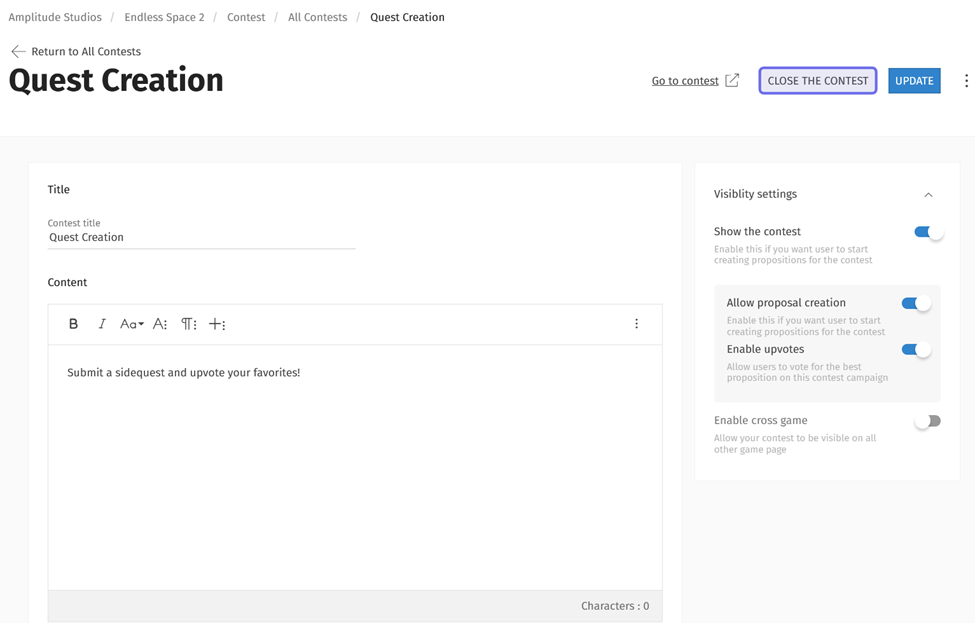
The “Close the contest” button on an individual contest page is shown outlined in purple above.
The contest status will be updated to “Closed” under the “All Contests” tab.
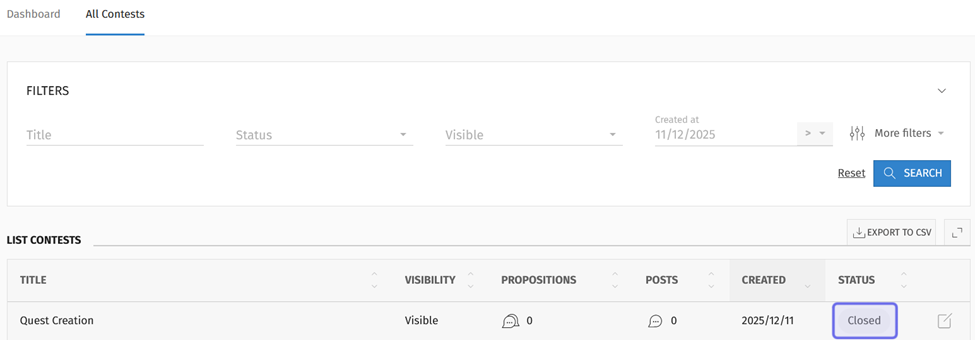
A contest under the “All Contests” tab is shown above. The contest status, “Closed,” is highlighted in purple.
If you need to re-open the contest, follow the same process. The “Close the contest” button will now read “Open the contest.” Click that button to re-open.
Delete a contest
To delete a contest, click the three vertical dots to the right of the “Update” button.

The header of an individual contest page is shown above.
The three dots are highlighted in purple on the right.
The option to “Delete” will drop down. Click “Delete.”
A window will pop up asking you to confirm that you want to delete the contest. Click the “Delete” button to confirm.
If you no longer wish to delete the contest, click “Cancel” instead.
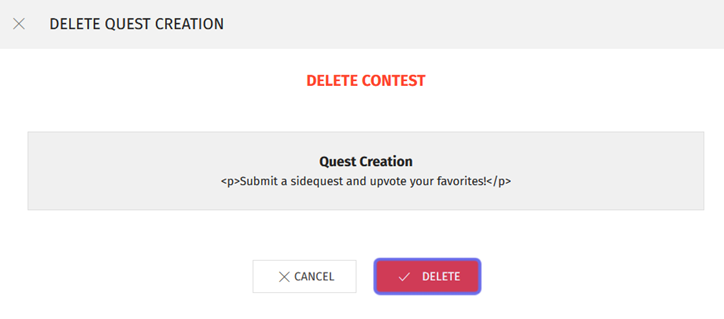
The window shown above asks for confirmation that you want to delete the contest.
The “Delete” button is outlined in purple.