
How to promote rewards ?
Who can promote rewards?
Admins and Devs can promote rewards.
Where can I promote rewards?
Navigate to the back office to promote a reward.
Find the “Gamification” section in the back office “Manage” menu on the left-hand side. If the “Gamification” section is collapsed, click “Gamification.”
Click “Rewards.” This will take you to the “Rewards” page.
Click on the “Promoted Rewards” button on the right-hand side of the “Rewards” page header. This will open the “Promoted rewards” settings.

The “Promoted Rewards” button in the “Rewards” page header is outlined in purple above.
What are promoted rewards?
Promoted rewards introduce site visitors to the kinds of gifts available on your platform by displaying a select number of comic, game, and digital extra rewards to entice visitors to sign up.
You can select rewards to promote to users who are not logged in on the front end. When promoted rewards are active, there will be a gift icon in the navigation bar to the left of the “Login” button. The icon will be overlaid with the number of promoted awards available for logged in users to claim. A familiar “notifications” layout is used to invite users to click.

The gift icon in the navigation bar is highlighted in purple.
When a user clicks on the gift icon, a section displaying your promoted rewards drops down. Unregistered users are invited to register.
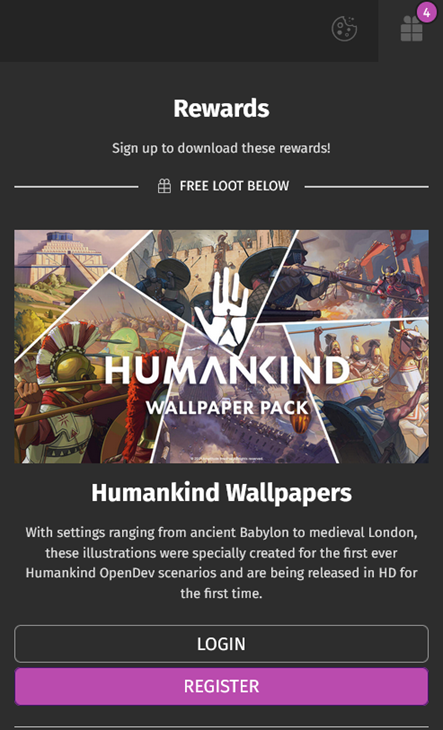
A promoted reward as seen on the front end is shown above.
Note: You can also highlight rewards for all site visitors by adding a “Rewards” CMS block.
How do I promote rewards?
Click the toggle at the top of the “Promoted rewards” settings in the back office to turn on promoted rewards. The toggle is set to the right when active.
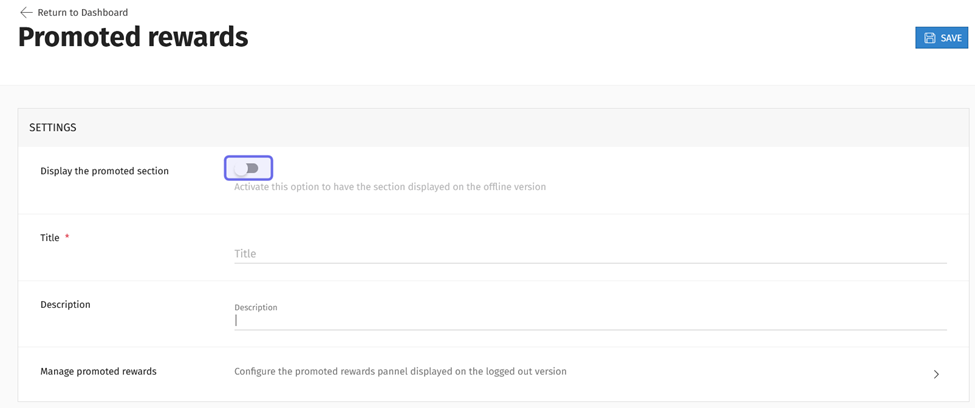
The “Promoted rewards” settings are pictured above. The toggle to display promoted rewards is highlighted in purple. The toggle shown is off.
Enter a section title in the “Title” field. This will appear at the top of the panel that appears when a visitor clicks on the gift icon.
Enter a short description in the “Description” field. This will appear directly below the title.
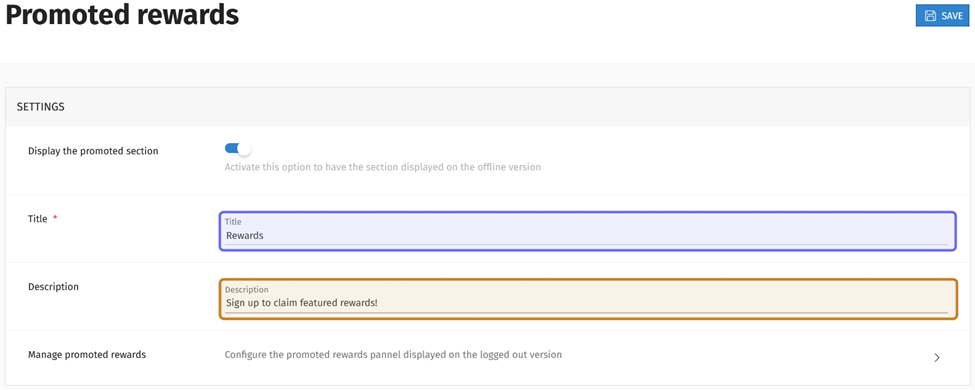
The “Promoted rewards” settings are pictured above. The “Title” field is highlighted in purple. The “Description” field is highlighted in yellow.
Before selecting rewards to promote, click “Save.” The “Save” button is in the top-right.

The “Save” button in the “Promoted rewards” header is outlined in purple above.
To choose the rewards that will be displayed, click the arrow in the row labeled “Manage promoted rewards.”
This takes you to a new page with two sections. At the top are the fields to add a new reward to promote. Below the “New Rewards” section is a list of your currently promoted rewards.
Click the dropdown labeled “Choose your reward” to add a reward to the list. The dropdown lists all of the rewards that you have created. Scroll and select the name of the reward that you want to promote.
Note: You cannot create a reward using the “New Rewards” section on the “Promoted Rewards” page. Click “Rewards” in the “Manage” menu to create a game, comic, or digital extra reward.
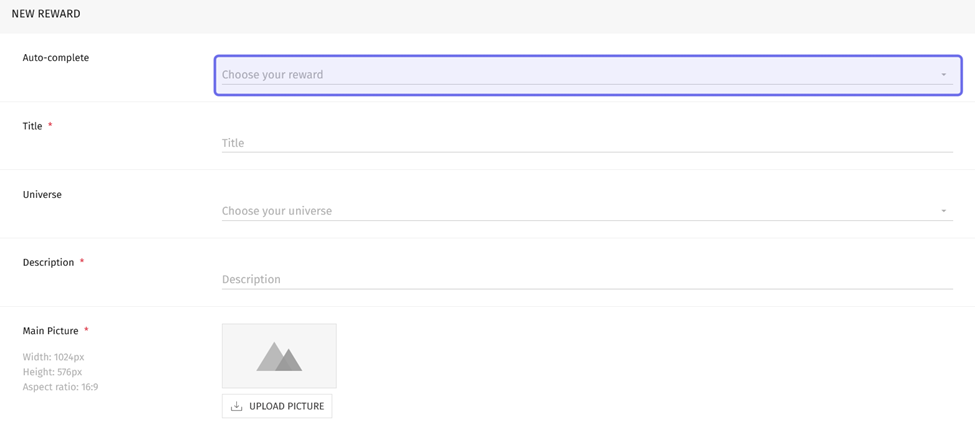
The “New Reward” section where you can add a promoted reward is shown above. The “Choose your reward” dropdown is highlighted in purple.
When you select a reward from the dropdown, the fields will auto-populate with the information entered when the reward was created.
Edit the “Title,” “Universe,” and “Description” fields as needed. The title and description will be visible on the front end.
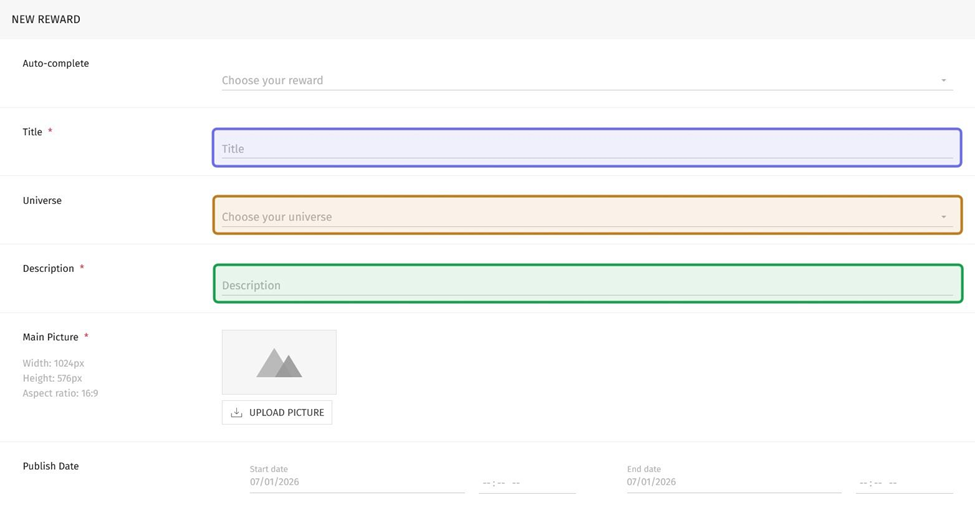
The “New Reward” section where you can add a promoted reward is shown above. The “Title” field is highlighted in purple. The “Universe” dropdown is highlighted in yellow. The “Description” field is highlighted in green.
To change the image, click on the “Edit” button in the top-right of the image. Clicking “Edit” will open a file browser. Select the image you want to upload. A promoted reward main picture must be 1024x576px.
If there is not already an image, you can upload an image by clicking the “Upload Picture” button.
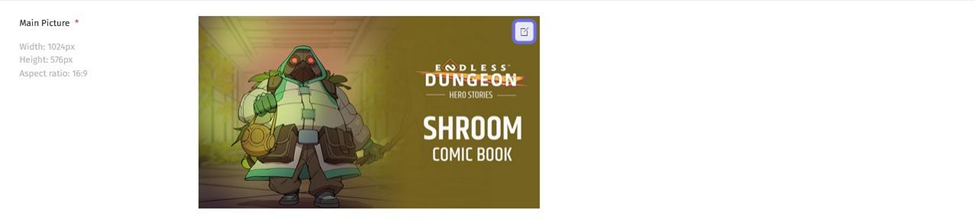
A reward image in the “New Reward” section is shown above.
The “Edit” button is highlighted in purple.
You can specify a time range for the reward to be promoted. To schedule the reward to be promoted at a future time, click on the “Start date” field. A date picker will drop down.
Select the date you want the reward to appear in the “Promoted Rewards” section on the front end.
Note: Neither a start date nor an end date are required. These fields only affect the length of time that the reward is promoted to visitors who are not logged in.
The field to the right of “Start date” should now display “12:00 AM.” If you want the promoted reward to be displayed at midnight, leave this field as is. Otherwise, enter a time the promoted reward will be displayed.

The “Publish Date” row in the “New Reward” section is shown above. The “Start date” field is highlighted in purple. The field to specify a time is highlighted in yellow.
To stop promoting a reward at a scheduled time, click the “End date” field. A date picker will drop down.
Select the date that you want the reward to no longer be displayed on the front end as a promoted reward.
The field to the right of “End date” should now read “12:00 AM.” If you want the reward to stop being promoted at midnight, leave this field as is. Otherwise, enter the time you want the reward to stop being promoted.
Click “Add” to promote the reward. The reward will be added to the list of promoted rewards at the bottom of the page and visible to users who are not logged in on the front end.
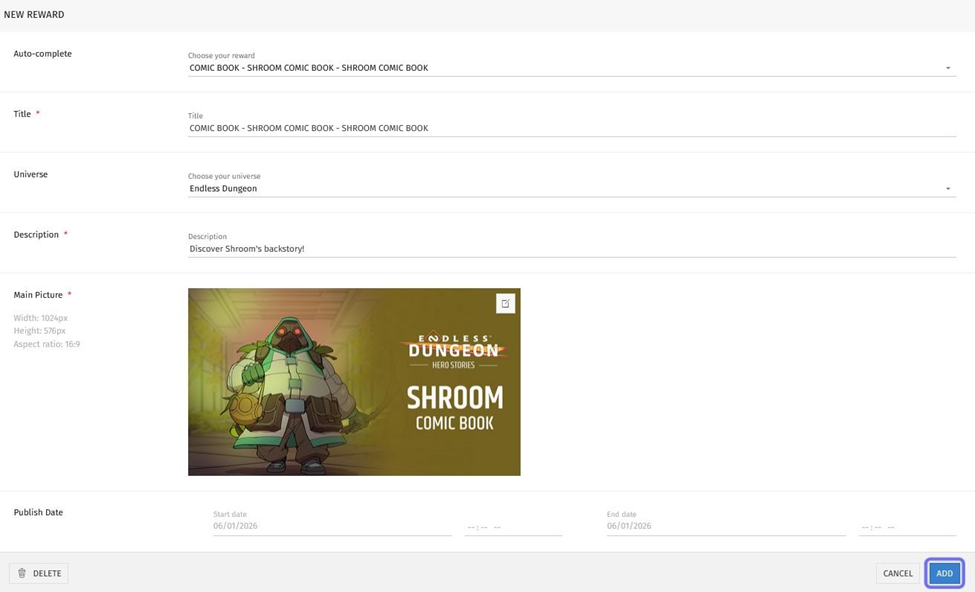
The full “New Reward” section is pictured above. The “Add” button is outlined in purple.
How do I stop promoting a reward?
You can remove a reward from the list of promoted rewards by clicking on the delete icon or by editing the end date.
To delete a reward, find the reward in the list at the bottom of the “Promoted Rewards” page.
The rightmost element of the reward’s row is a trash can icon. Click the trash can icon to delete the reward from the list.
Note: Deleting a reward on the “Promoted Rewards” page only stops the reward being displayed to unregistered users on the front end. The reward will still be accessible for logged in users.
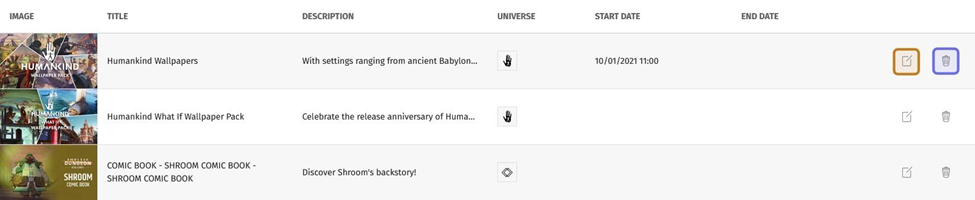
A list of promoted rewards is shown above. The “Edit” button for the first reward is highlighted in blue. The “Delete” button is highlighted in yellow.
To edit a promoted reward’s end date, click the “Edit” button to the left of the trash can icon. The fields in the “New Reward” section will populate with that reward’s information.
Click on the “End date” field to add or update the end date. A date picker will drop down. Select a date from the calendar.
The field to the right of “End date” should now display “12:00 AM.” If you want the reward to stop being promoted at midnight, leave this field as is. Otherwise, specify a different time for the reward to stop being promoted.
Then click the “Update” button beneath the time field. The reward will stop being displayed to unregistered users on the front end at the date and time selected.

A promoted reward’s “End date” and time fields are highlighted in purple above. The “Update” button is highlighted in yellow