
How to navigate the “Bugs” homepage ?
What is the “Bugs” homepage?
The “Bugs” homepage is the landing page for the “Bugs” feature. There is a “Bugs” homepage for each Universe with the “Bugs” feature enabled.
All users can search for a bug, see highlighted bug reports, and view recent and popular bug reports in the “What’s New?” section.
When logged in, you can also view your activity on this Universe’s “Bugs” feature in the “My Dashboard” section. You can see bugs that you have followed under “Followed Bugs.”
Where can I find the “Bugs” homepage?
Find the Universe you want in the front-end Side Navigation.
If a Universe has the “Bugs” feature enabled, you will see “Bugs” in the Universe’s sub-menu. Click on “Bugs” to go to the “Bugs” page.
You can also reach the “Bugs” page by clicking on “Bugs” in a Universe’s page menu.
What can I find on the “Bugs” homepage?
Search and Create
At the top of the “Bugs” homepage is a search bar. You can use this search bar to search bug reports by title keyword.

The search bar on the “Bugs” homepage is highlighted in purple above.
To search, type a word or phrase into the search bar. If there is a bug report that has a matching word or phrase in its title, it will appear in a dropdown below the text field. Click on the title in the dropdown to go to the bug report.
Note: Your keyword or phrase needs that same spelling and order to match a title.The search is not case sensitive.
You can also search for bug reports by browsing categories.
A series of categories are located below the search bar. Click on any category to browse bugs reported in that category.
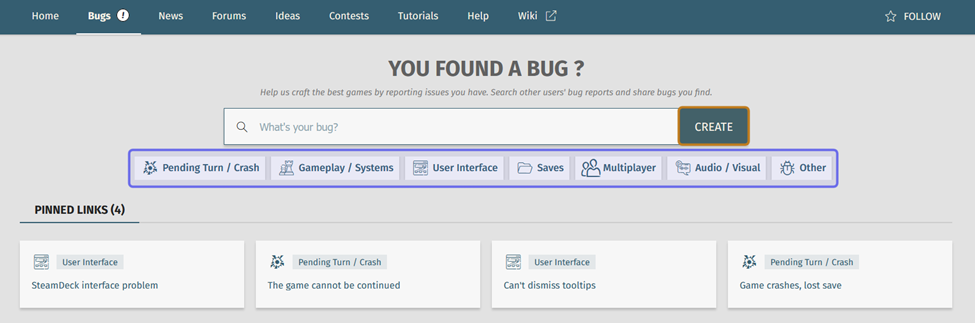
The categories found on the “Bugs” homepage are highlighted in purple above.
Note: Admins and Devs can manage categories in the back office.
Search to see if someone else has already reported the bug you encountered. If you find a matching report, consider adding a reproduction.
If you don’t see a matching title, you can begin the process of reporting a bug by clicking on “Create” to the right of the search bar.
Pinned Links
The “Pinned Links” section is below the search bar. This section displays bugs that have been highlighted by the developers.
Each highlighted bug is represented by a card that displays the bug’s category and title. Clicking on a card redirects to that bug.
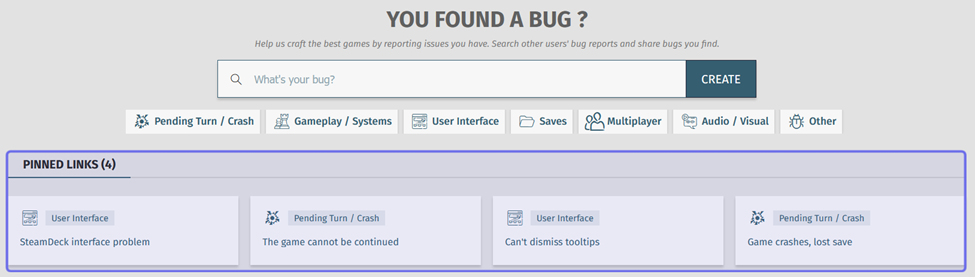
The “Pinned Links” section is shown highlighted in purple.
The “Pinned Links” section can display up to eight bugs. If more bugs have been highlighted, pagination will appear that allows users to view additional highlighted bugs using the arrows in the top left.
If no bugs have been highlighted, the “Pinned Links” section will not be displayed to users.
What’s New?
The “What’s New?” section provides easy access to recent and popular bugs. This section is below “Pinned Links” on the left-hand side. It has four tabs:
The “New Bugs” tab displays bugs submitted this month with newest bugs at the top of the list.
The “Most Upvoted” tab sorts bugs from the most upvotes to the fewest upvotes.
The “Most Reproduced” tab shows the bugs that have been reproduced the most times. Bugs are listed from most reproductions to fewest.
The “Most Viewed” tab shows the bugs that have been viewed the most times by other users. Bug reports are sorted from the most views to the fewest
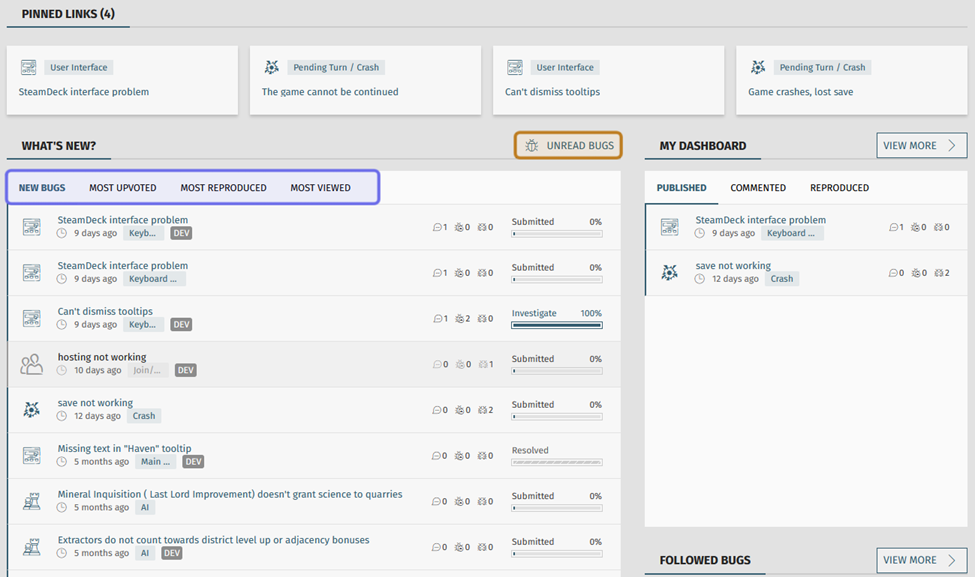
The “What’s New?” tabs on the “Bugs” homepage are highlighted in purple above. The “Unread Bugs” button is highlighted in yellow.
The “New Bugs” tab is shown by default. Click on a tab to view the sort under that tab.
If there are more than 14 bug reports under a tab, there will be pagination at the bottom of the section that will allow you to view bugs further down the list.
Click on any bug report in the list to go to that bug’s details page.
Note: Click the “Unread” button in the top right of the “What’s New” section to only show bugs that you haven’t viewed or that have updates you haven’t yet viewed.
My Dashboard
The “My Dashboard” section offers quick access to your activity in the “Bugs” feature. This section has four tabs:
The “Published” tab shows bug reports that you have submitted.
The “Reproduced” tab shows reproductions you’ve shared of bugs submitted by other users.
The “Commented” tab shows bugs that you have commented on.
The “Drafts” tab shows bug reports that you have saved without submitting.
Click on a bug listed in the “Published,” “Reproduced,” or “Commented” tab to be taken to that bug’s details page.
If there are more than eight bugs that belong under a tab, click “View More” at the top-right of the section to view the full list. Clicking “View More” will take you to your profile’s “Contents” tab.
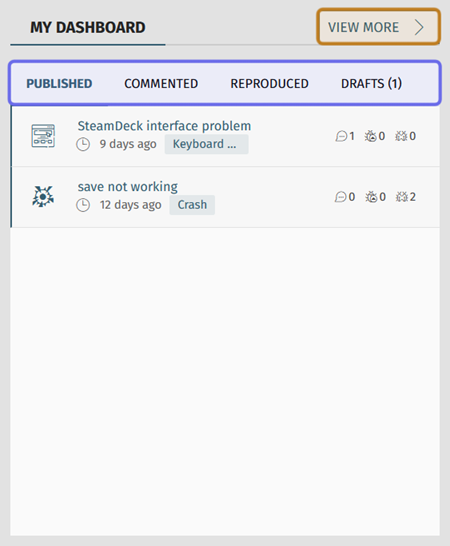
The “My Dashboard” section is pictured above. The tabs are highlighted in purple.
The “View More” button is highlighted in yellow.
If you have not drafted or commented on any bugs, you will only see the “Published” tab. If you haven’t yet reported any bugs, there will be a “Create Bug” button under “Published.” Click on “Create Bug” to report a bug.
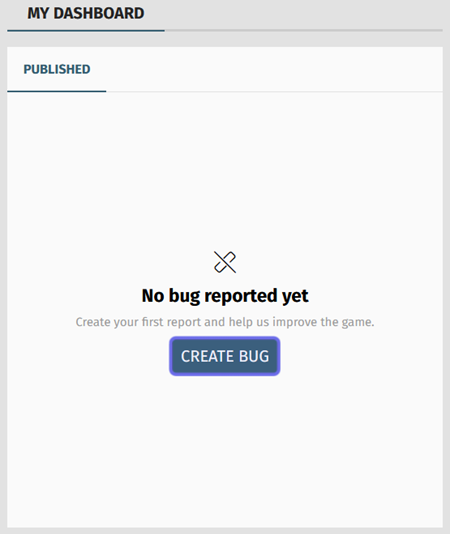
An empty “My Dashboard” with the “Create Bug” button outlined in purple is pictured above.
The “Drafts” tab can display up to eight saved drafts at a time. If you have saved more than eight drafts, view further drafts using the pagination in the top right.
To the right of each draft are three vertical dots. Click on the three dots to open a menu with options to interact with the draft.
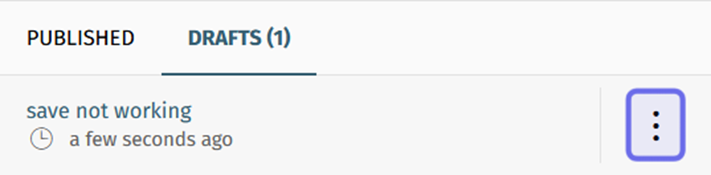
The button that expands the menu is highlighted in purple.
The menu has three options:
Click “Edit” to resume before publishing.
Click “Duplicate” to add a second copy of the draft bug to your drafts.
Click “Delete” to delete the draft
Followed Bugs
The “Followed Bugs” section appears below “My Dashboard.” It displays bug reports that you have followed. If you are not logged in, this section will not be visible.
After you follow a bug, it will be added to the “Followed Bugs” section and be marked “read.”
When a followed bug is updated– with a status change, new comment, or new reproduction –the bug will be marked as “unread.”
The “Followed Bugs” section displays the eight most recently created bugs. Click the “View More” button in the top right to view all bugs you have followed. This will take you to your profile’s “Contents” tab.
Note: You can unfollow a bug from the “Followed Bugs” section by clicking the filled-in star.
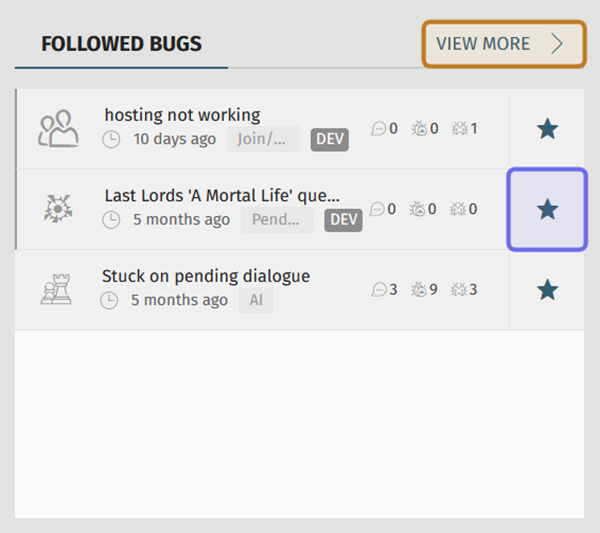
The “Followed Bugs” section is pictured above. Click the star highlighted in purple to unfollow. Click “View More” to view more bugs that you have followed.