
Manage User-Submitted Bugs
The “Bugs” feature is one of the tools to manage feedback from your community. It provides a central place for players to report issues and to check if a fix for their problem is already in progress.
We recommend activating the feature as soon as your community is ready to submit bugs, whether that’s during beta testing, early access, or the full release. Activating the feature early in the process keeps player-reported bugs centralized, reducing the chance that feedback is missed.
The “Bugs” feature can be a powerful tool for building community and encouraging player engagement. Players have the opportunity to feel listened to and a part of the process as they see their reports lead to fixes that improve the game.
The recommendations below can help you use the “Bugs” feature effectively.
Get ready to use the “Bugs” feature
Establish a follow-up process and bring stakeholders onboard. Managing bug reports effectively requires input from several team members, such as the QA team, the Dev team, the production team, and the game director. (The exact team members involved in the process will depend on the organization of your studio.) Successfully using the “Bugs” feature requires open communication between all stakeholders–including players–and a plan for how to handle the volume of bugs and define who has ownership on a day-to-day basis.
Add game versions and keep them up-to-date. Go to “Bugs” settings to add new game versions. Make sure the list of game versions reflects all currently accessible builds of the game. Having players choose an accurate game version gives you key data when investigating the cause of a bug and makes it easy to archive bugs that have been resolved in a more recent update.
Add distinct categories and subcategories. Work with your team to put together a list of useful categories for bugs. Examples of common categories include gameplay, crashes, and UI. Aim for category names that are clear to players and reflect the main sources of bugs in your game. Avoid categories that overlap. This will minimize the amount of time that is spent moving bugs.
Good category organization helps guide the division of labor within your team. For example, a bug listed under “Crashes” likely needs to be forwarded to a programmer, while a bug listed under “UI” should probably be forwarded to a UI/UX designer first.
You can add more specificity to categories by adding subcategories, such as breaking down “Gameplay” into encounters, resource management, and quests.Include category icons. Add icons to create a visual distinction between different categories. Using the same icons that you use for features in-game where possible will help players navigate and to know where to report an issue.

A category icon is highlighted in purple in the image above.
The upvote threshold
The upvote threshold helps you to prioritize bug reports and manage player expectations. When the number of upvotes on a bug report reaches the threshold, the status will automatically update to “Investigating.” You can customize the threshold in the back office.
Choose an upvote threshold that fits your community. Aim for a threshold that reflects the level of engagement from your players. Avoid extreme thresholds or thresholds that are difficult for your community to meet. You want to set a threshold that encourages players to see if their bug has already been reported and to upvote others’ reports, without discouraging use by creating a threshold so high that it feels difficult to reach.
Tell your community about the upvote threshold. Use the homepage text and informative card to communicate the upvote threshold to players. When players know that bug reports that meet the threshold receive priority, they have a reason to check if someone else has already reported the issue. Communicate your upvote threshold policy to manage expectations.
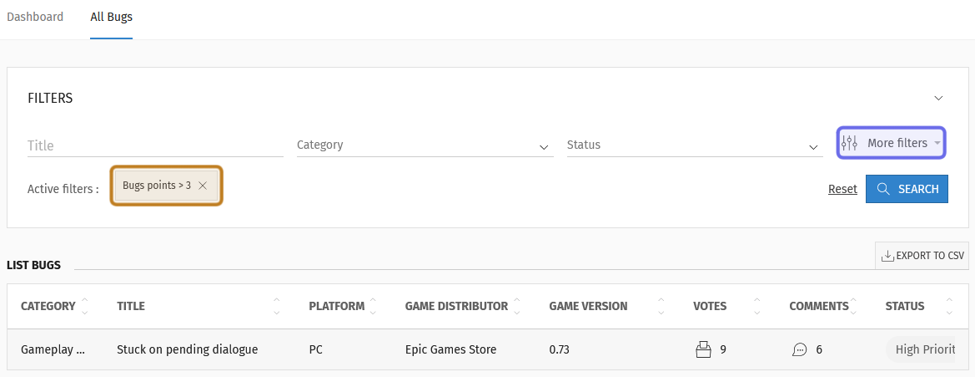
The list of bugs pictured above is filtered for bug reports that meet a certain upvote threshold. The “Votes” field is located under “More filters,” highlighted here in purple. The active filter is highlighted in yellow.
Communicate with your players
Direct players to the “Bugs” feature. Link to the “Bugs” feature through external channels, such as Steam and Discord, and even inside your game! The goal is to prevent large numbers of bugs being spread across multiple platforms.
Clearly explain the reporting process. Make sure to clearly communicate how the “Bugs” feature works. Emphasize the importance of searching for existing bugs, upvoting, and replicating issues in the "Bugs" homepage text. Ask for specific information during the reporting process to reduce the number of reports that require someone to follow up to ask for more details.
Add an informative card. The informative card is a call out on a bug report page intended to provide additional context or information to users, for example, a message that lets players know when they can expect their report to be addressed.
Note: You can use G2G’s gamification to reward players who submit multiple actionable bug reports by creating a badge that recognizes their effort and awards G2G points.
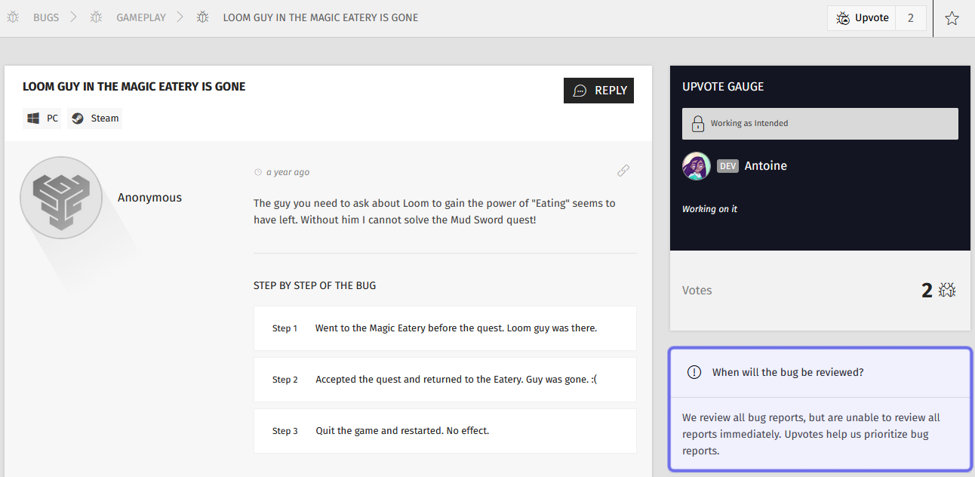
A front-end bug report is pictured above. The informative card is on the right, highlighted here in purple.
Maintaining the “Bugs” feature
Check for new bug reports daily. Review the bugs that players submit each day to catch any critical issues. Use the dashboard to help prioritize non-critical reports.
Pin commonly occurring or critical bugs. Devs and Admins can pin bug reports to the homepage. We recommend pinning bugs that are leading to many duplicate reports and critical bugs that are likely to cause high levels of frustration.
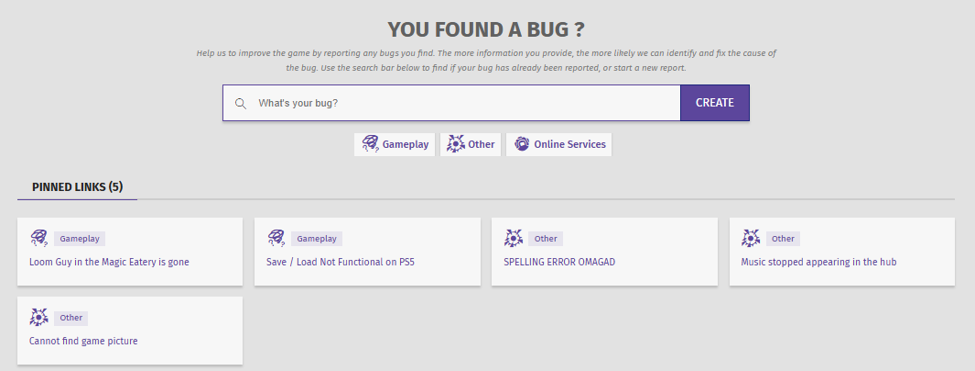
An example of a “Bugs” feature homepage is shown above with pinned bugs just below the search bar.
Follow up on reports regularly. You can filter bug reports in the back office to create a list of issues that need to be addressed based on different metrics. Click “Export to CSV” to download the list.
You can also get an overview of the bugs across all or a single Universe by clicking “Analytics” in the “Manage” menu. Under the “Bugs” tab, you can download a csv by hovering over a table and clicking on the three dots that appear. Use the filters under “Distribution” to customize your report.Make sure the “Bugs” feature stays well-organized. You can merge and move bug reports on the front end. Merging bugs lets you cut down on the number of duplicate reports. Moving bugs allows you to put a bug report into a category that’s a better fit.
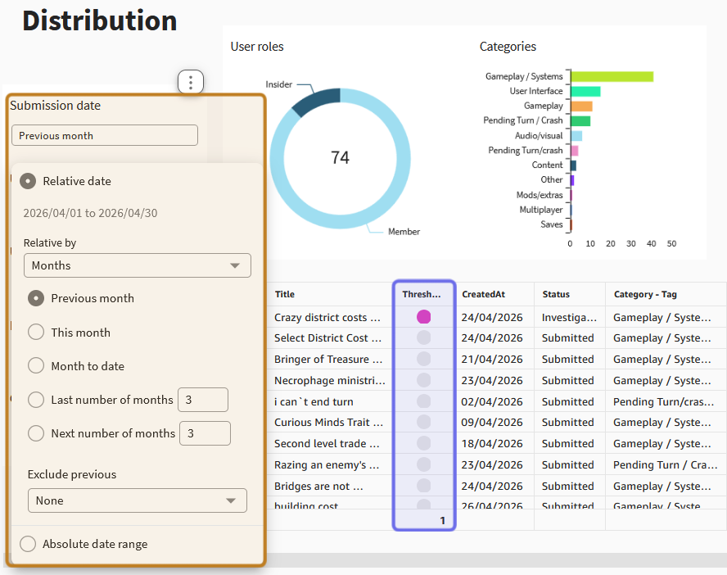
In the screenshot above, the “Submission date” filter is customized as shown highlighted in yellow. This can, for example, make it easy to quickly see which recently submitted bug reports have crossed the upvote threshold. The “Threshold” column is highlighted here in purple.
Process
The exact process for following up on bugs reported by players will depend on your team and the tools you use. We’ve included the example process below to use a starting point.
Filter and sort the list of bugs in the back office to prioritize reports to address. For example, click on the “Votes” column header to sort the list based on the number of upvotes.
View the bug report. You can view the bug report in the back office by clicking on the bug title in the list of bugs. If you exported a .csv, the front end link is included in one of the columns.
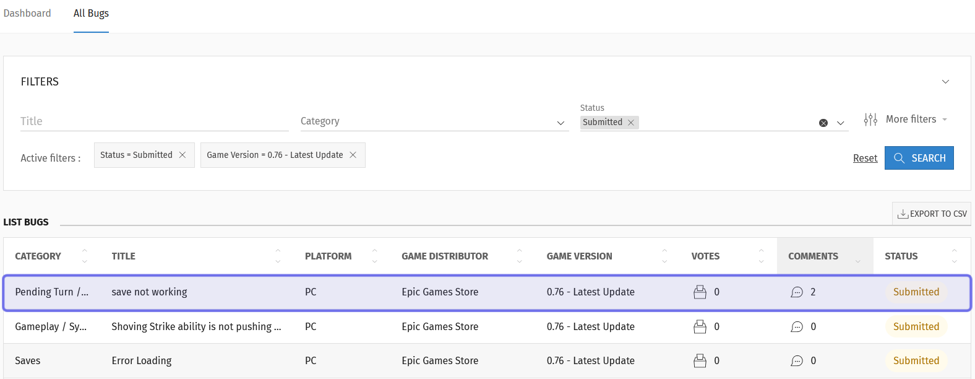
A filtered list of bugs in the back office is shown above. A single bug report is highlighted. Clicking on the row will take you to that bug’s summary.
Check that all the necessary information is included. If not, update the status to “Needs Info” or a similar status. In the description, make a specific ask of the user. If you aren’t able to investigate further at this time, return to Step 2.
Note: You can also update the status via the front end.
If you have all of the info you need to investigate, file the bug report on Jira (or your bug management platform of choice). Remember to double check that the bug does not already exist in the system. Copy the ticket link.
Go to the bug report on the front end. Paste the ticket link in the “Dev Follow-up” box. Include an internal note if needed.
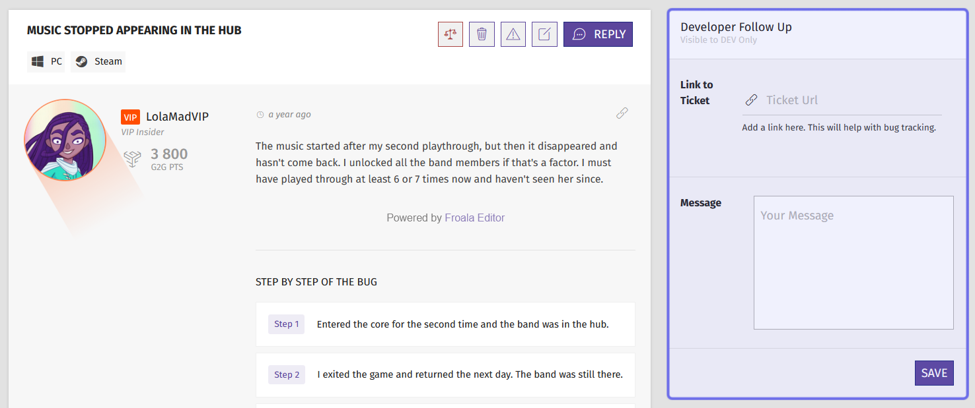
A bug report on the front end is shown above. The “Developer Follow Up” box where you can add a ticket link is highlighted in purple.
Update the status. Include a comment that provides a bit of extra context, or even just to thank the player!
Return to Step 2 and repeat the process with the next bug on your priority list.