
What roles can users have on G2G?
What is a role?
Games2gether (G2G) uses roles to manage permissions and access both in the back office and on the front end. A role typically indicates what function a user performs on the platform. The user is given permissions that allow them to perform that function and access to one or more Restriction Levels.
For example, a Mod is often an involved community member moderating on a volunteer basis. They have more permissions than a Member, such as being able to request a ban and view the “Moderation” dashboard on the front end. They have access to at minimum the same Restriction Levels as Members in any Universe they moderate and can typically access an additional Restriction Level specific to Mods.
Each registered user is assigned the Member role when they sign-up. Admins and Devs can assign users new roles in the back office. If none of the existing roles meet a Studio’s needs, custom roles can be created.
Note: A user can be assigned different roles in different Universes.
What roles are available on G2G?
The G2G platform has four default roles. Each of these roles relates to a core function and cannot be disabled or deleted.
Admins, Devs, and Mods will be indicated by a role tag on the front end. A custom role may or may not have a role tag.
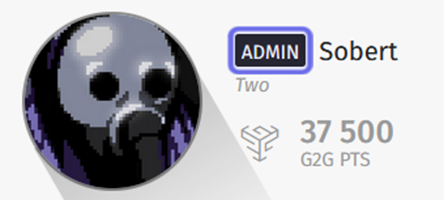
The role tag for an Admin is outlined in purple above.
It is located on the left side of a username.
Admin
An Admin has full site access and the broadest permissions. This role is intended for team members who are responsible for configuring and managing the platform.
Admins have access to the back office and can view all Universes, both published and unpublished. Through the back office, Admins can view data in feature dashboards, access user details, and customize the platform. They can also set up gamification and configure Universe and feature settings.
Everything on the front end is visible to Admins. That includes hidden badges, unpublished news articles, restricted forums, and shadowbanned or deleted posts. They can participate in the community with the same functionality as a Member, such as replying and upvoting, but also have access to moderation tools and specialized front-end actions, like setting a “Best Answer” to a question.
Since Admins can view all content and perform all available site tasks, this is far from an exhaustive list of everything that Admins can do!
Dev
The Dev role has the second highest level of access. This role is designed for team members who need access to features in the back office and to moderation tools, but are not responsible for configuring and managing the platform.
Note: Devs and Admins are the only default roles with back office access.
Through the back office, Devs can set up gamification, access feature dashboards, and post content on behalf of the Studio, such as news and votes. They can also assist Admins in updating content in CMS blocks and updating the statuses of bugs and ideas.
Devs have viewing access to the entire front end, except for any elements limited to the “Admin” Restriction Level. Unpublished Universes will be visible to Devs in the back office, but will not be visible on the front end. Like Admins, Devs can view shadowbanned and deleted content.
Devs can use the moderation tools and have access to the same special actions as Admins on the front end, like reviewing an idea or like setting a “Best Answer” to a question.
Devs can do all this and more to support Admins in the back office and represent the Studio on the front end.
Moderator
The Moderator role has access to the moderation tools and the front-end “Moderation” dashboard. It is intended for active, trusted community members who can help team members monitor discussions taking place on the platform. They can watch users, file infraction reports, and request bans.
Wherever there is a visibility setting that limits access by Restriction Level, it can be set to a Restriction Level of “Mod.” The element is then visible only to Mods, Devs, Admins, and any custom roles with access to the “Mod” Restriction Level. For example, you can use this setting to create a moderator-only forum where community Mods can clarify your Code of Conduct with team members.
Member
Member is the default role. All users are assigned the “Member” role when they first sign up. The “Member” role is intended for any user who wants to participate in the community. All site visitors can view “Public” content; Members can also follow, upvote, and reply. Some content, like CMS blocks and forums, may also be visible only to logged-in users.
Creating an account gives users access to the tools that let them contribute to a Universe’s community, such as posting and replying to threads, submitting ideas and bug reports, and creating tutorials.
Note: A Member must be in good standing to participate fully. They may have certain permissions revoked if they violate the community’s Code of Conduct.
Can I create a custom role?
If the default roles do not meet a specific need, your account team can help you set up a custom role.
A custom role gives you the chance to create a new tier of access and permissions. These additional permissions can be applied globally or be specific to a Universe or subset of Universes. Custom roles may be associated with new or existing Restriction Levels. When a new role is created, you can choose whether or not to use a unique role tag to identify users with the custom role.
The privileges of different roles can be assigned per Universe when a custom role is created. For example, you can assign a custom role, like “VIP,” to a subset of users who have access to a closed demo that is associated with a specific Universe. User information, such as a linked Steam account, can help you to assign this new role only to community members who have access to the closed demo. This group of users can be assigned additional privileges, such as viewing restricted forums and having access to additional version options in the “Bugs” feature, in the relevant Universe, and the same privileges as Members in all other Universes.
Speak to your account manager for more details for more information on how to set up a custom role.
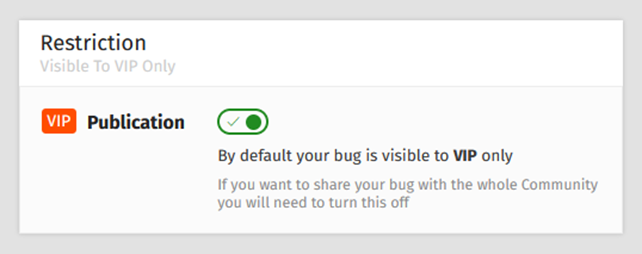
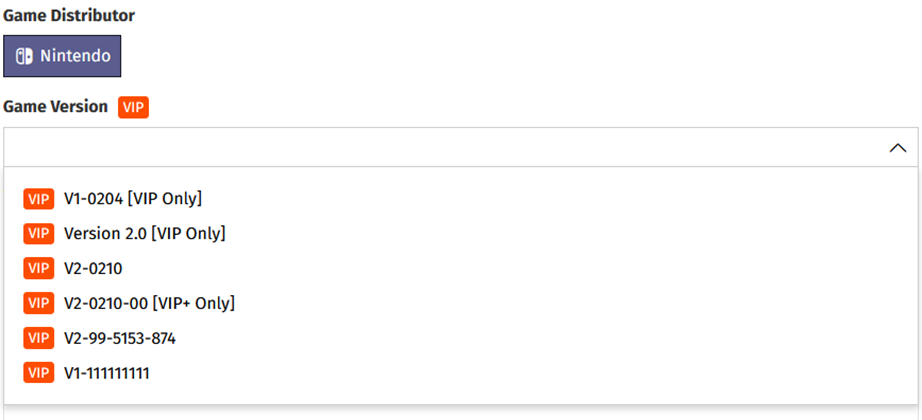
Examples of “VIP” content from the “Bugs” feature is shown above.
This bug report will be restricted to VIPs, Devs, and Admins.